
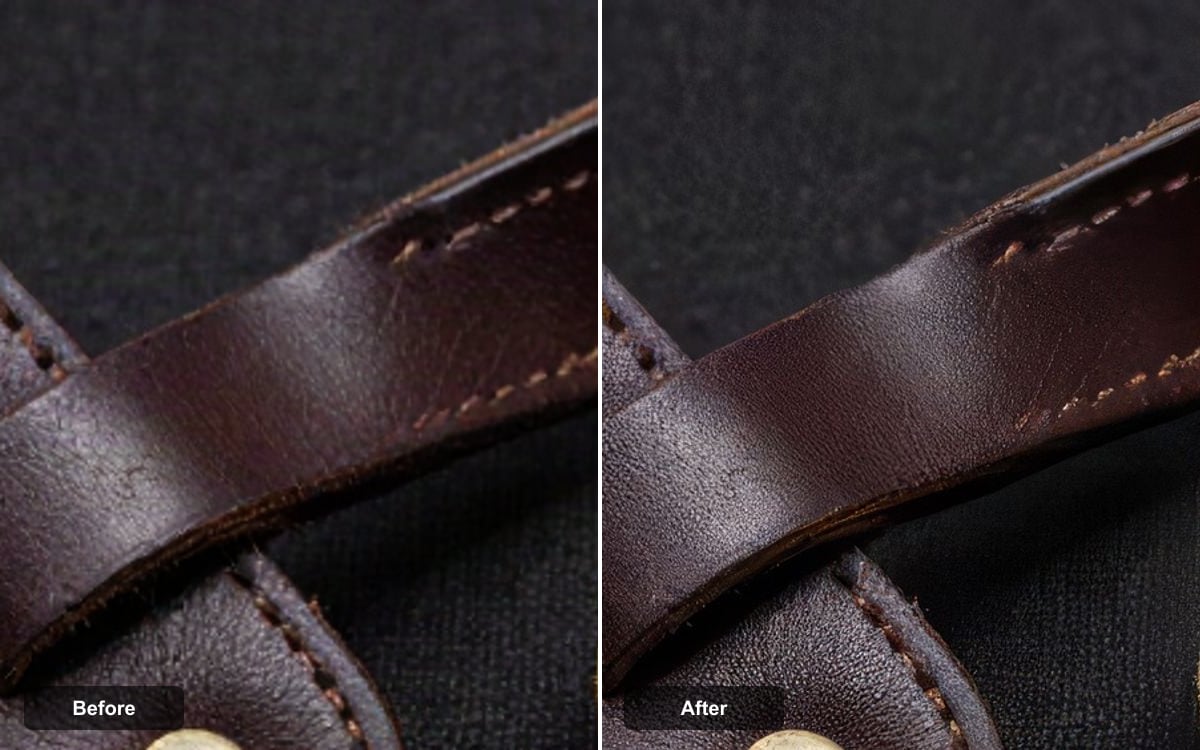
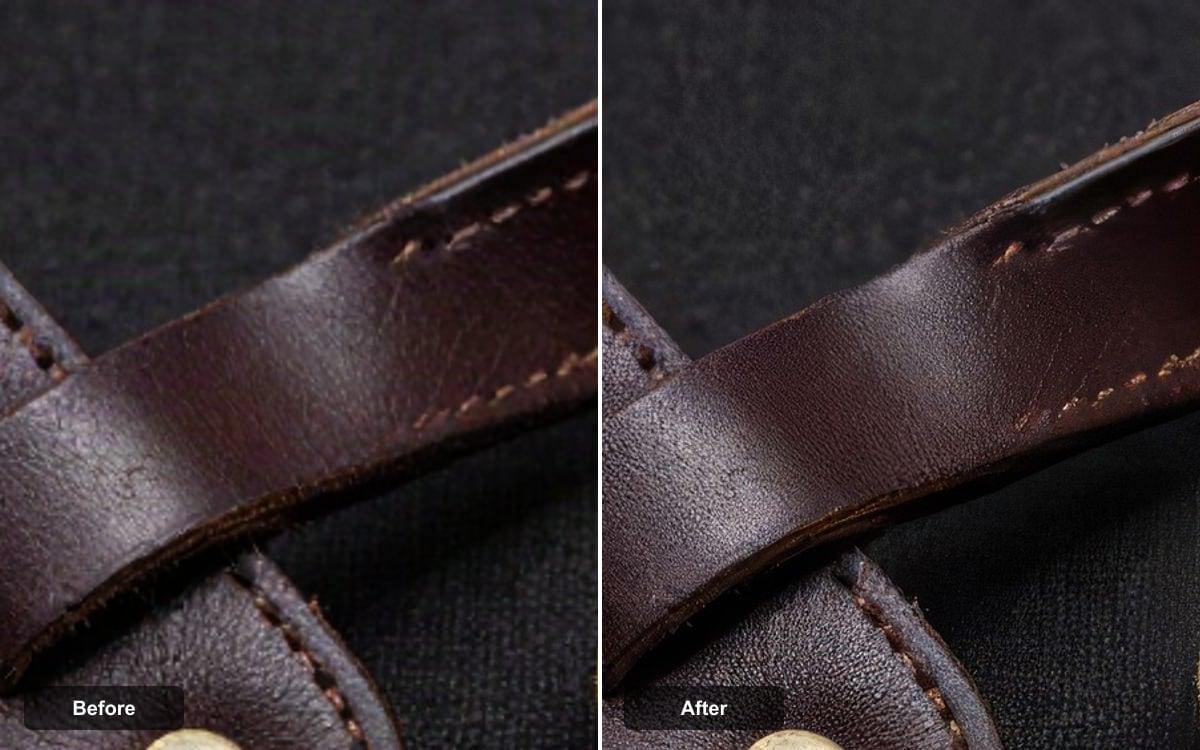
How it works
- 1Add your imageUpload it or pick one from your library.
- 2Pick the sizeChoose how much bigger in the settings.
- 3Run itNo prompt. The price follows the size of the result and is on the button.
What people make with it
Bring the file, get the result
Pick the tool, drop in your image or clip and it is done. You start with 1,000 free credits.
Get early accessGood to know
It keeps the content
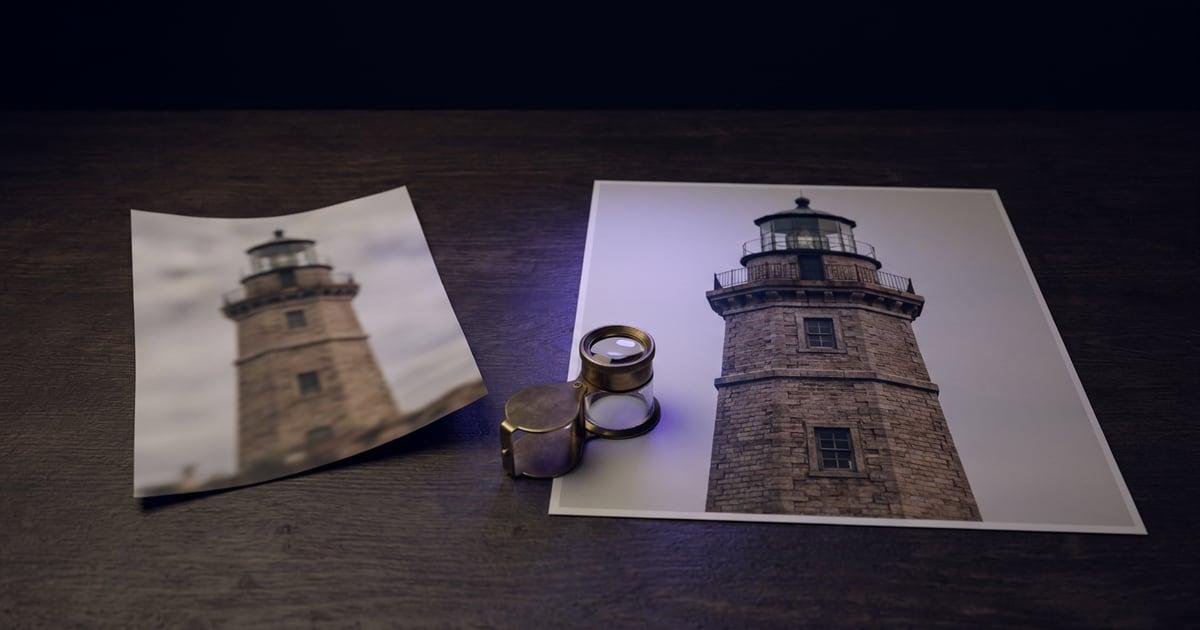
This upscaler enlarges what is there and does not invent new things.
Priced by size
The bigger the result, the more megapixels, the higher the price. You see it before you start.
Questions
Will it fix a blurry face?
It sharpens what is there. For an old, damaged photo, use Restore a photo first.
Can I upscale a video too?
Yes, with Upscale a video.
Bring the file, get the result
Pick the tool, drop in your image or clip and it is done. You start with 1,000 free credits.
Get early accessAlso in the studio
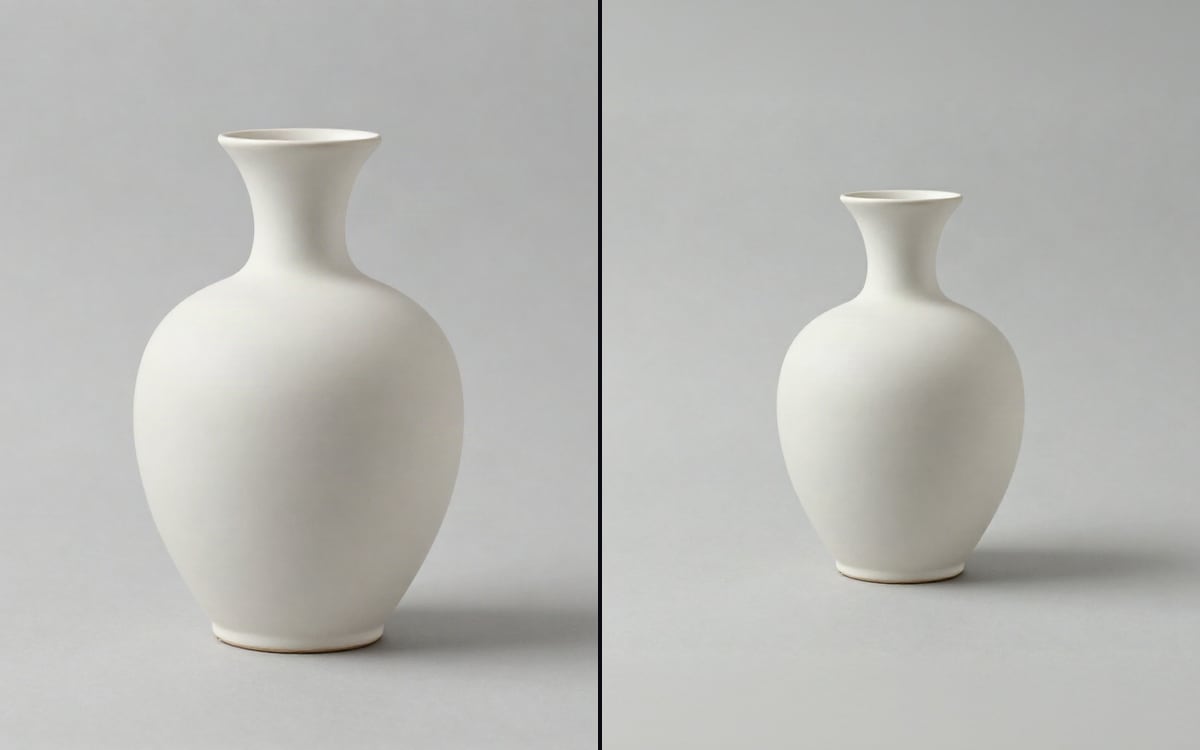 Expand imageWiden a picture beyond its edges. Pick the shape you need, no prompt required.
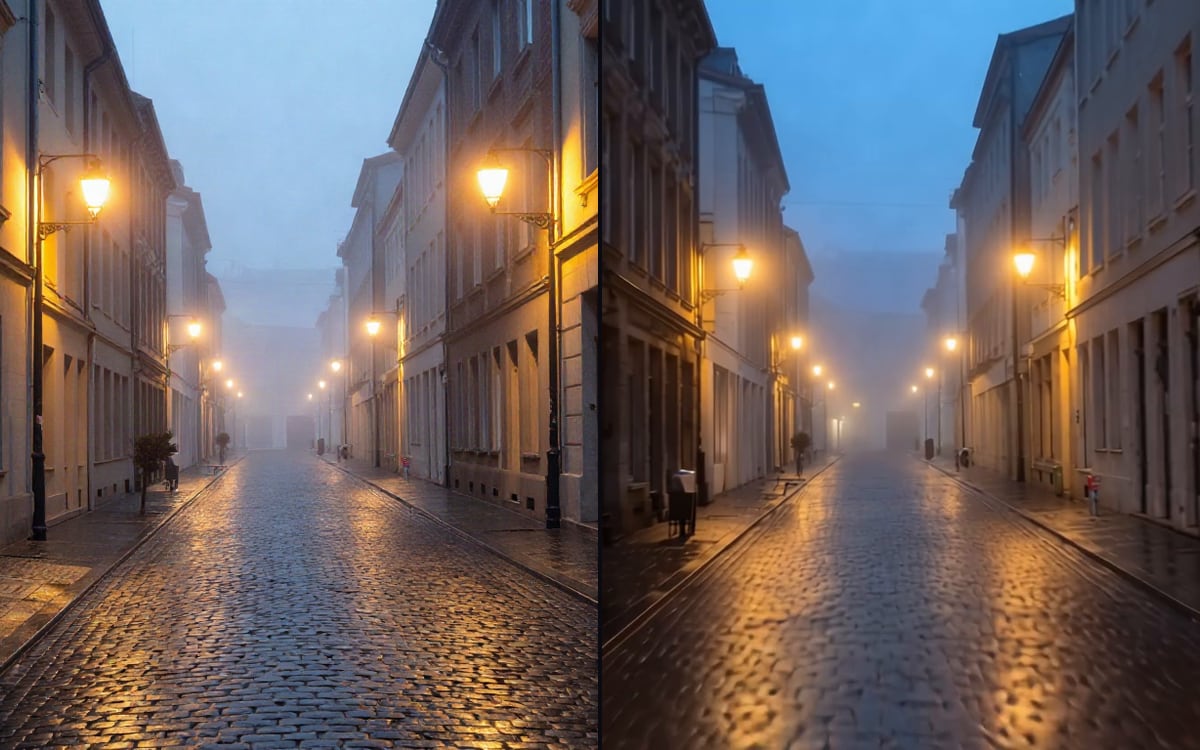 Transition between two framesGive a first frame and a last frame, and get the clip that runs between them.
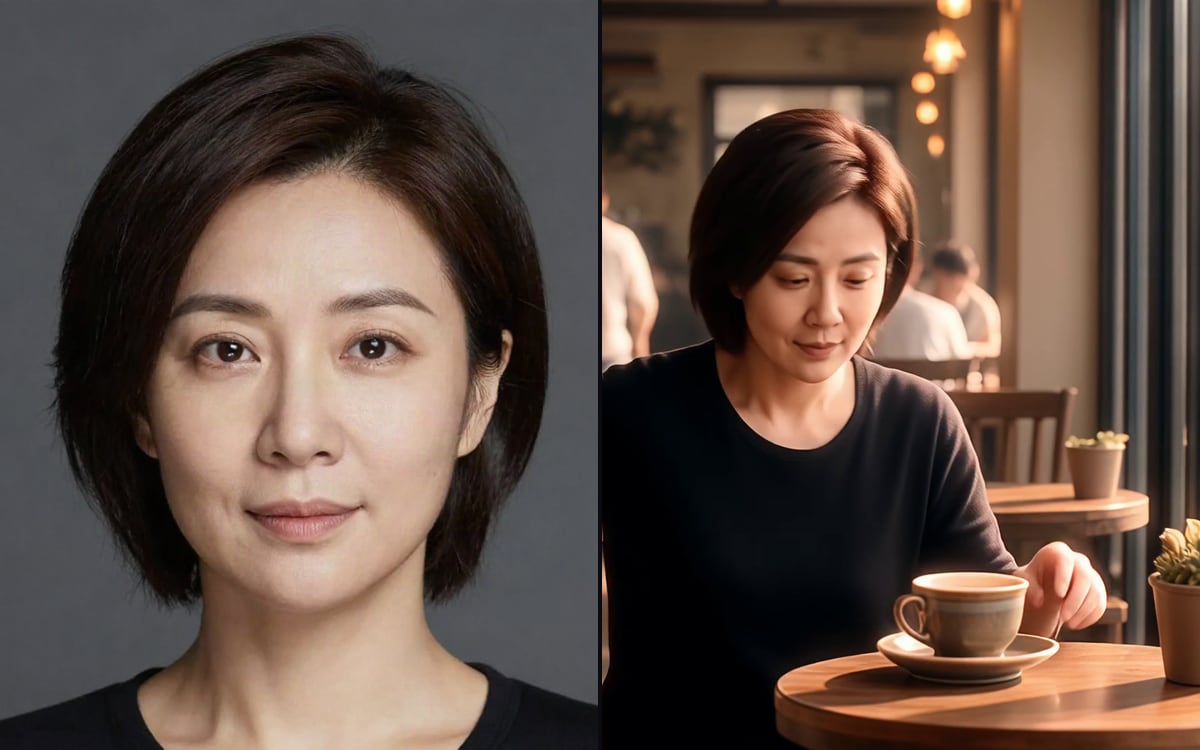 Keep the same characterReference images that carry one person, product or place across a whole sequence.
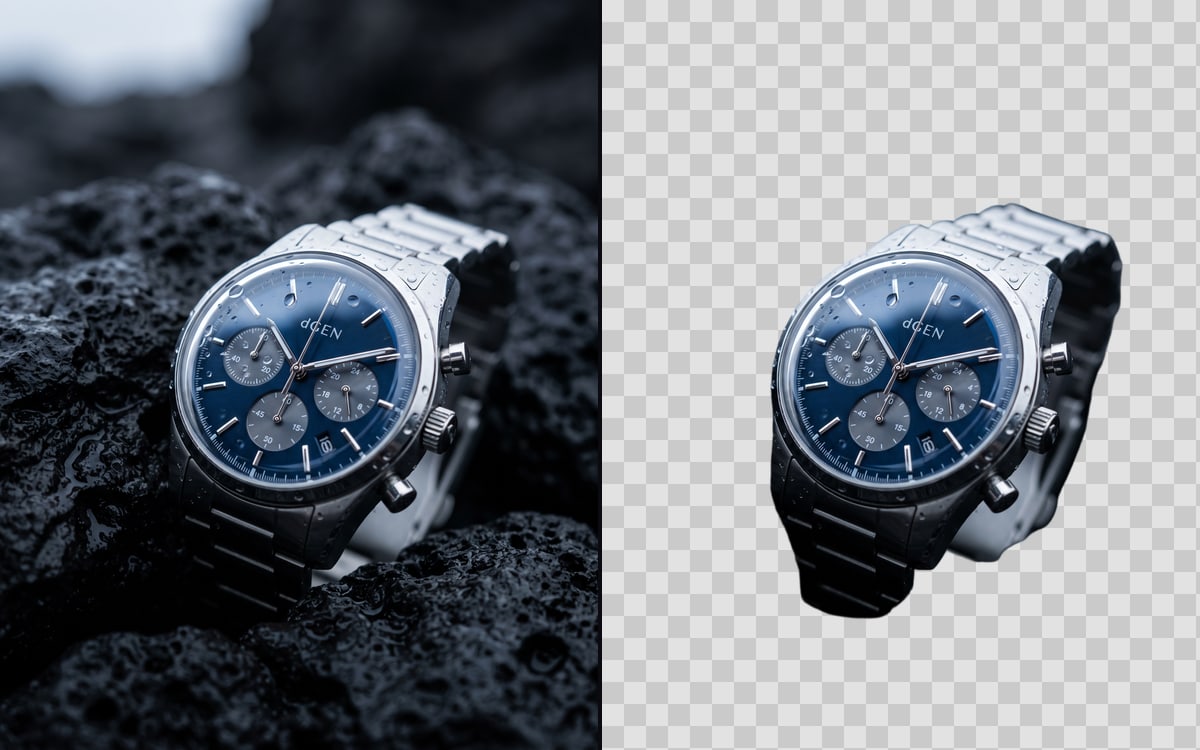 Remove an image backgroundCut the subject out of a photo and leave the background transparent.
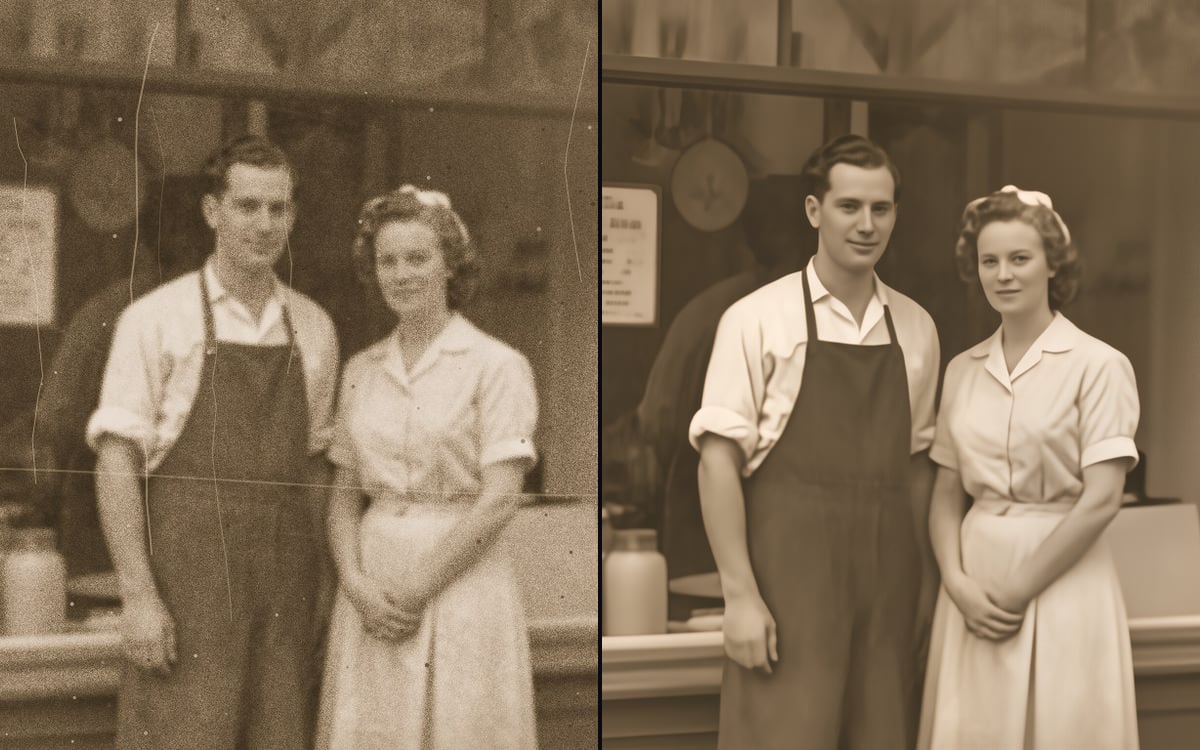 Restore an old photoBring back an old, scratched or faded photo, with the dust, spots and fine scratches taken out.
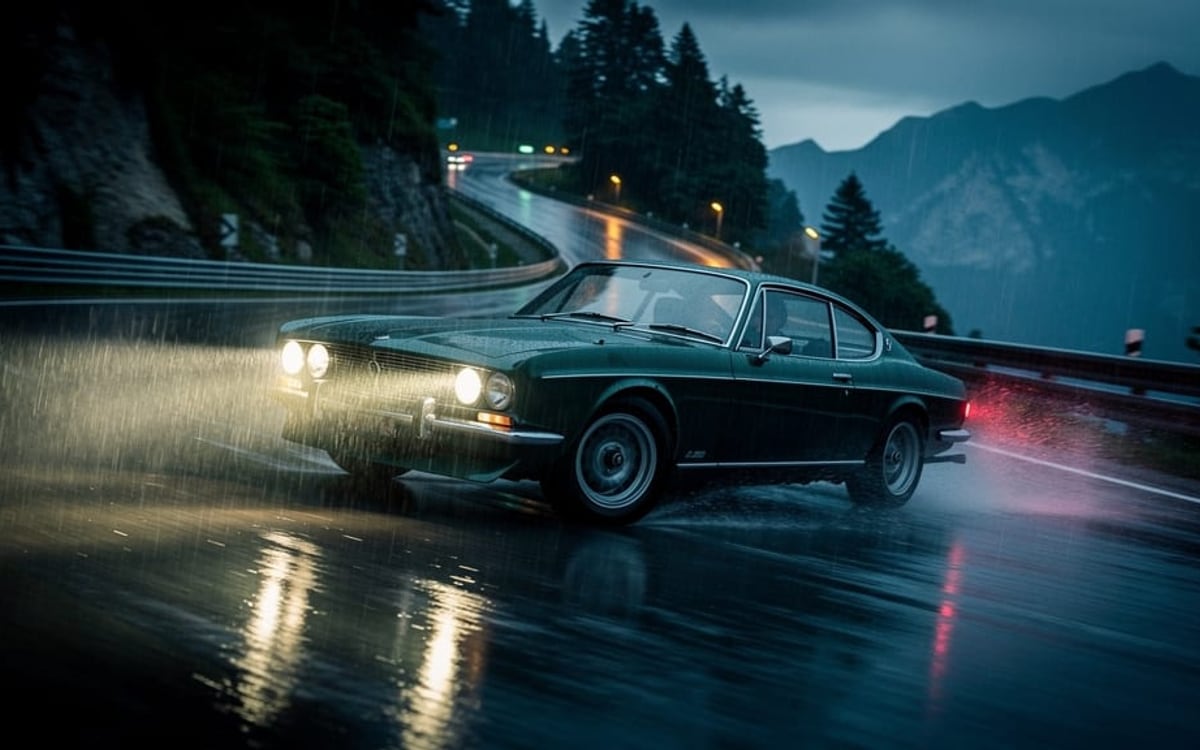 Add sound to a videoGive a silent clip sound effects that land on what happens in the picture.
 Add music to a videoMusic written to your clip, with the beats on the cuts, mixed in underneath.
 Add captions to a videoBurned-in captions for every word that is spoken, in a style that reads on a phone.
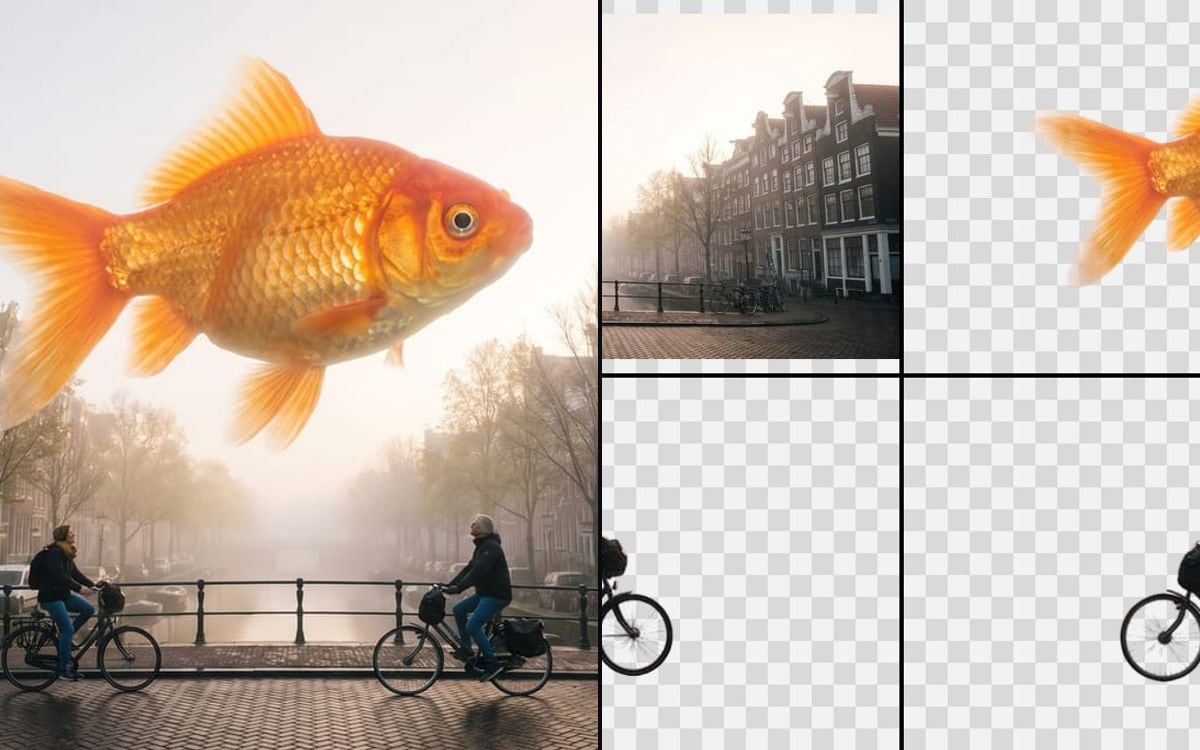 Split an image into layersGet the background and every object of a flat image as separate transparent layers.
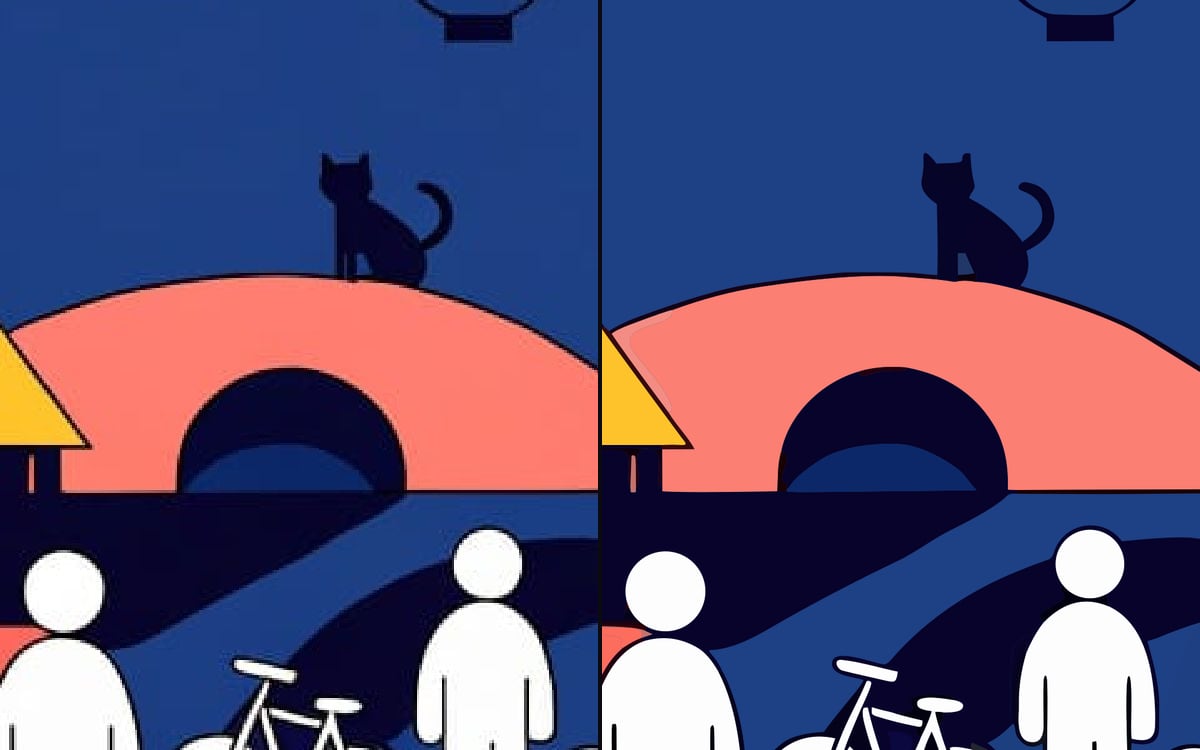 Vectorize an imageTurn a logo, icon or illustration into an SVG that stays sharp at any size.
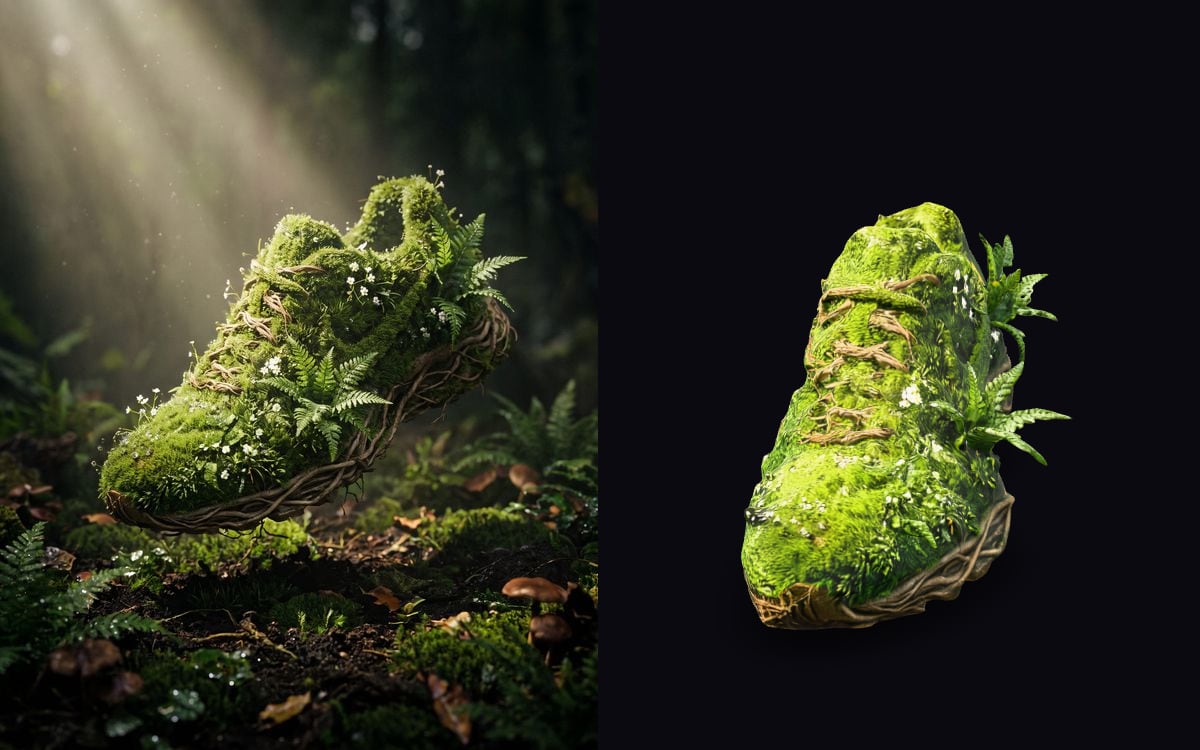 Turn an image into a 3D modelOne picture becomes a textured 3D model you can turn, use in a game or place in your room.
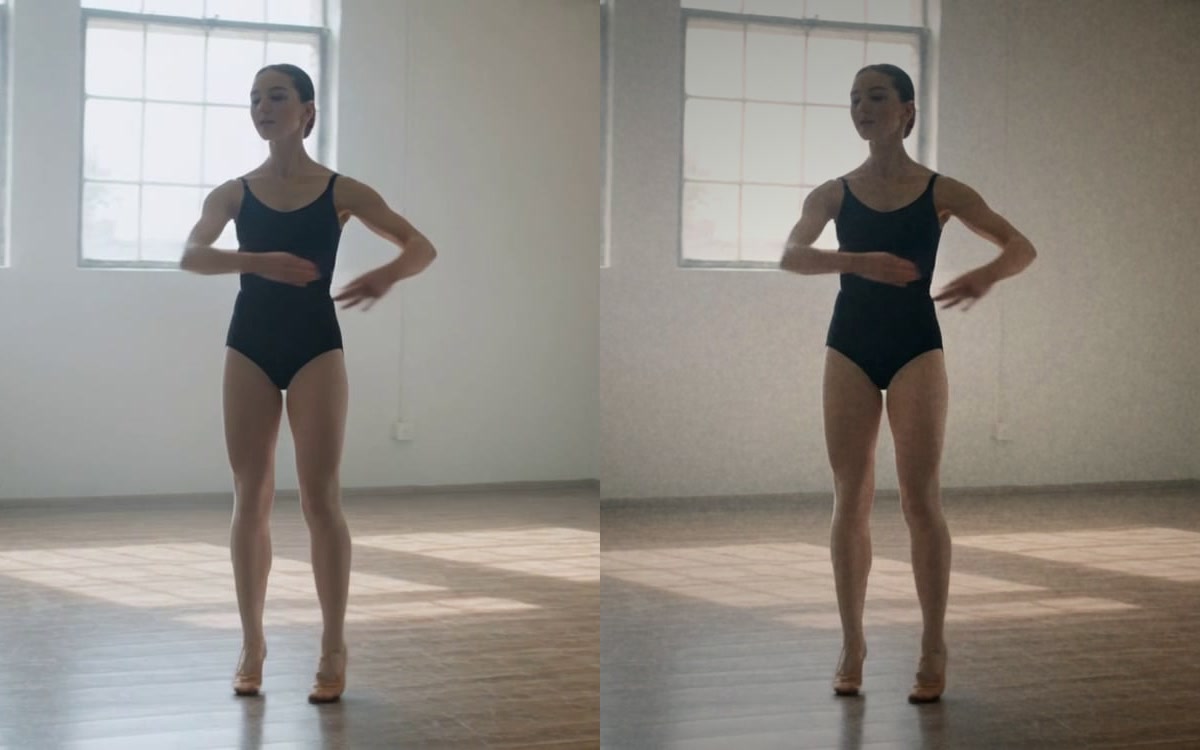 Finish an imageFilm grain, a vignette and a colour correction, so a generated image looks shot.
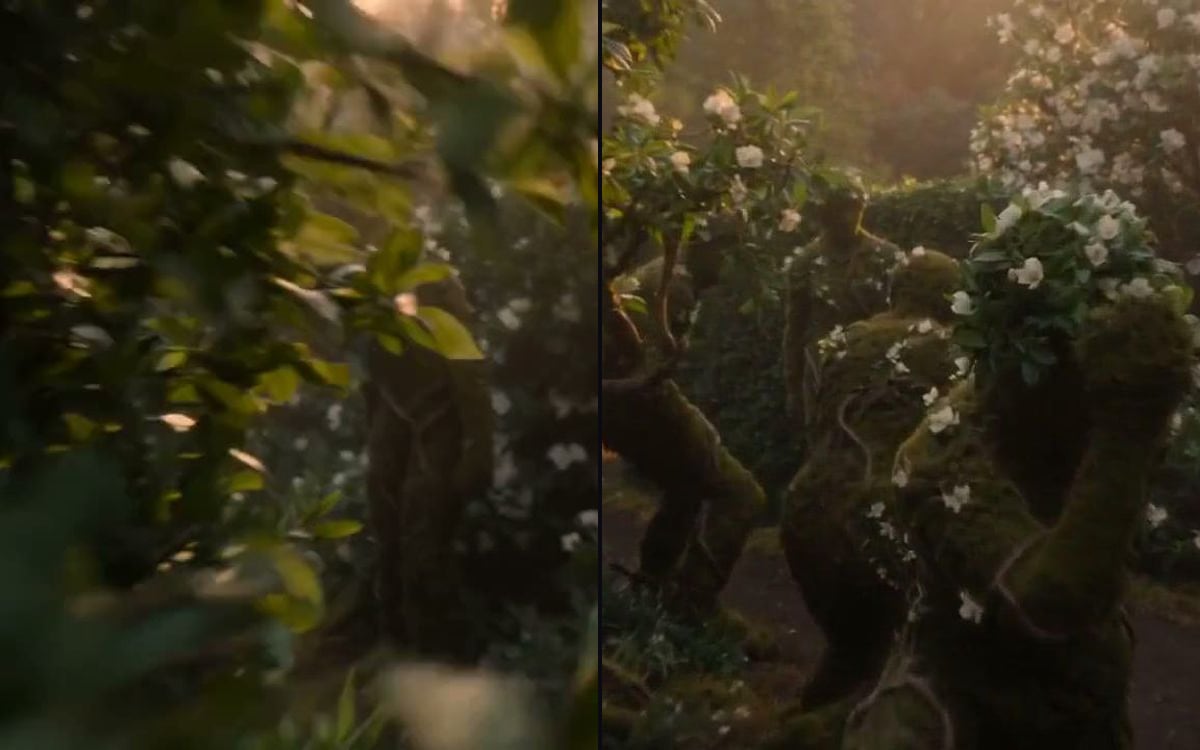 Get a frame from a videoKeep the first, middle or last frame of a clip as an image.
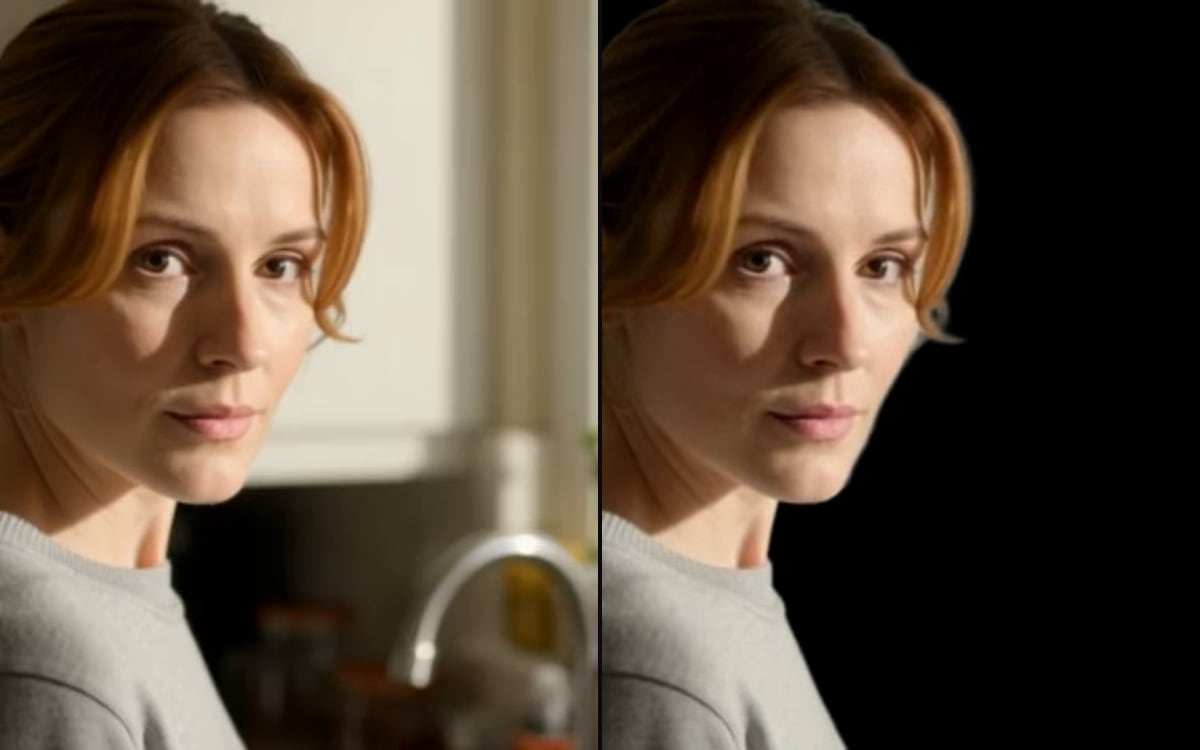 Remove a video backgroundCut the subject out of a clip and leave the background transparent.
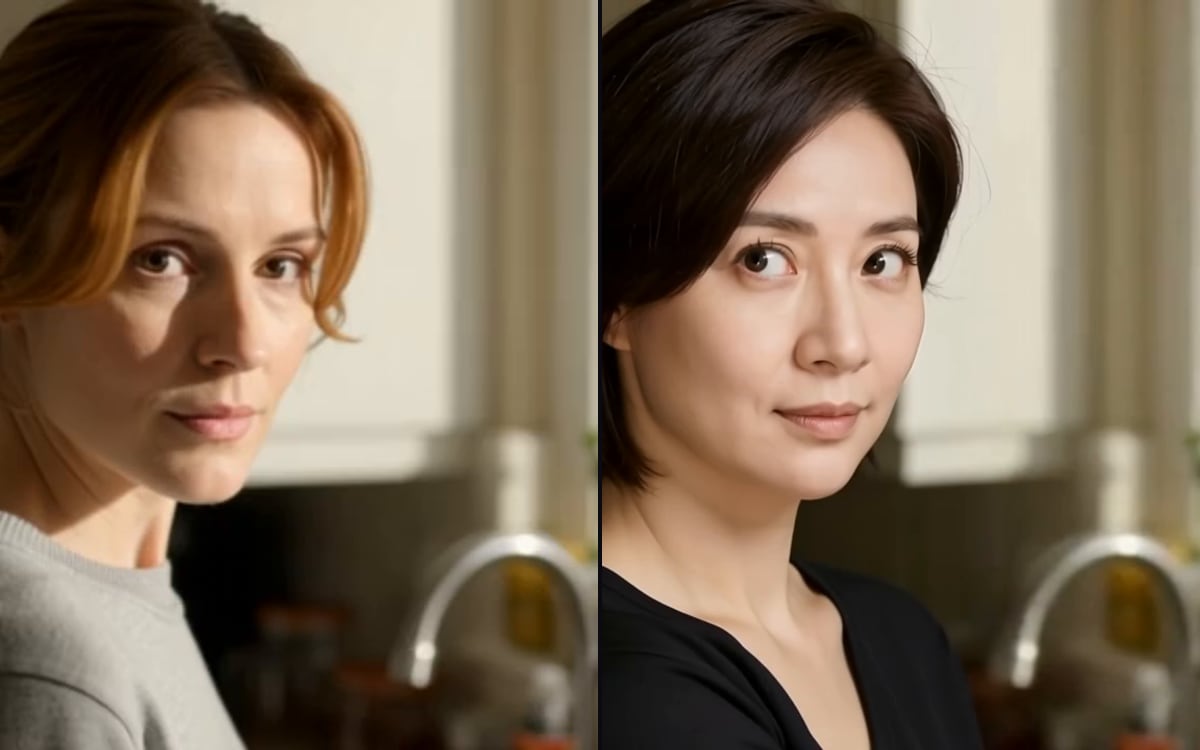 Face swap in a clipPut one face into an existing video. Only with permission from the person in the picture.
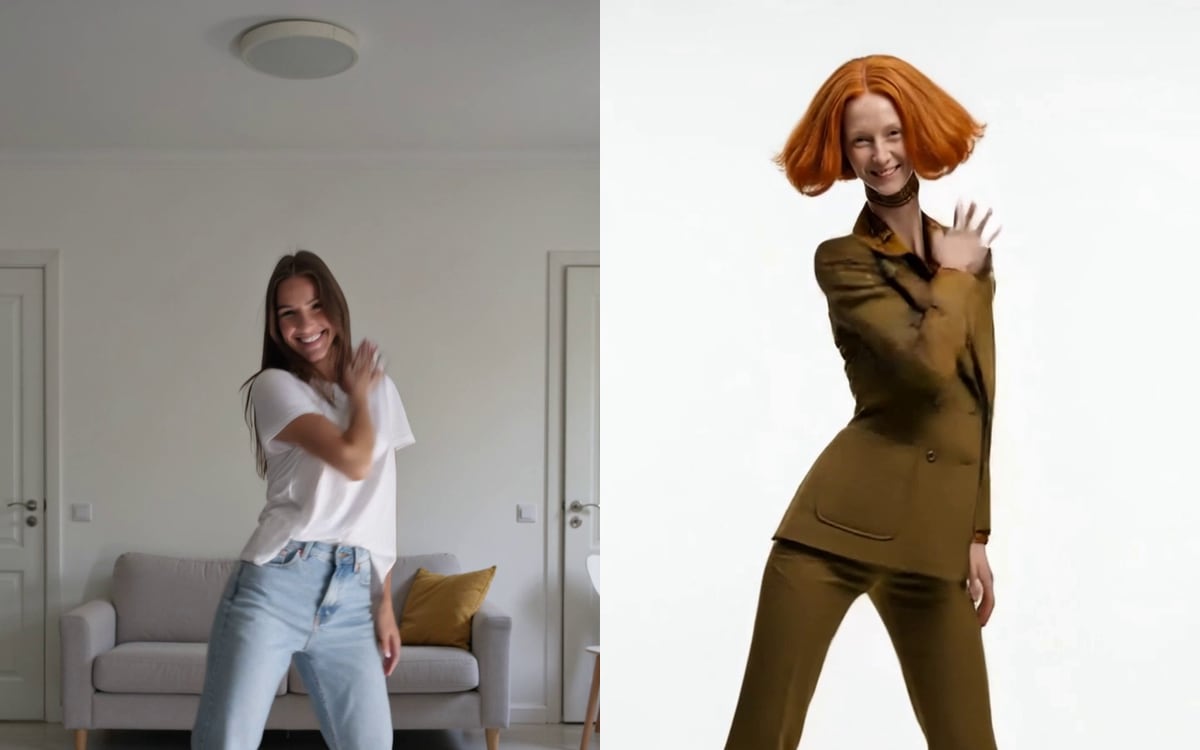 Make your character move like youFilm a move once, and your character does it: the same steps, the same timing.
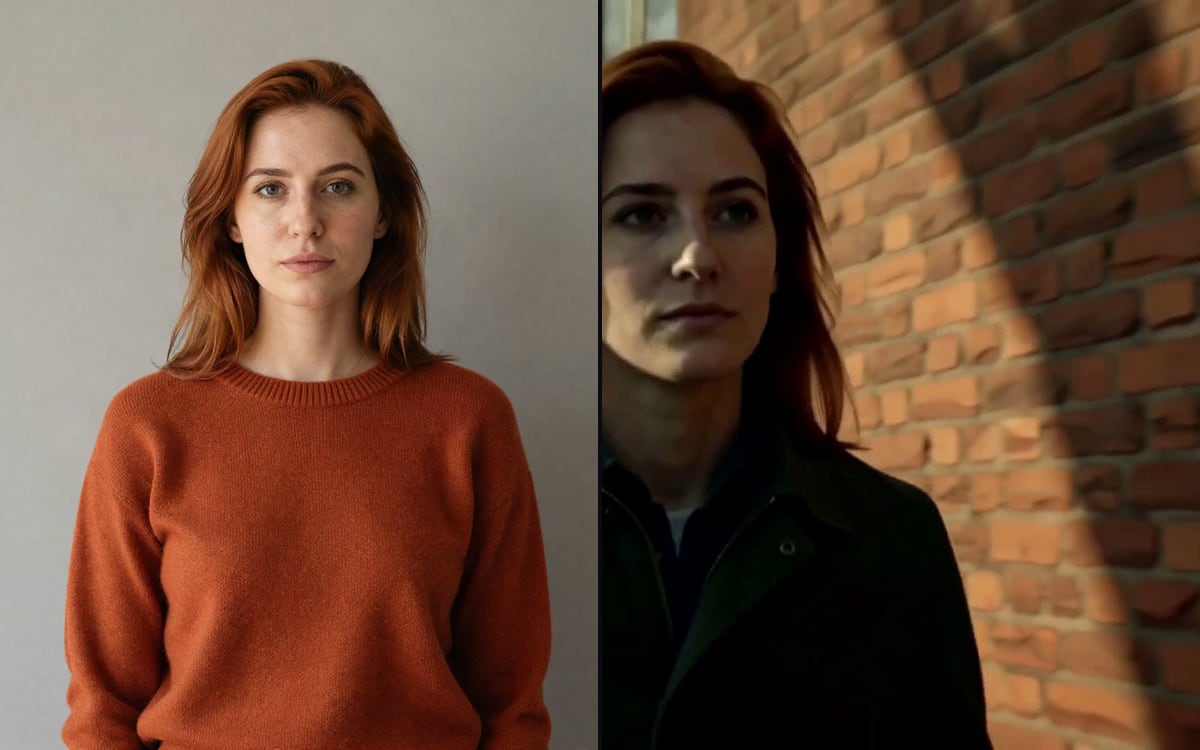 Recast a videoSwap the person on screen for someone in a photo. The motion, the cuts and the sound stay.
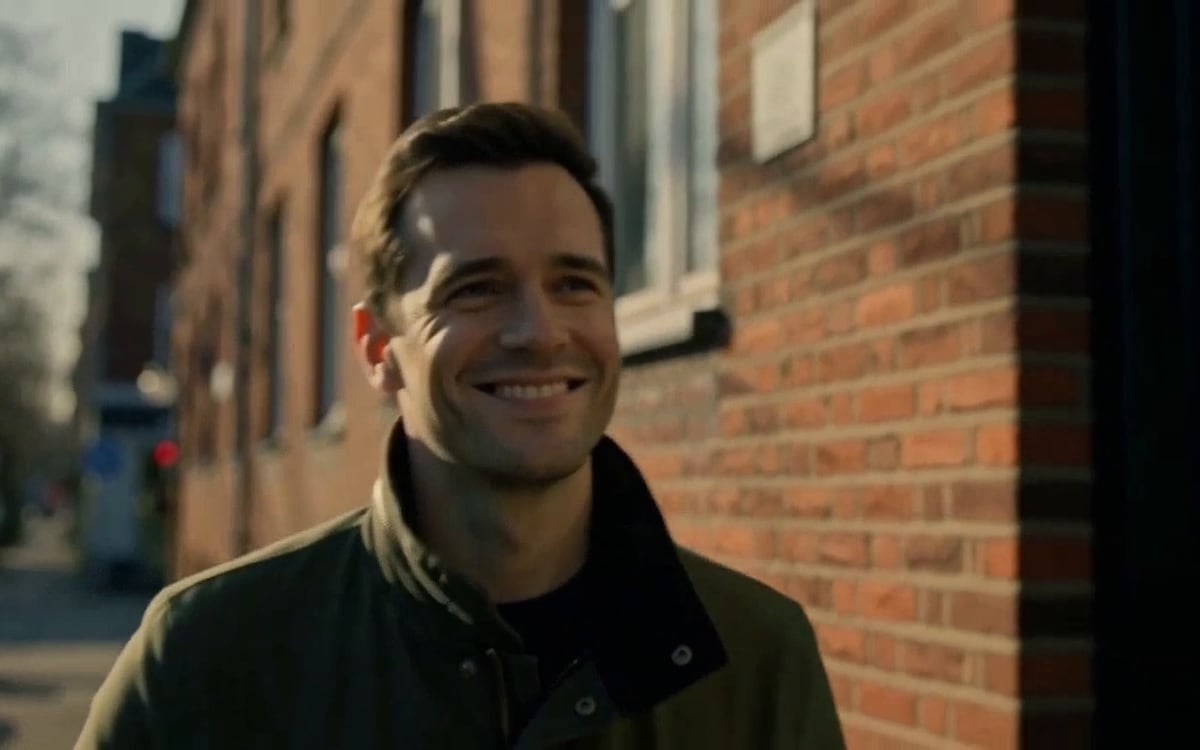 Extend a videoMake a clip longer. Describe what happens next and the video carries on in the same style.
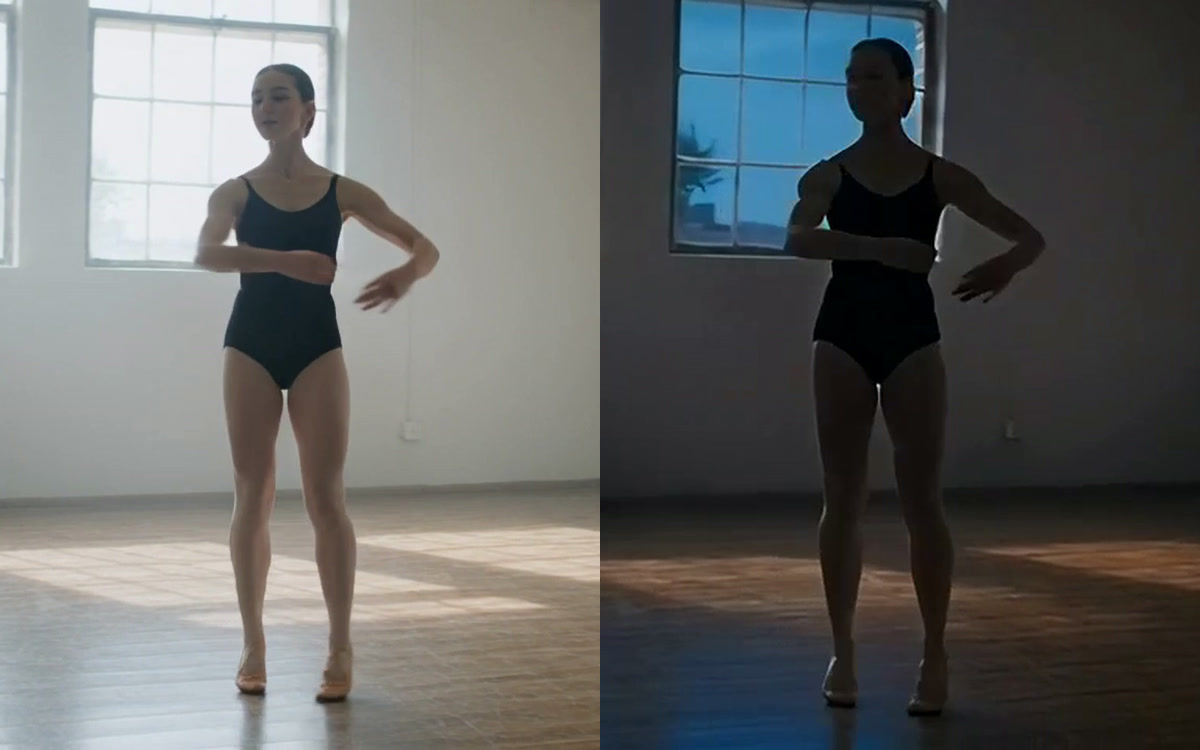 Change anything in a videoSwap a person, an outfit, a product or the whole look of a clip. The motion and the framing stay.
 Change a voiceSay it once in your own voice and get it back in another. The timing and the emotion stay.
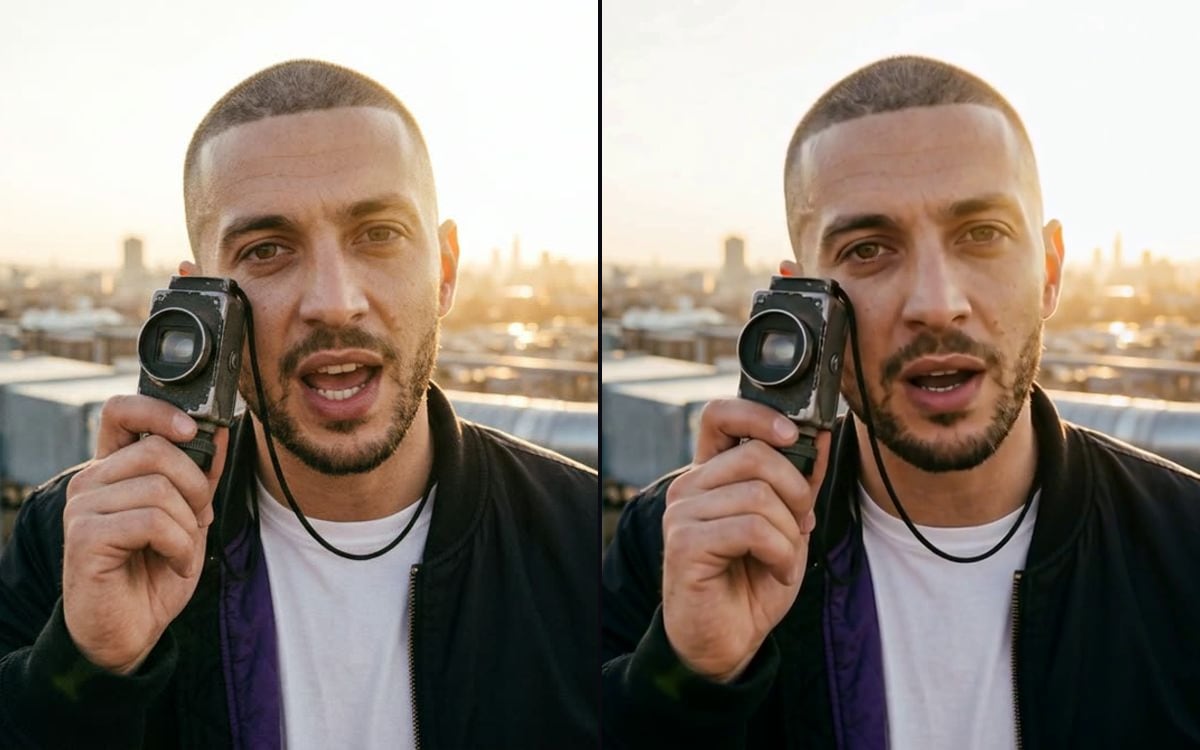 Make a photo talkGive a face in a photo your audio. The lips follow the words.
 Upscale a videoMake a clip sharper and bigger, up to 4K, without inventing detail.
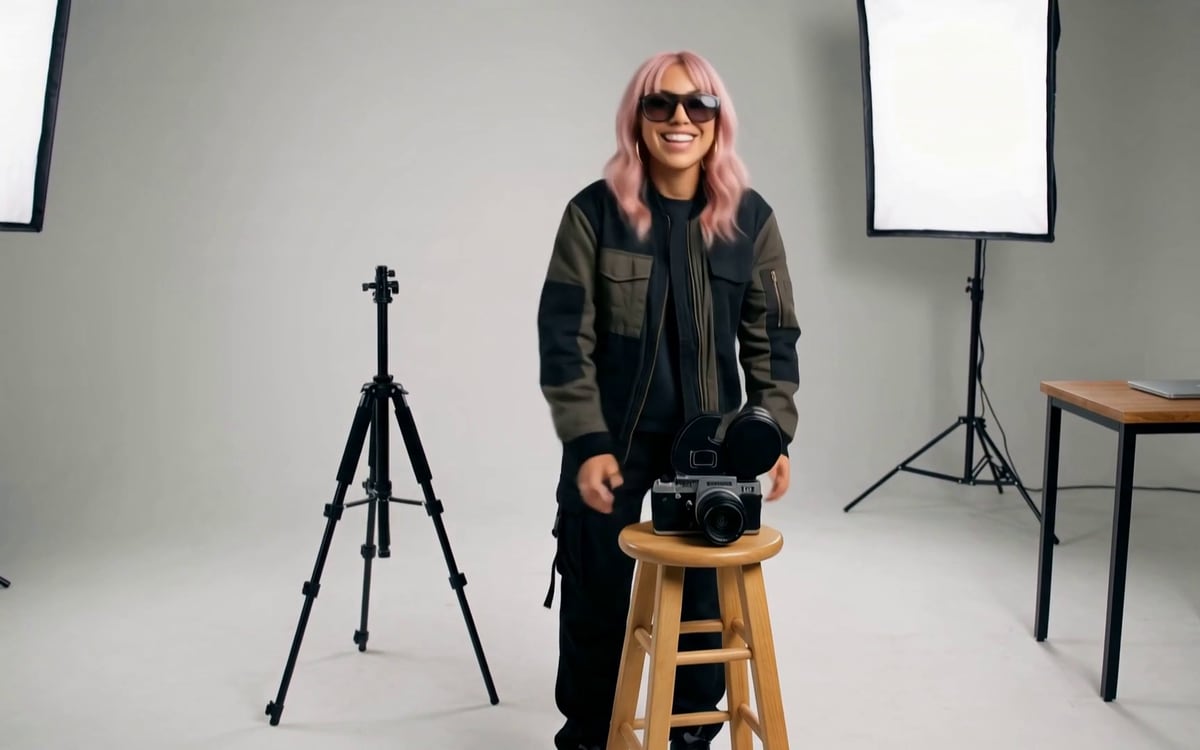 Translate a videoGet your video in another language, in the voices of the people speaking in it.
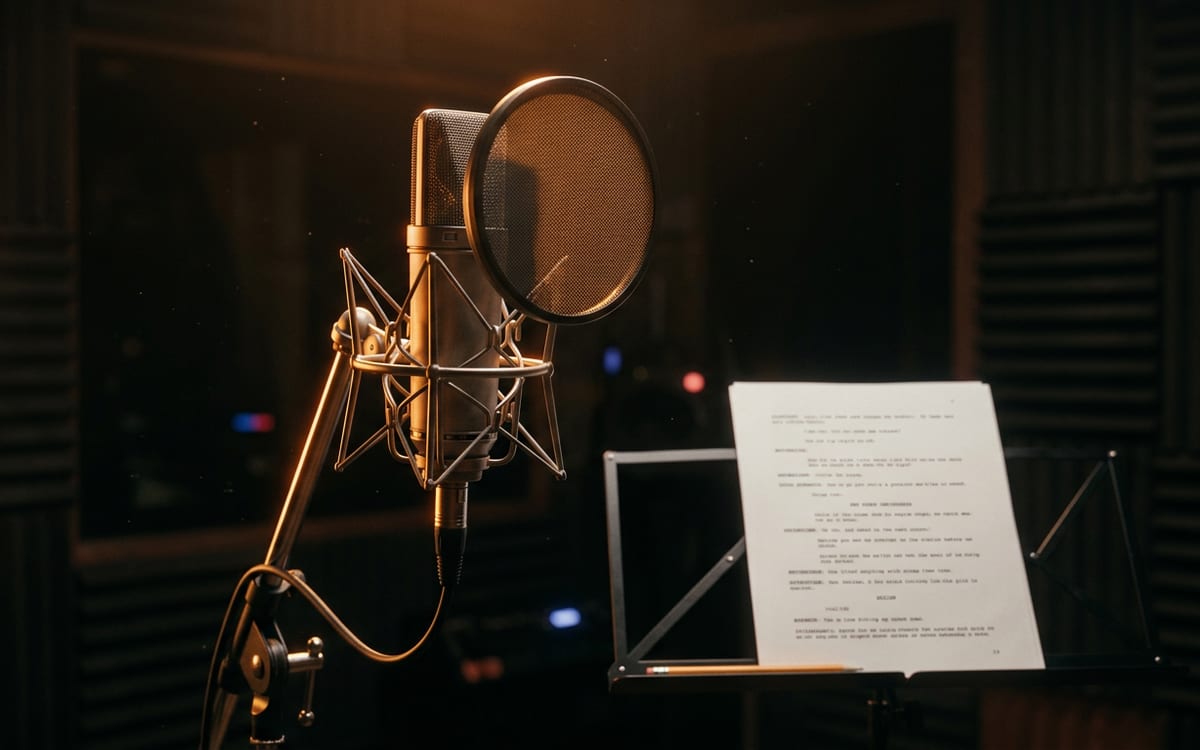 Isolate a voiceTake the noise, the music and the room out of a recording, and keep the voice.