
How it works
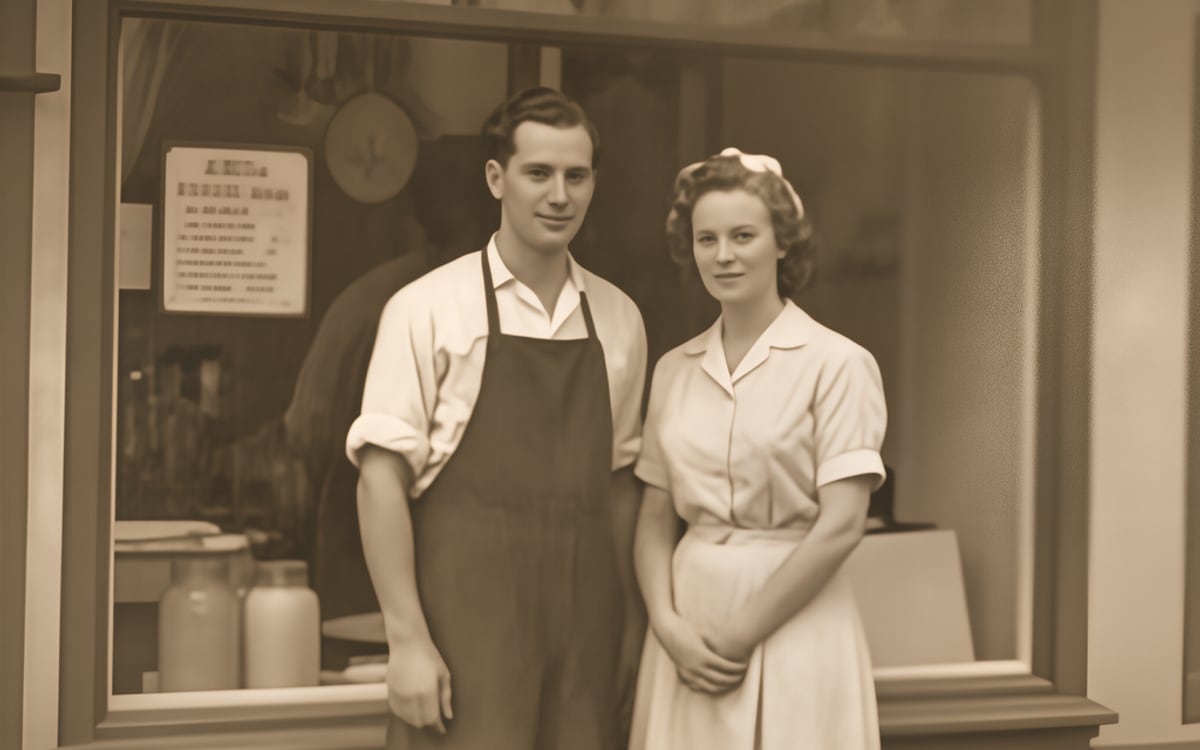
- 1Bring the photoScan the print or take a straight photo of it in daylight, without flash.
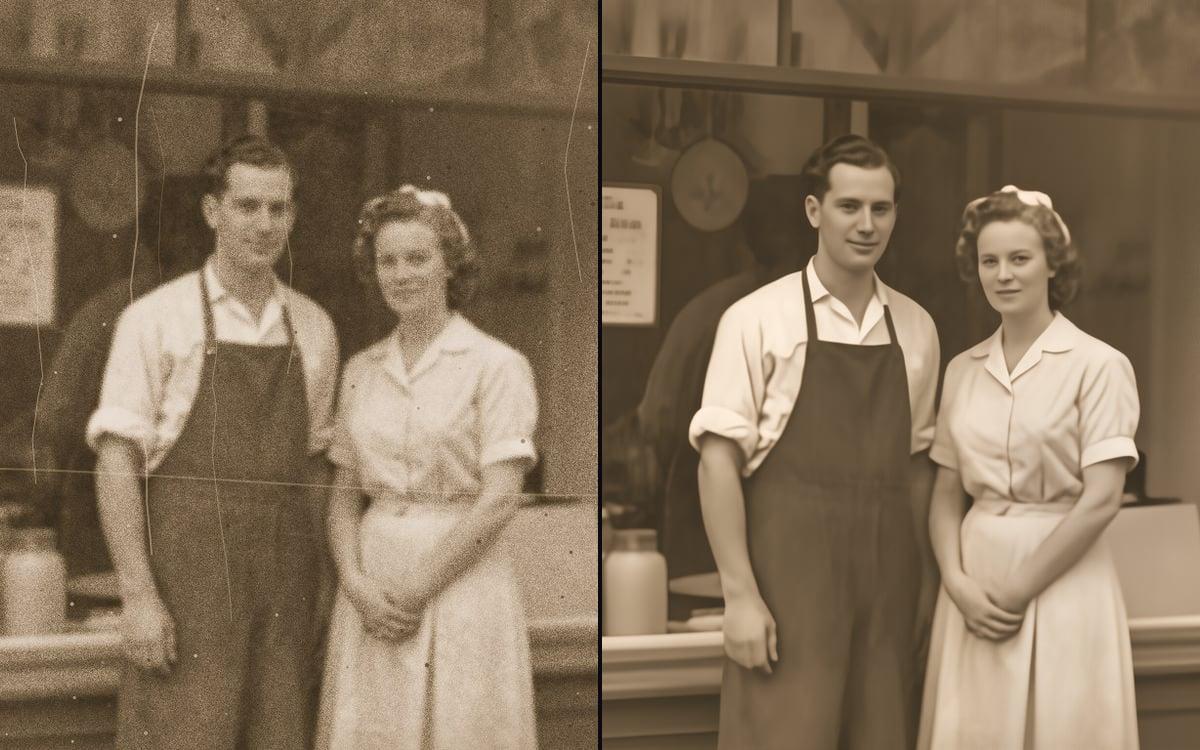
- 2Let it runNo prompt. It finds the scratches, dust and creases and repairs them.
- 3Keep bothThe original stays in your library next to the restored version.
What people make with it
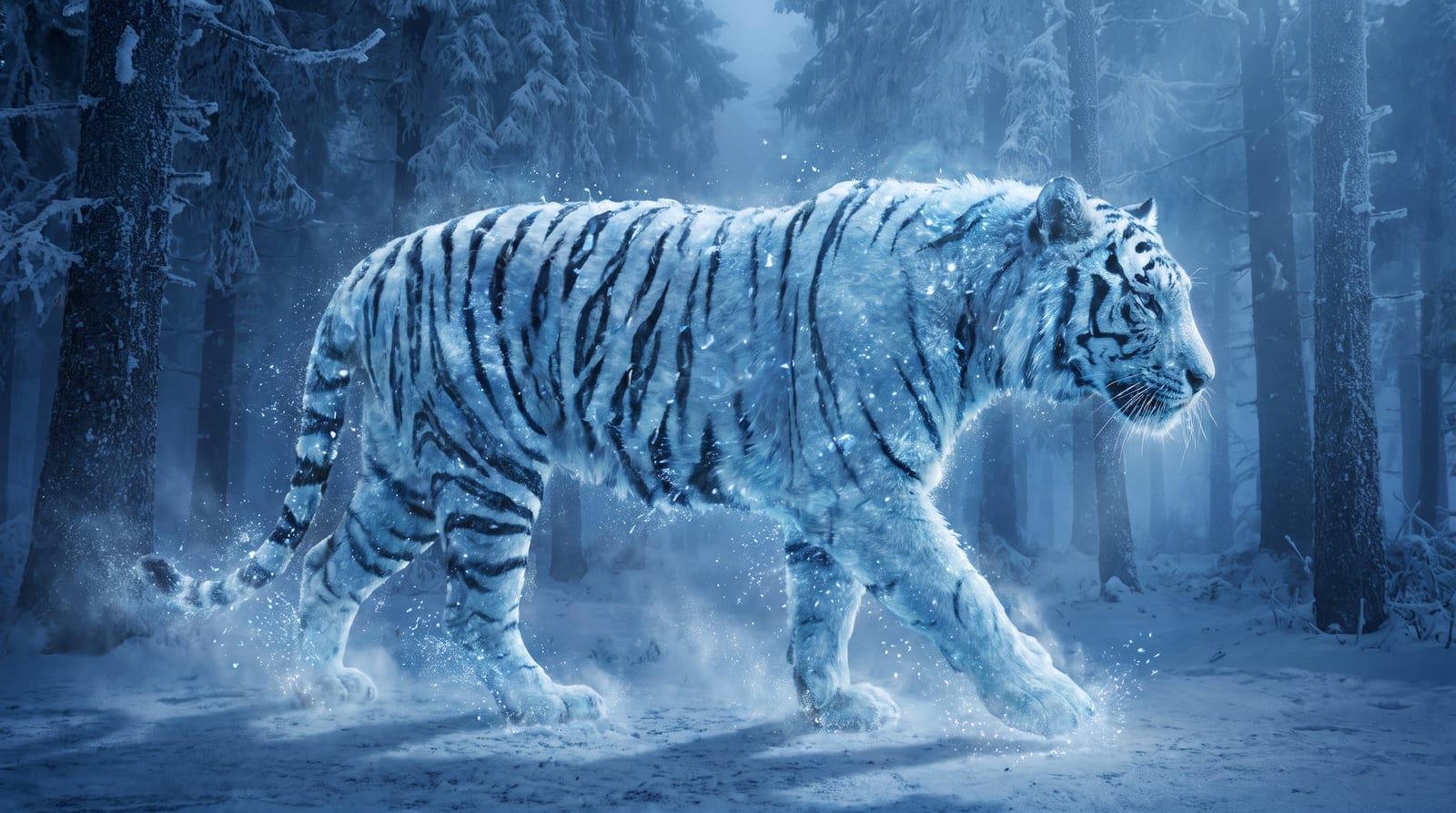
Bring the file, get the result
Pick the tool, drop in your image or clip and it is done. You start with 1,000 free credits.
Get early accessGood to know
Scratches, dust, creases and noise go. Detail that was never in the photo does not come back, so a face that was a blur stays soft.
The default takes out scratches and dust. Recover 3 sharpens a blurry photo instead; pick it in the Studio when the photo is soft but clean.
Questions
Does it add colour?
No, it keeps the colours of your photo. To colour a black and white photo, use an edit model with an instruction afterwards.
What does it cost?
A fixed amount per started 24 megapixels of the photo, so almost every photo costs the same. The amount is on the button.
Can I use a photo of someone else?
Only a photo you have the rights to, such as your own family photos.
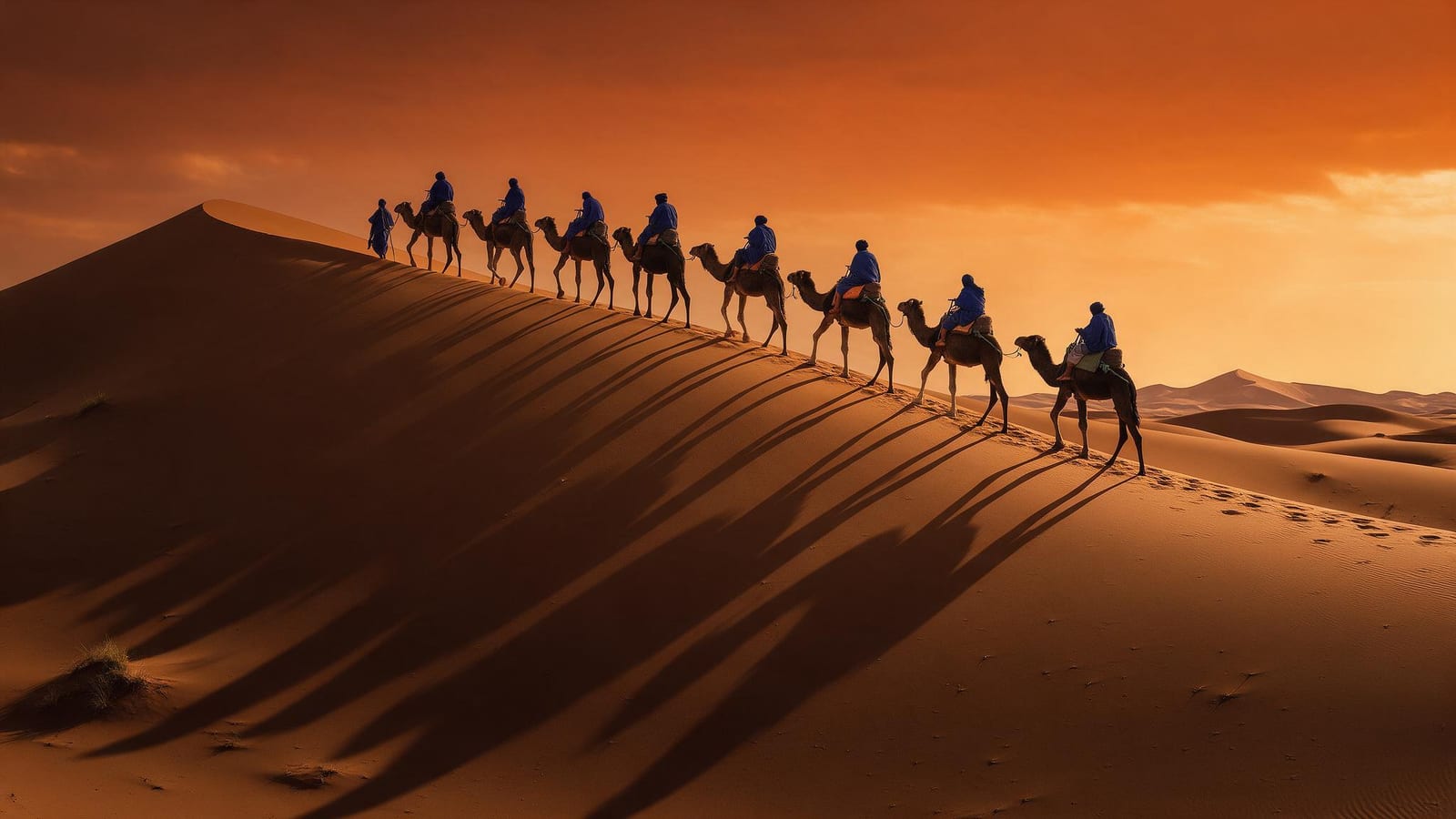
Bring the file, get the result
Pick the tool, drop in your image or clip and it is done. You start with 1,000 free credits.
Get early accessAlso in the studio
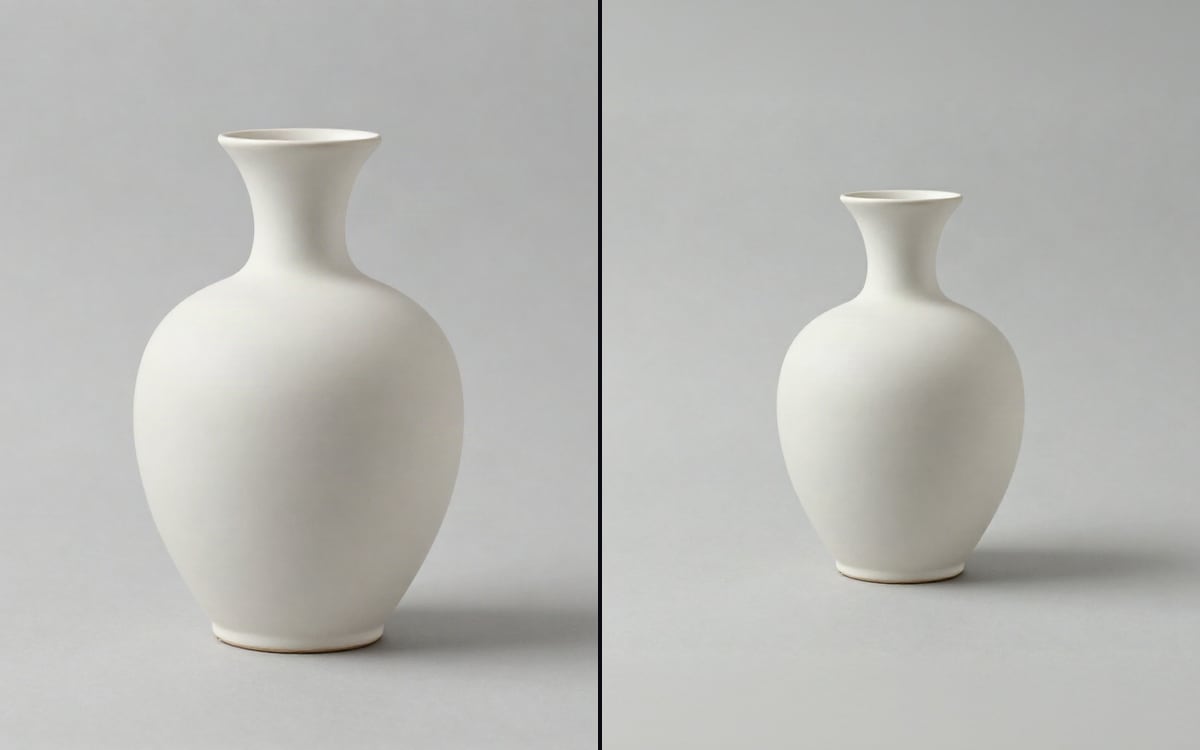 Expand imageWiden a picture beyond its edges. Pick the shape you need, no prompt required.
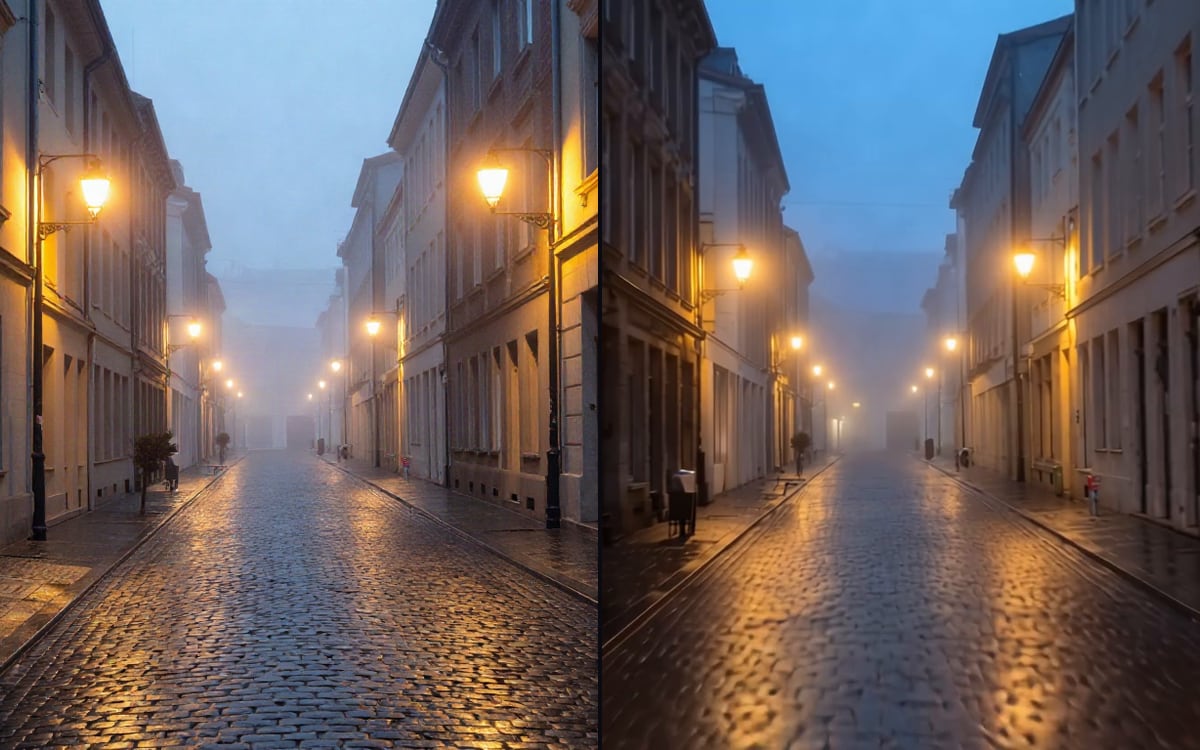 Transition between two framesGive a first frame and a last frame, and get the clip that runs between them.
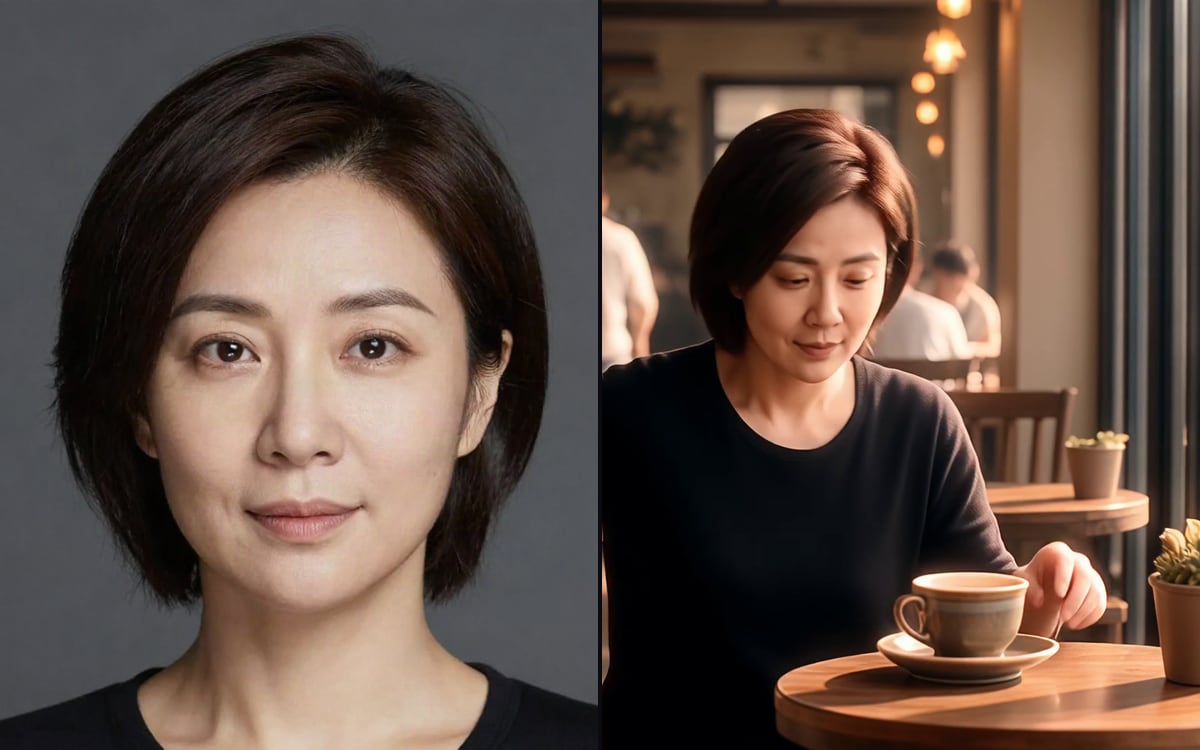 Keep the same characterReference images that carry one person, product or place across a whole sequence.
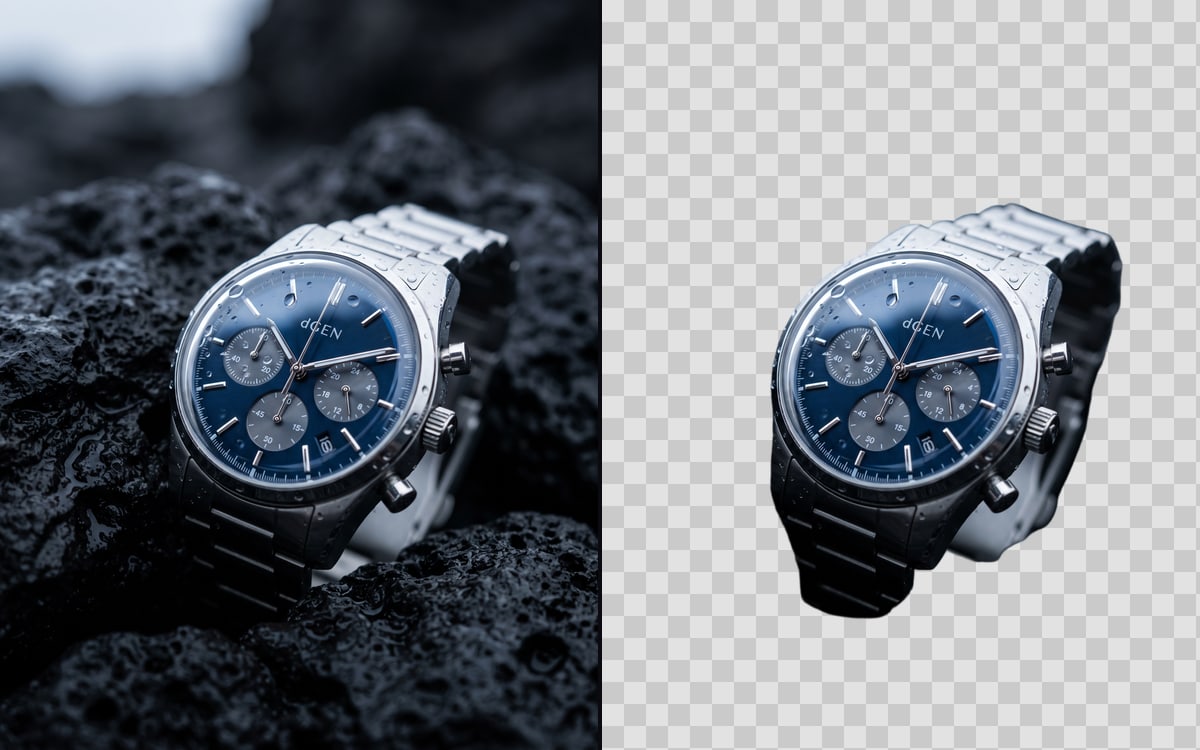 Remove an image backgroundCut the subject out of a photo and leave the background transparent.
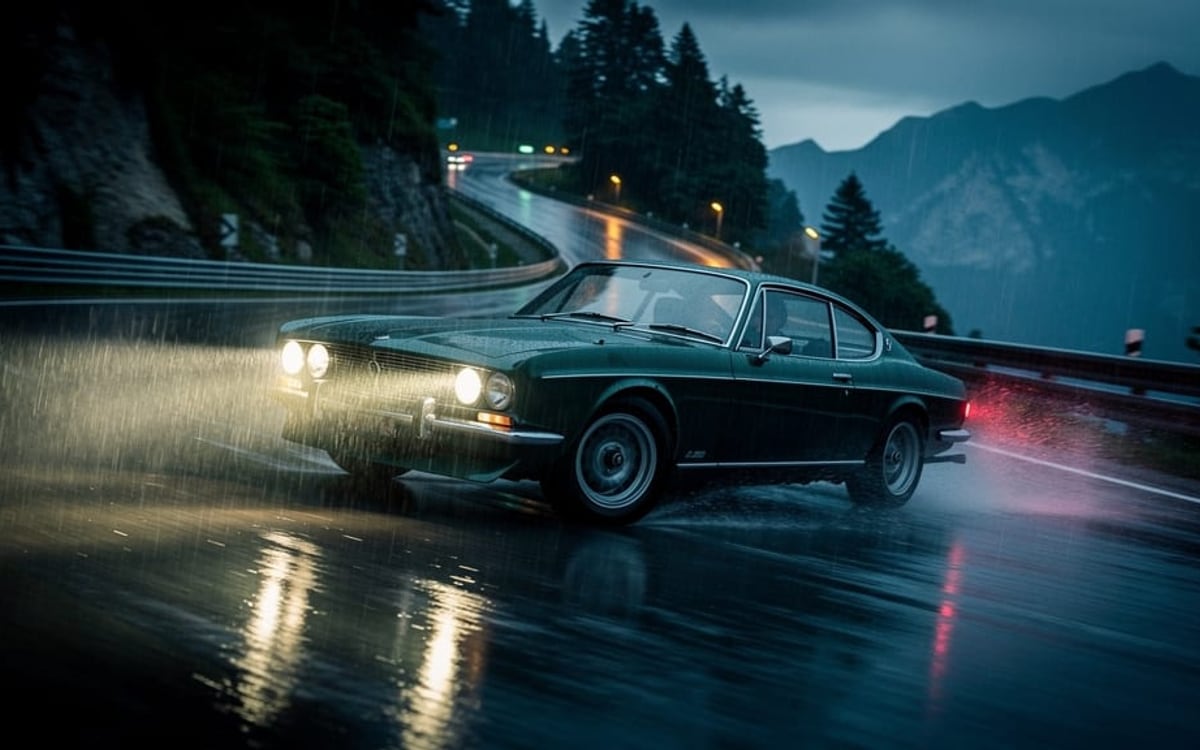 Add sound to a videoGive a silent clip sound effects that land on what happens in the picture.
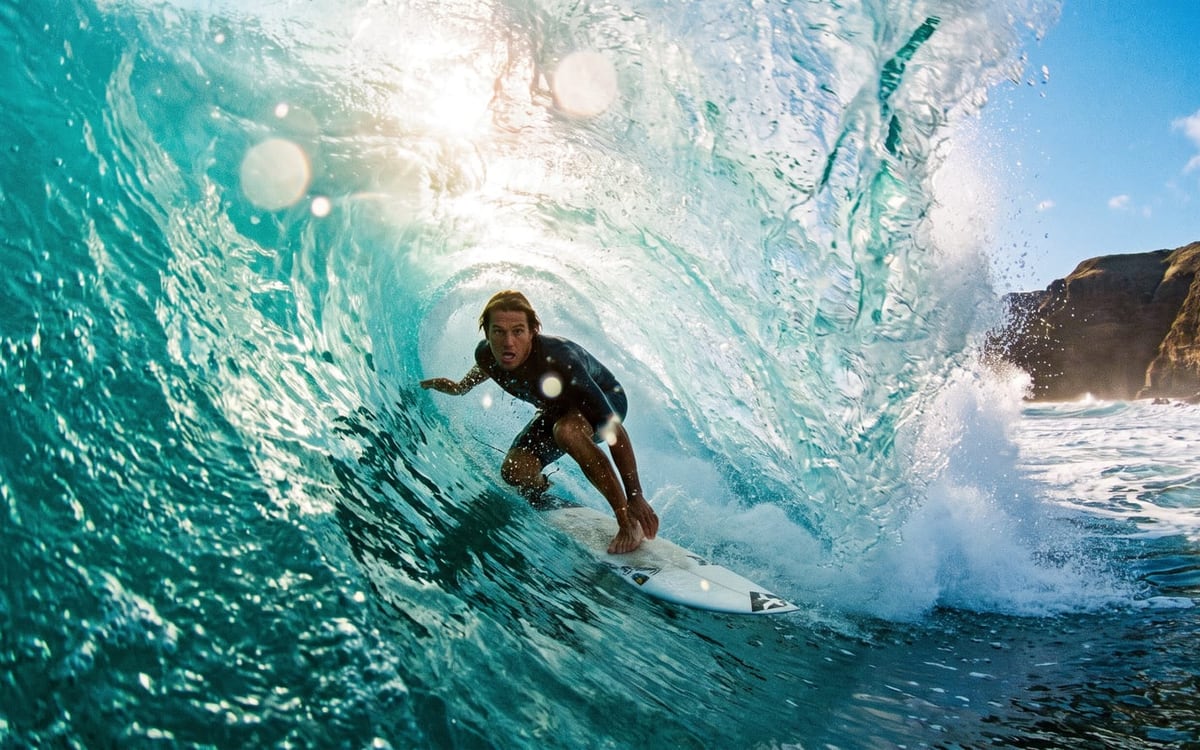 Add music to a videoMusic written to your clip, with the beats on the cuts, mixed in underneath.
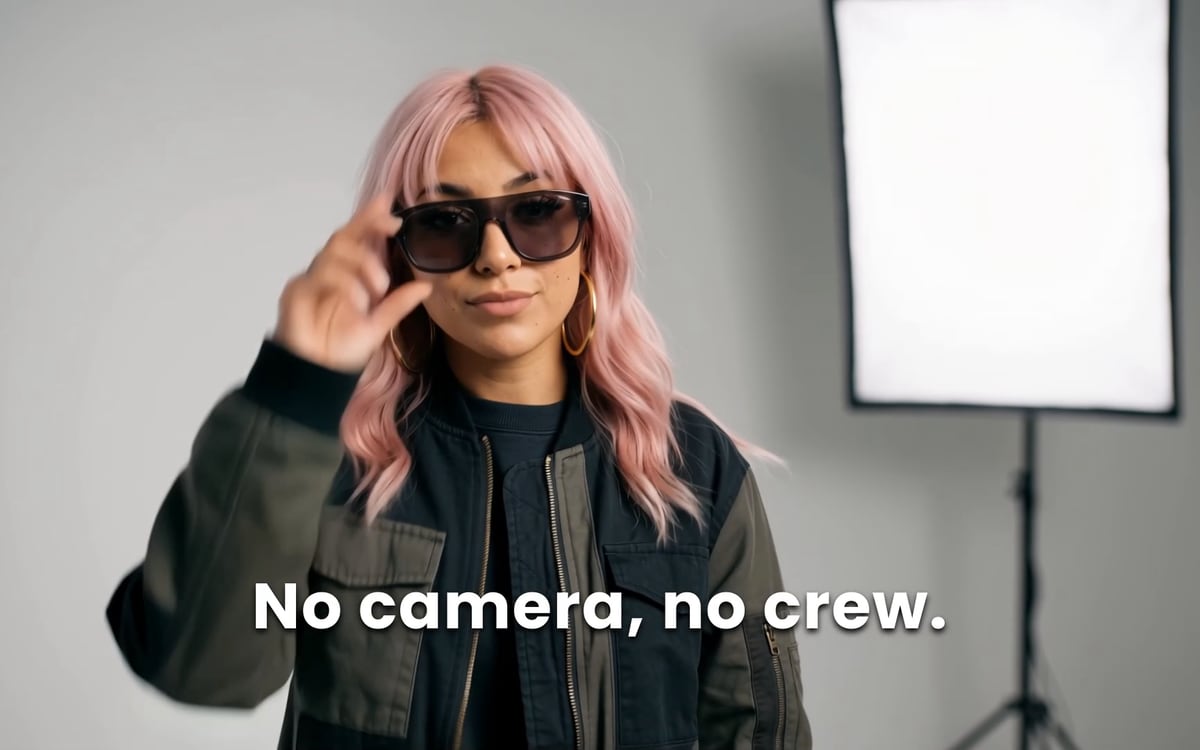 Add captions to a videoBurned-in captions for every word that is spoken, in a style that reads on a phone.
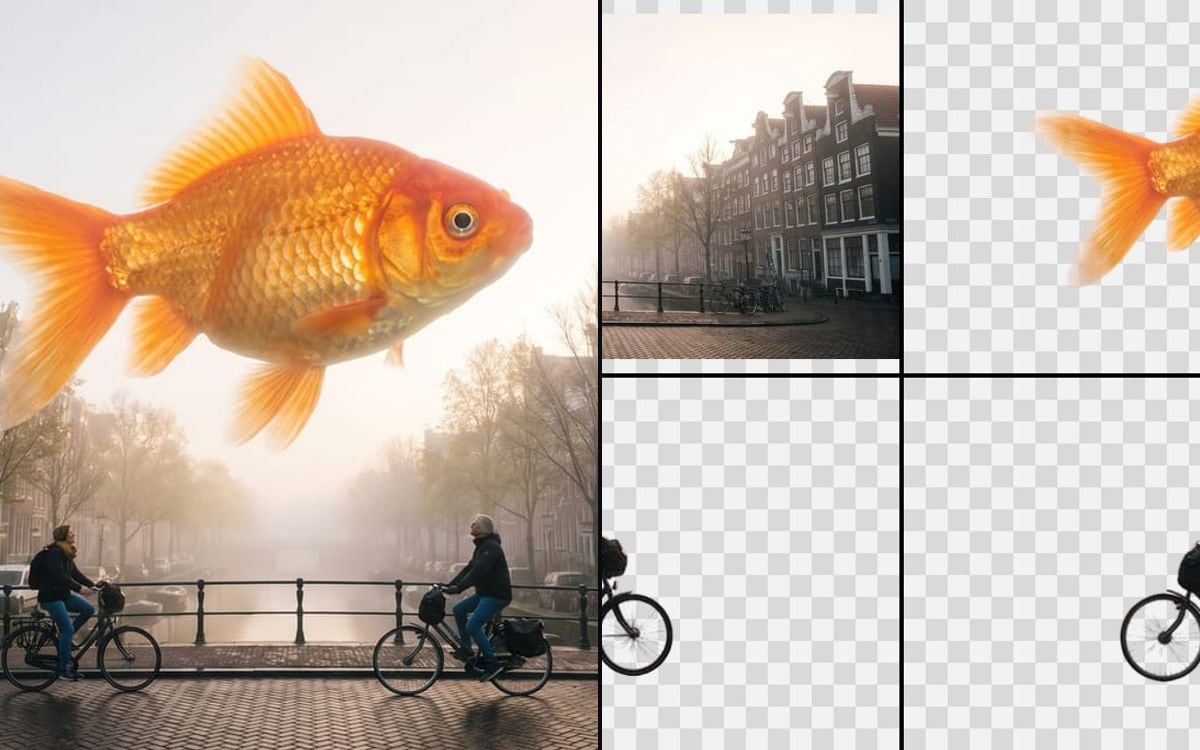 Split an image into layersGet the background and every object of a flat image as separate transparent layers.
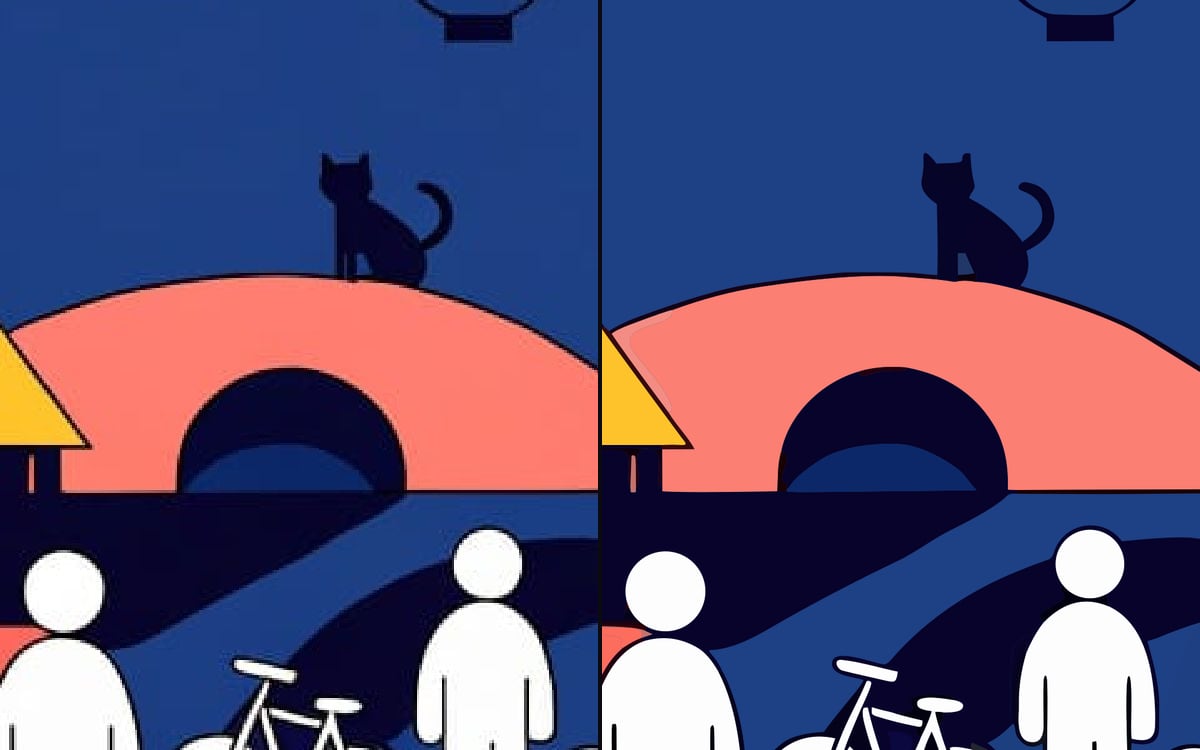 Vectorize an imageTurn a logo, icon or illustration into an SVG that stays sharp at any size.
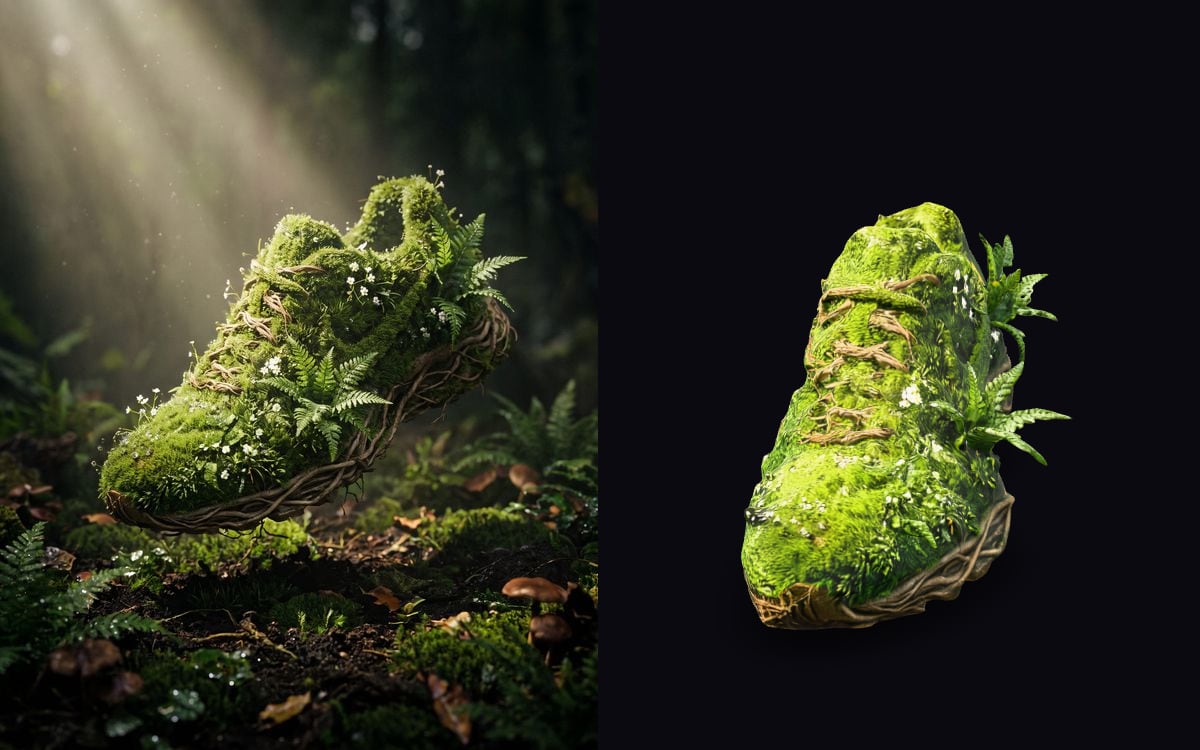 Turn an image into a 3D modelOne picture becomes a textured 3D model you can turn, use in a game or place in your room.
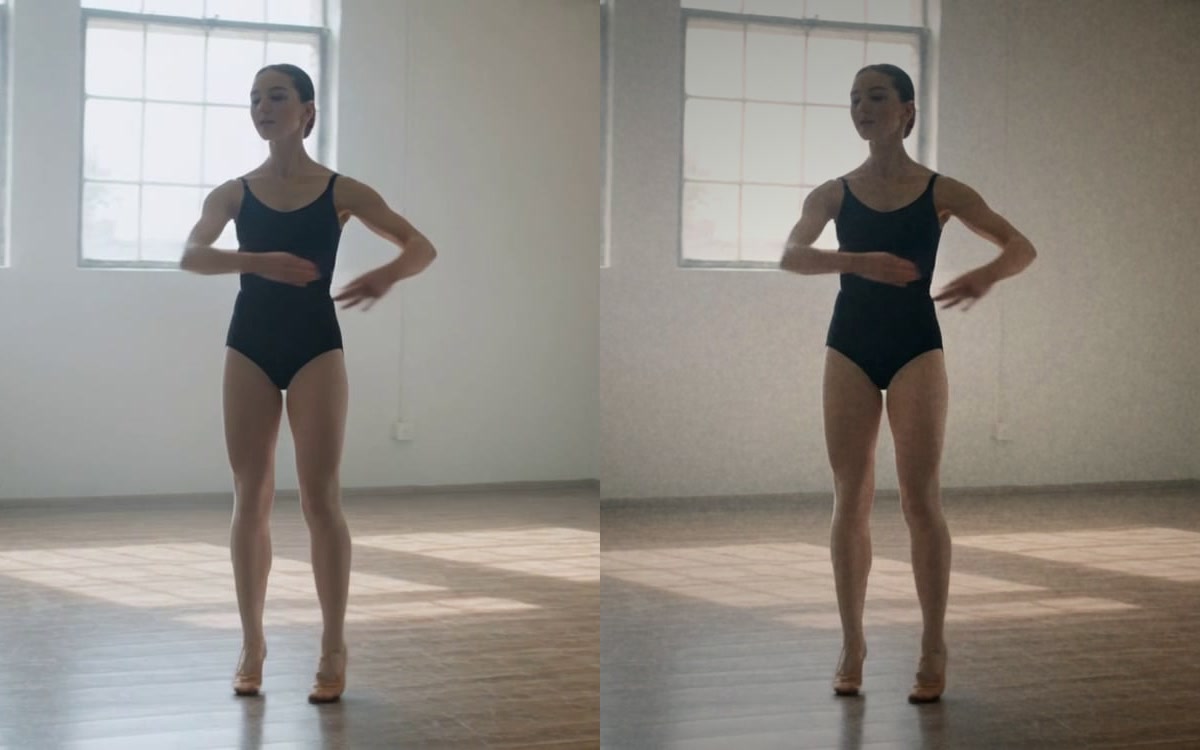 Finish an imageFilm grain, a vignette and a colour correction, so a generated image looks shot.
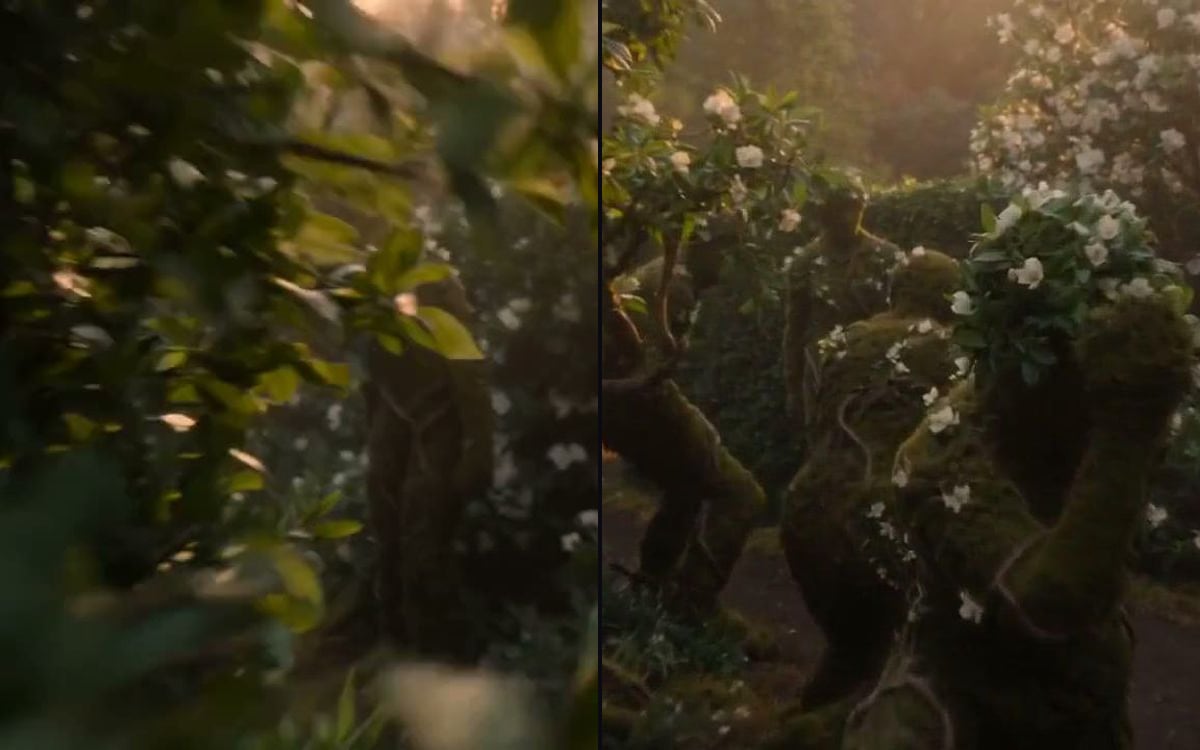 Get a frame from a videoKeep the first, middle or last frame of a clip as an image.
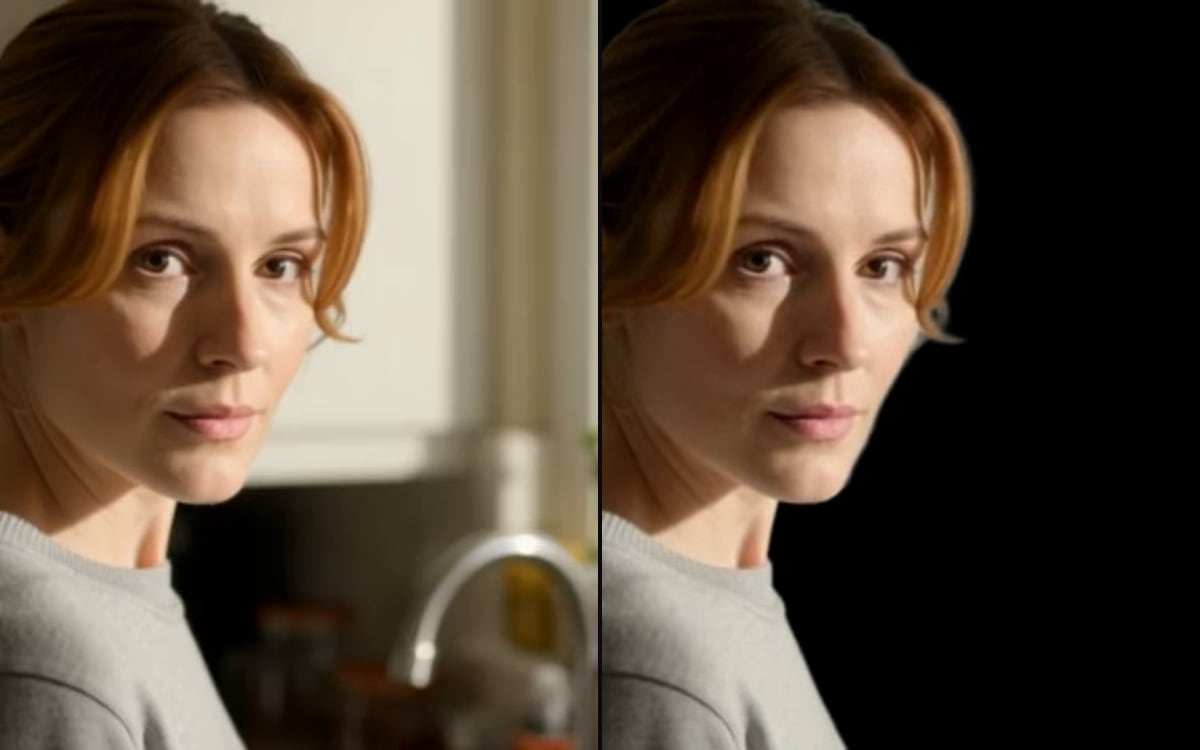 Remove a video backgroundCut the subject out of a clip and leave the background transparent.
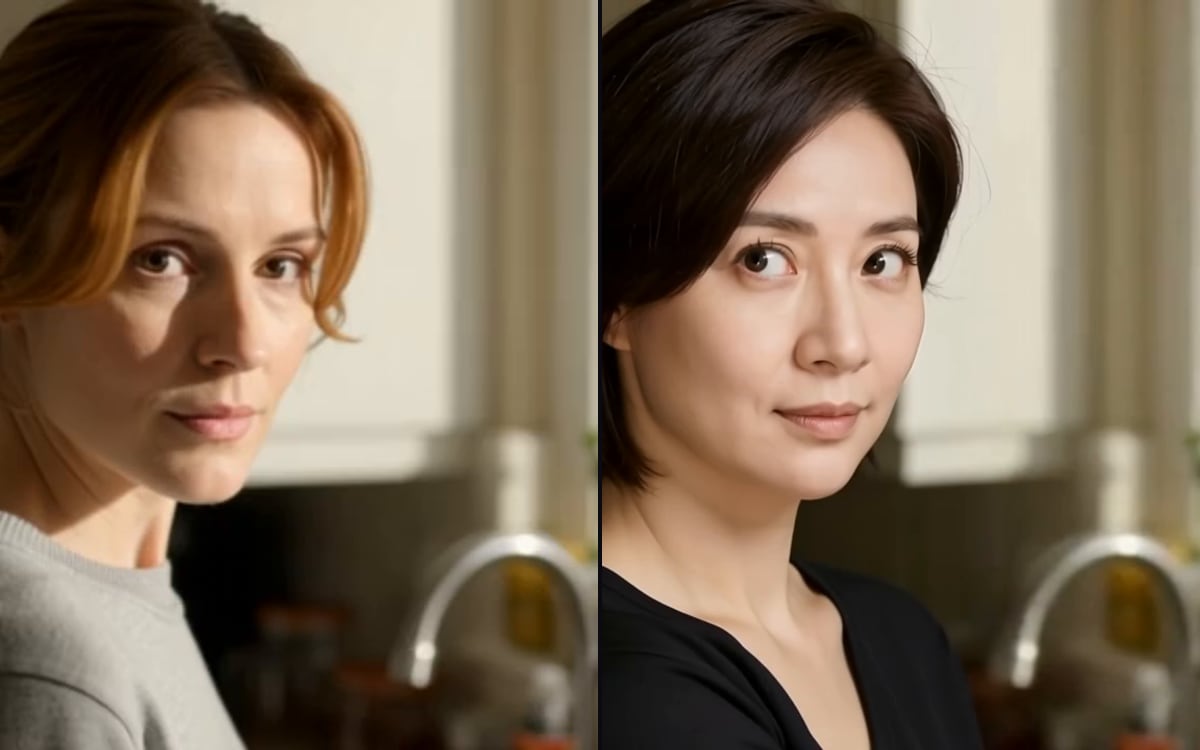 Face swap in a clipPut one face into an existing video. Only with permission from the person in the picture.
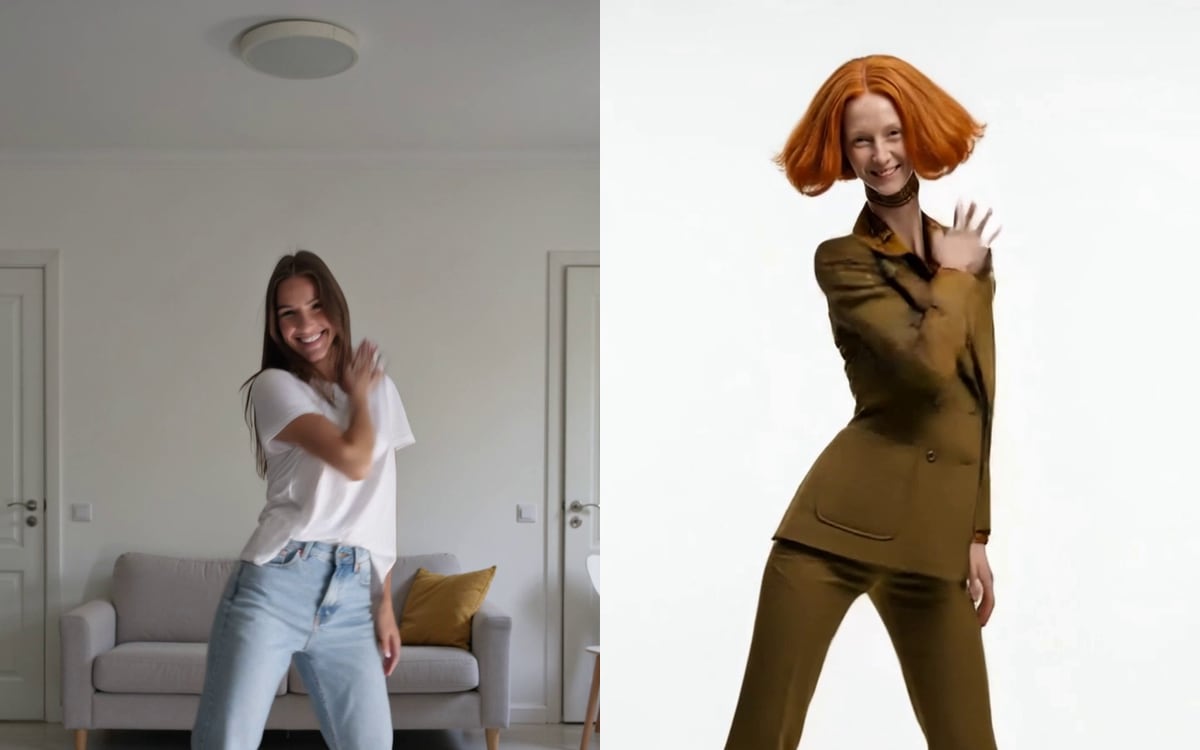 Make your character move like youFilm a move once, and your character does it: the same steps, the same timing.
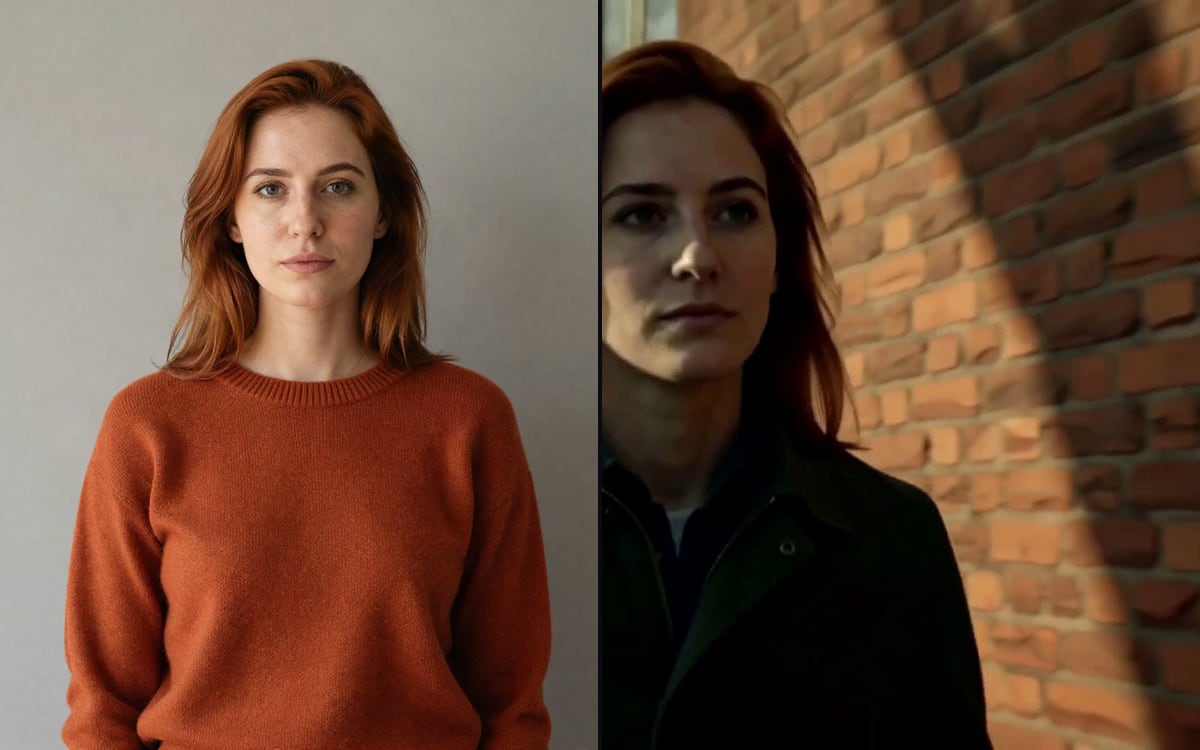 Recast a videoSwap the person on screen for someone in a photo. The motion, the cuts and the sound stay.
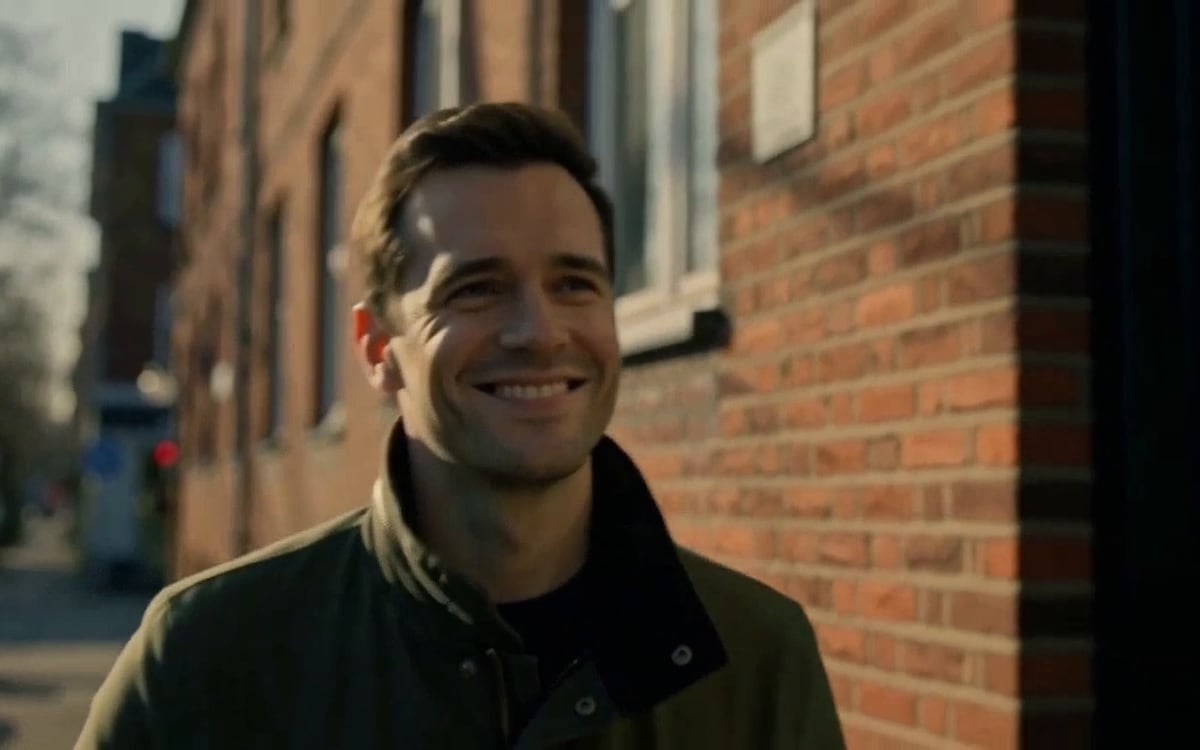 Extend a videoMake a clip longer. Describe what happens next and the video carries on in the same style.
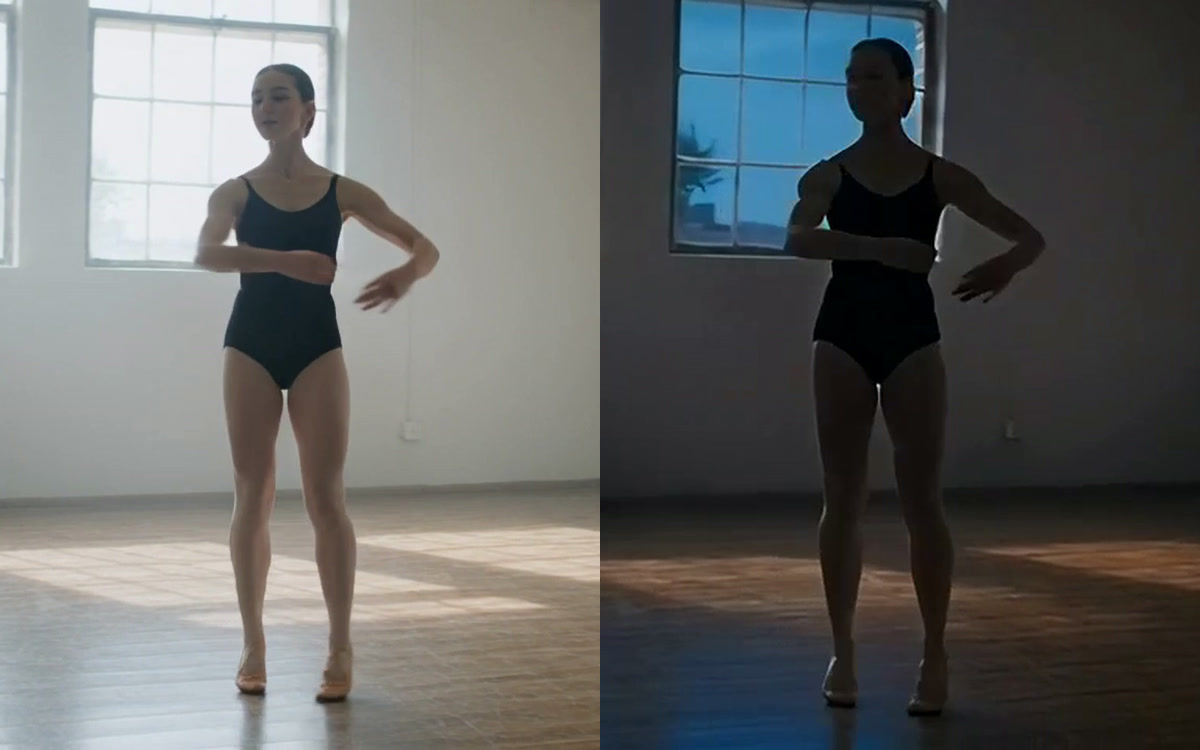 Change anything in a videoSwap a person, an outfit, a product or the whole look of a clip. The motion and the framing stay.
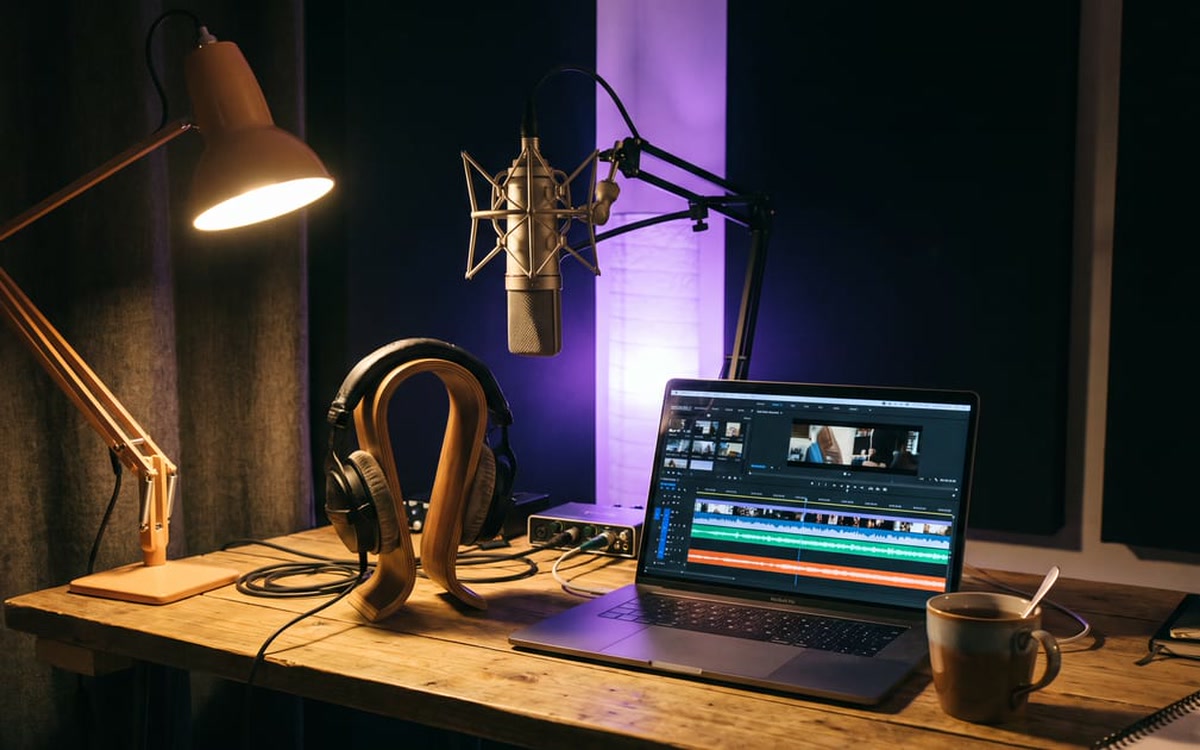 Change a voiceSay it once in your own voice and get it back in another. The timing and the emotion stay.
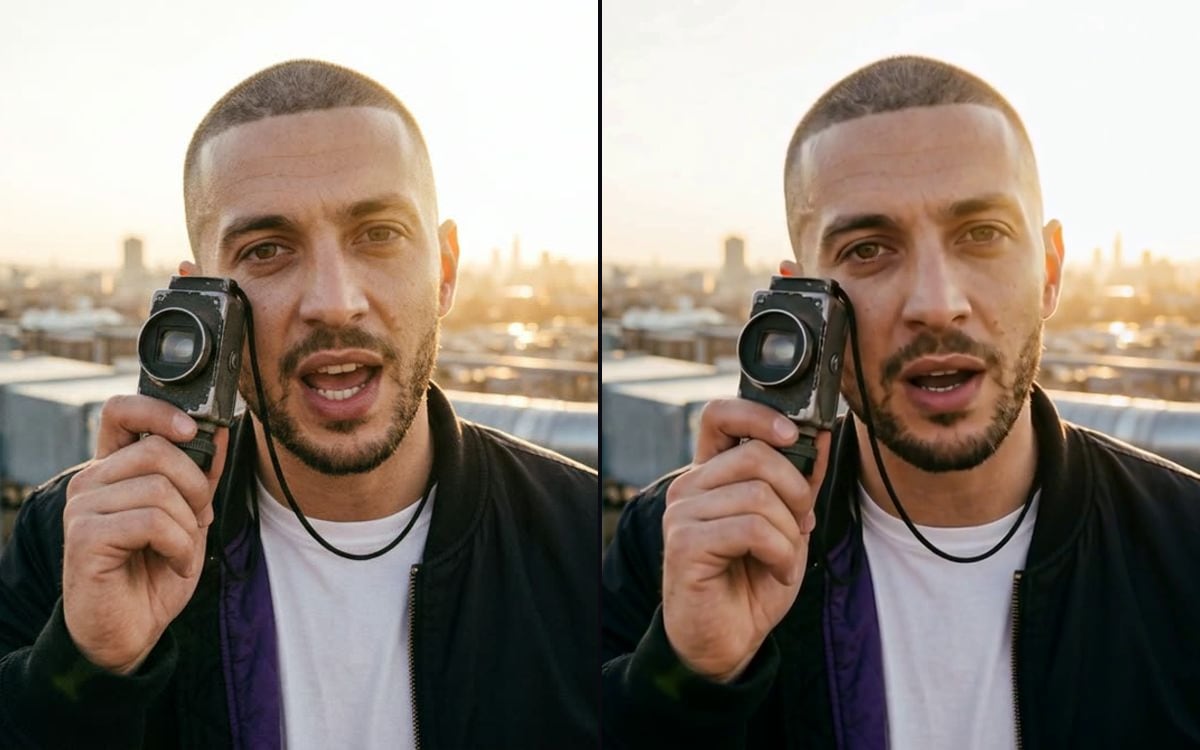 Make a photo talkGive a face in a photo your audio. The lips follow the words.