
How it works
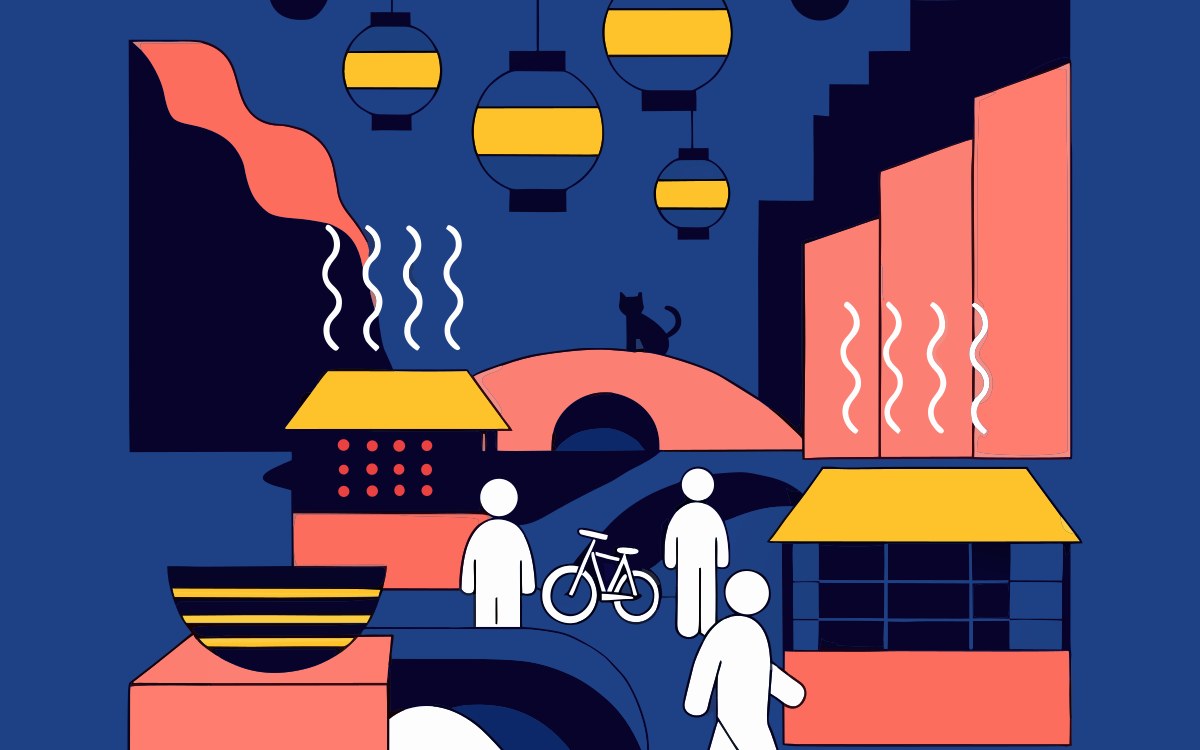
- 1Bring the imageA logo, an icon, a flat illustration. Something with clear shapes and few colours works best.
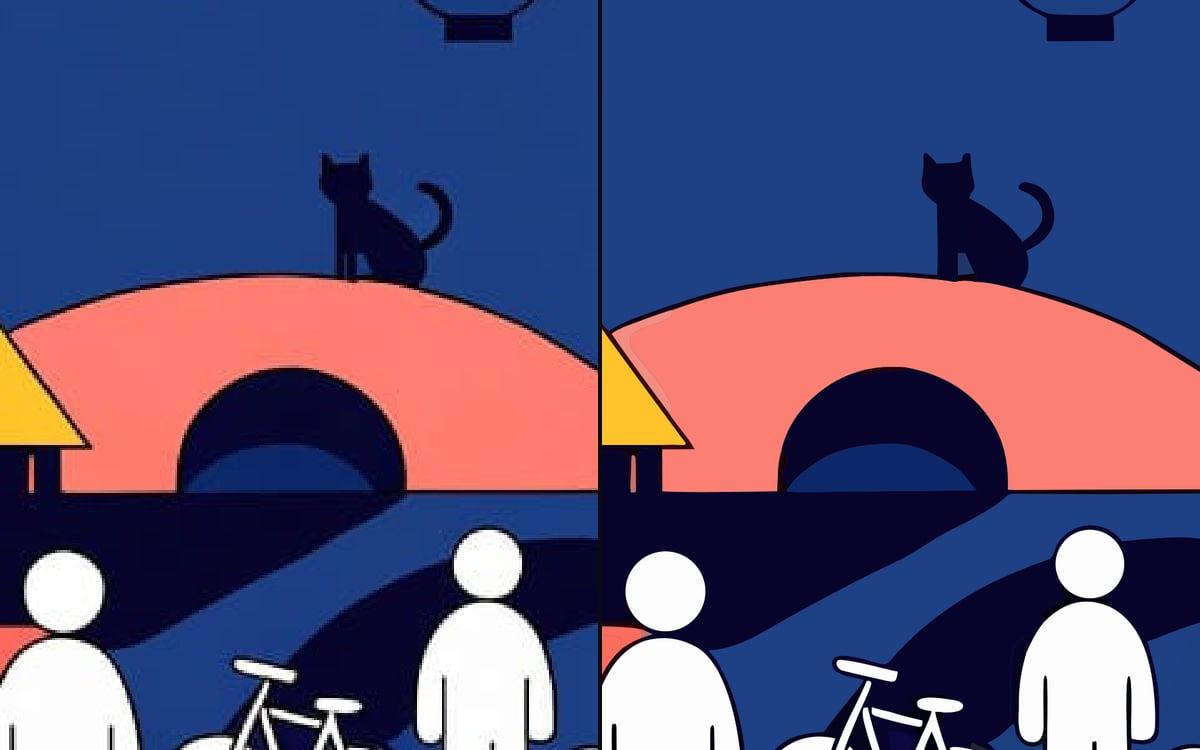
- 2Let it traceIt turns the pixels into shapes and lines, colour by colour.
- 3Scale it anywhereFrom a favicon to a banner on a building, without a single blurry edge.
What people make with it
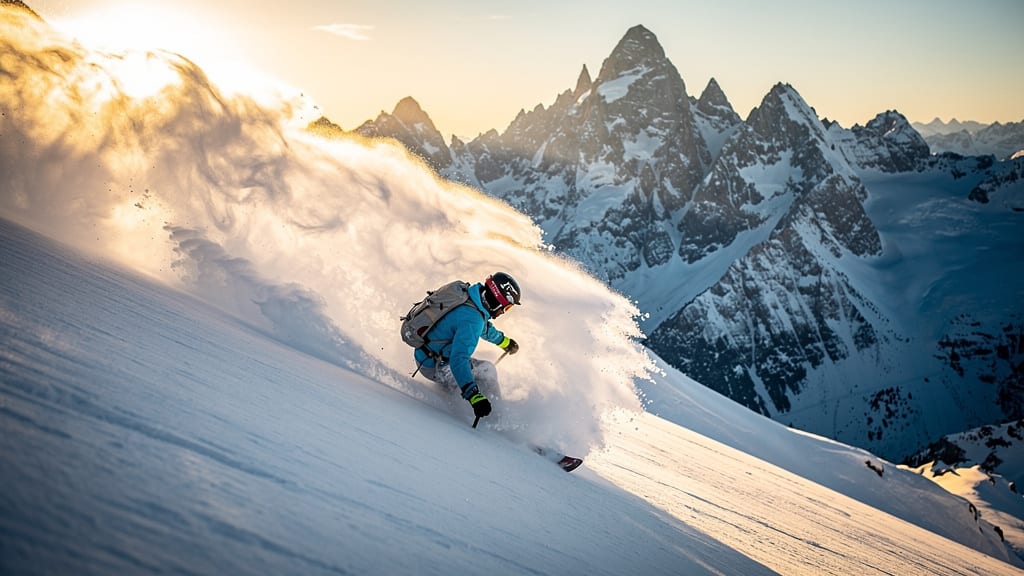
Bring the file, get the result
Pick the tool, drop in your image or clip and it is done. You start with 1,000 free credits.
Get early accessGood to know
Flat beats photographic
Clear shapes and few colours trace cleanly. A photo becomes a poster-like version of itself.
A clean file
Only shapes and colours; anything else a file could carry is taken out before it is stored.
Questions
Can I make a vector from a prompt?
Yes, pick Ideogram Vector in the Studio and describe the logo or icon.
Which programs open the SVG?
Every browser and every design tool, from Figma to Illustrator.
What does it cost?
A fixed amount per SVG. It is on the button.
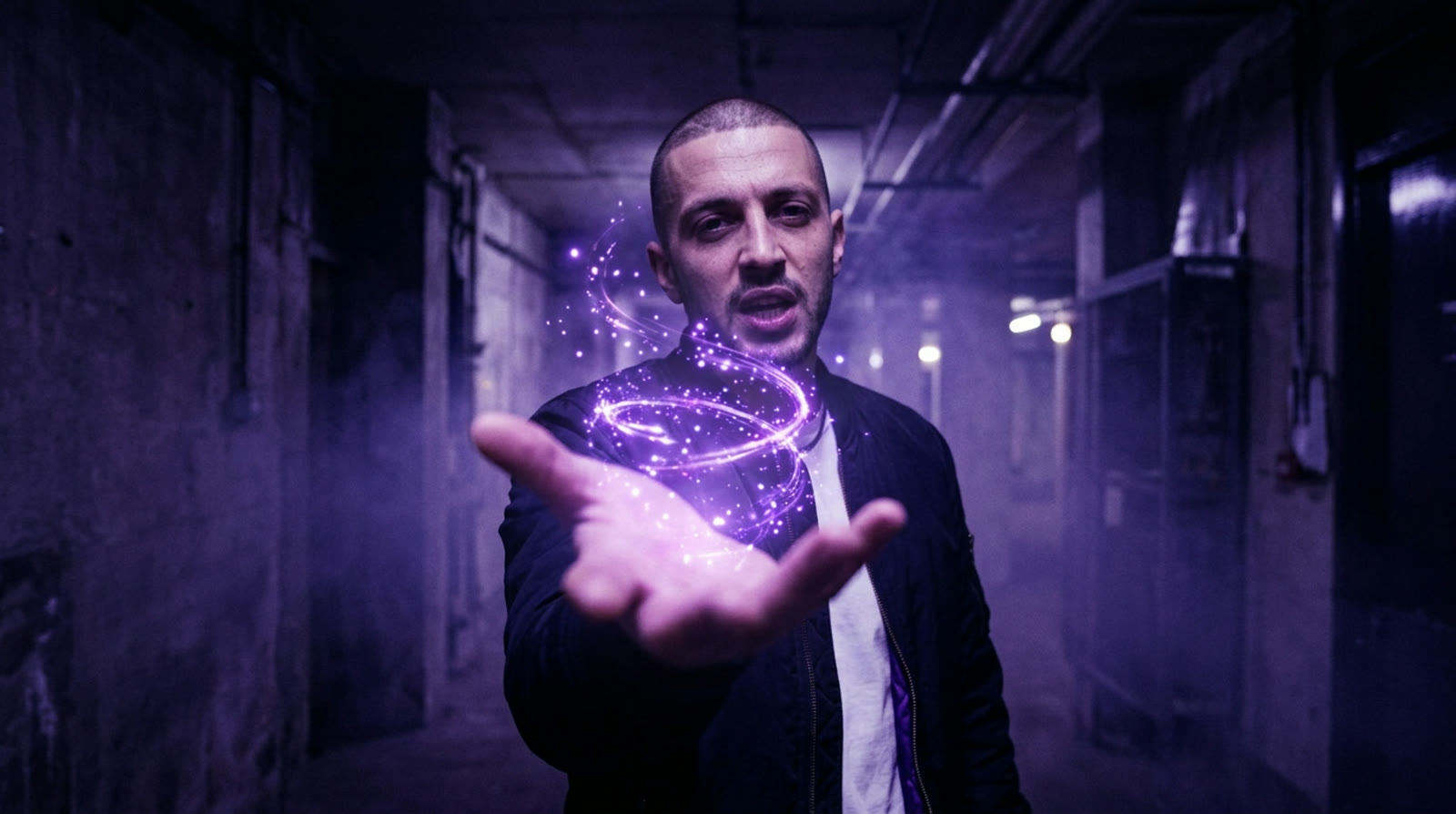
Bring the file, get the result
Pick the tool, drop in your image or clip and it is done. You start with 1,000 free credits.
Get early accessAlso in the studio
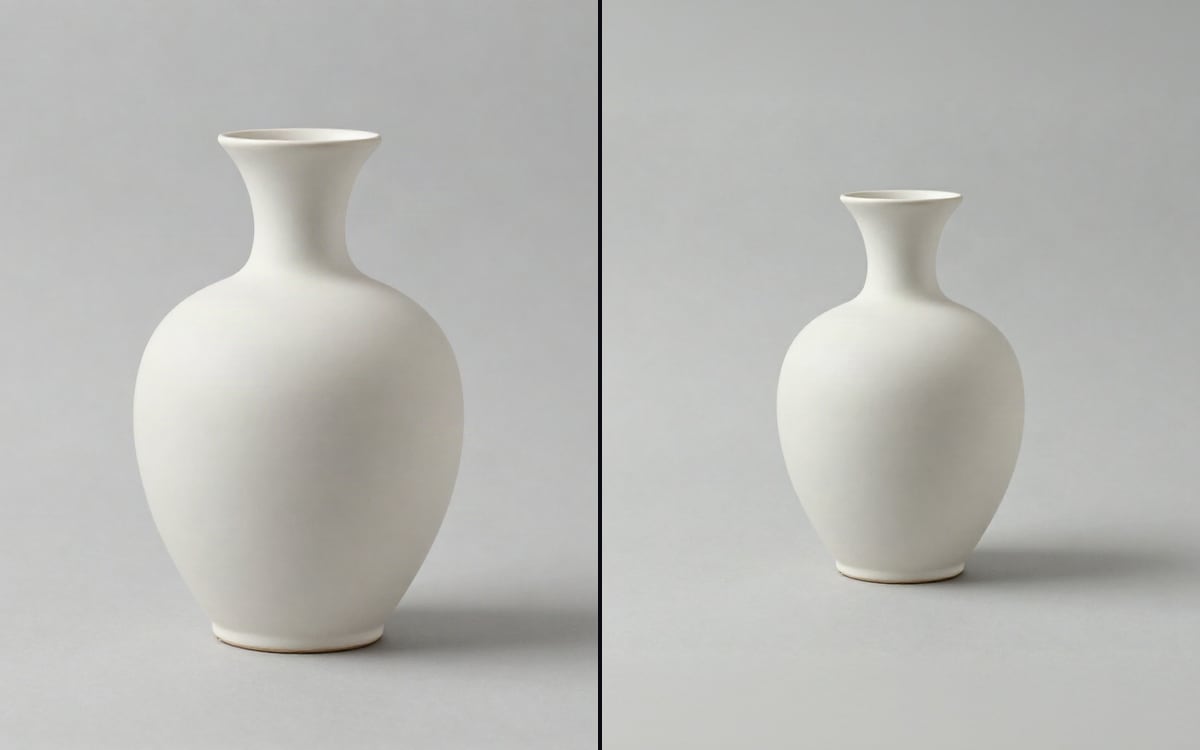 Expand imageWiden a picture beyond its edges. Pick the shape you need, no prompt required.
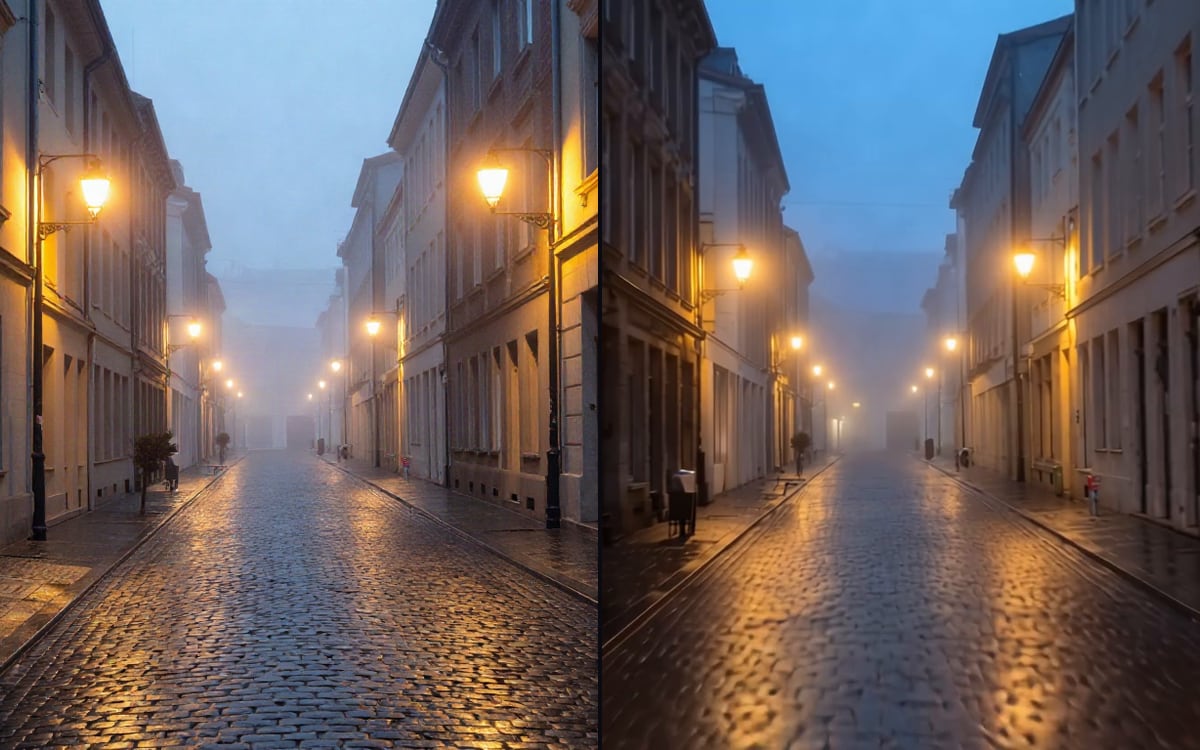 Transition between two framesGive a first frame and a last frame, and get the clip that runs between them.
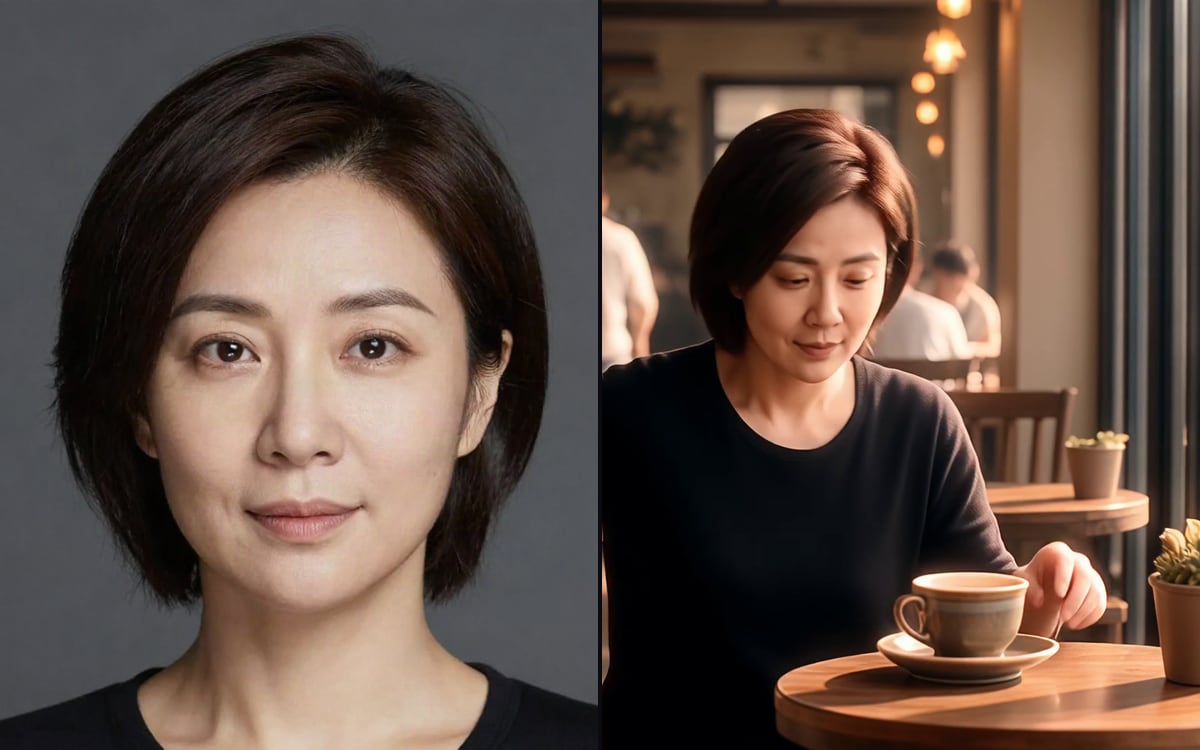 Keep the same characterReference images that carry one person, product or place across a whole sequence.
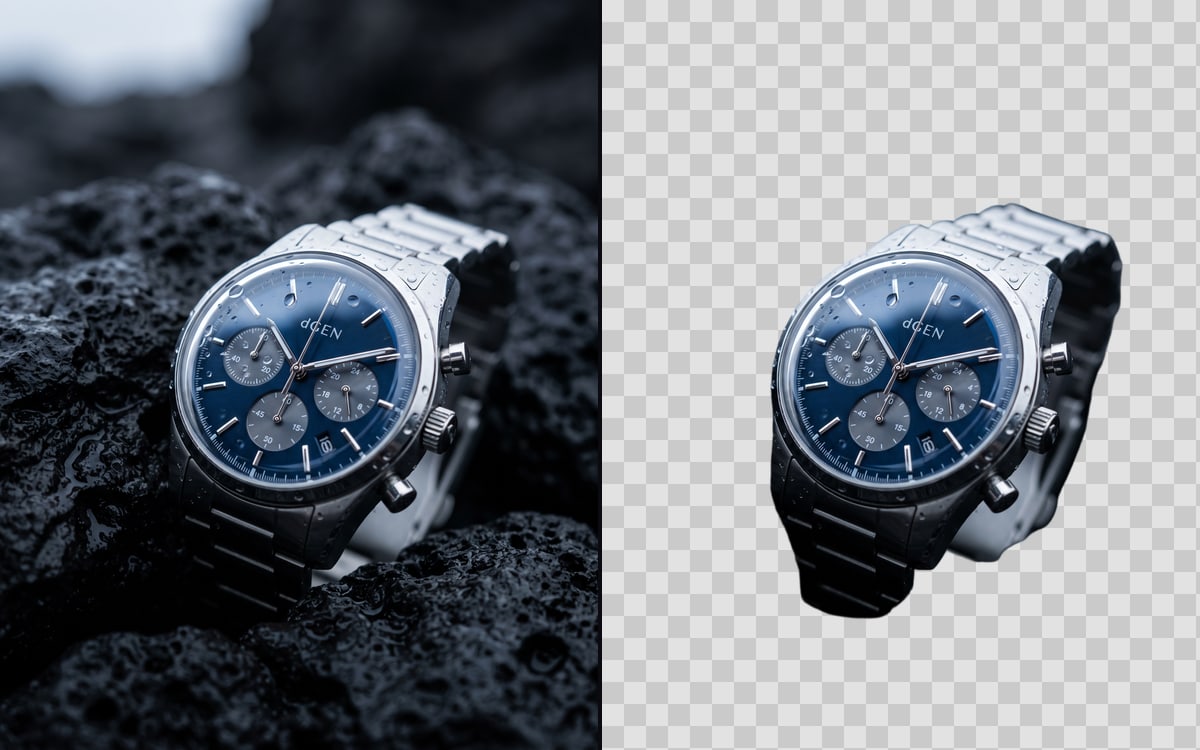 Remove an image backgroundCut the subject out of a photo and leave the background transparent.
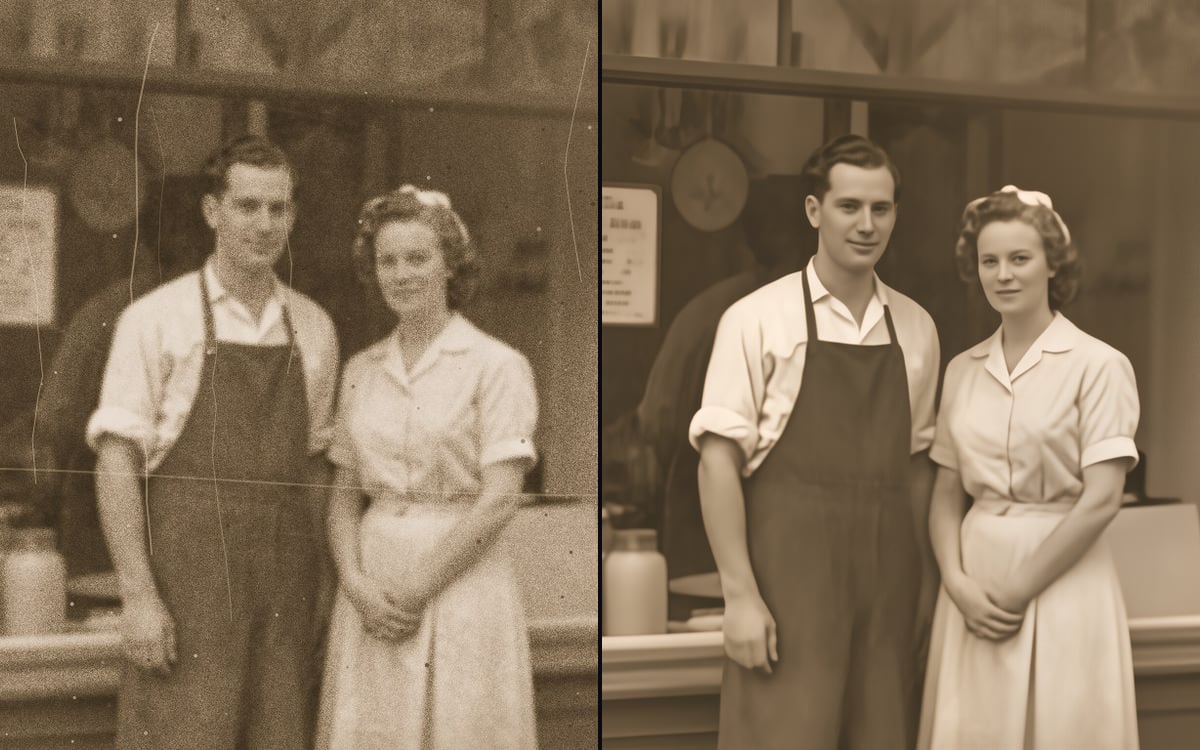 Restore an old photoBring back an old, scratched or faded photo, with scratches, dust and creases taken out.
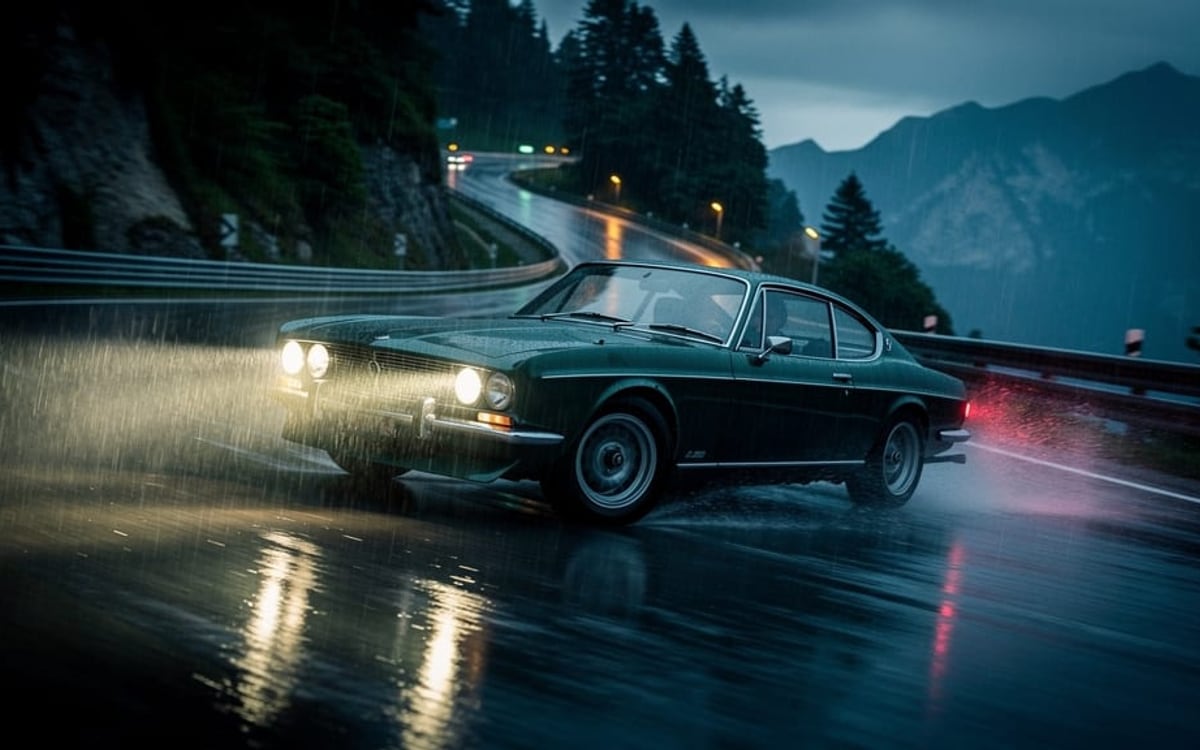 Add sound to a videoGive a silent clip sound effects that land on what happens in the picture.
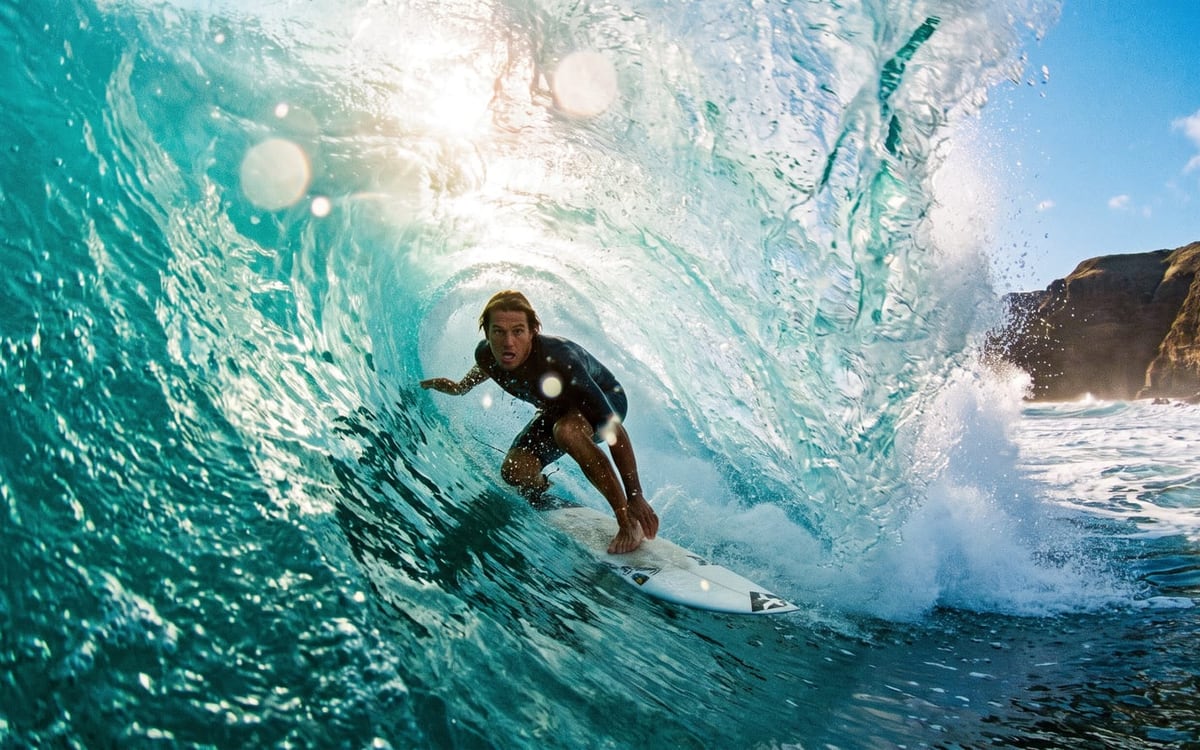 Add music to a videoMusic written to your clip, with the beats on the cuts, mixed in underneath.
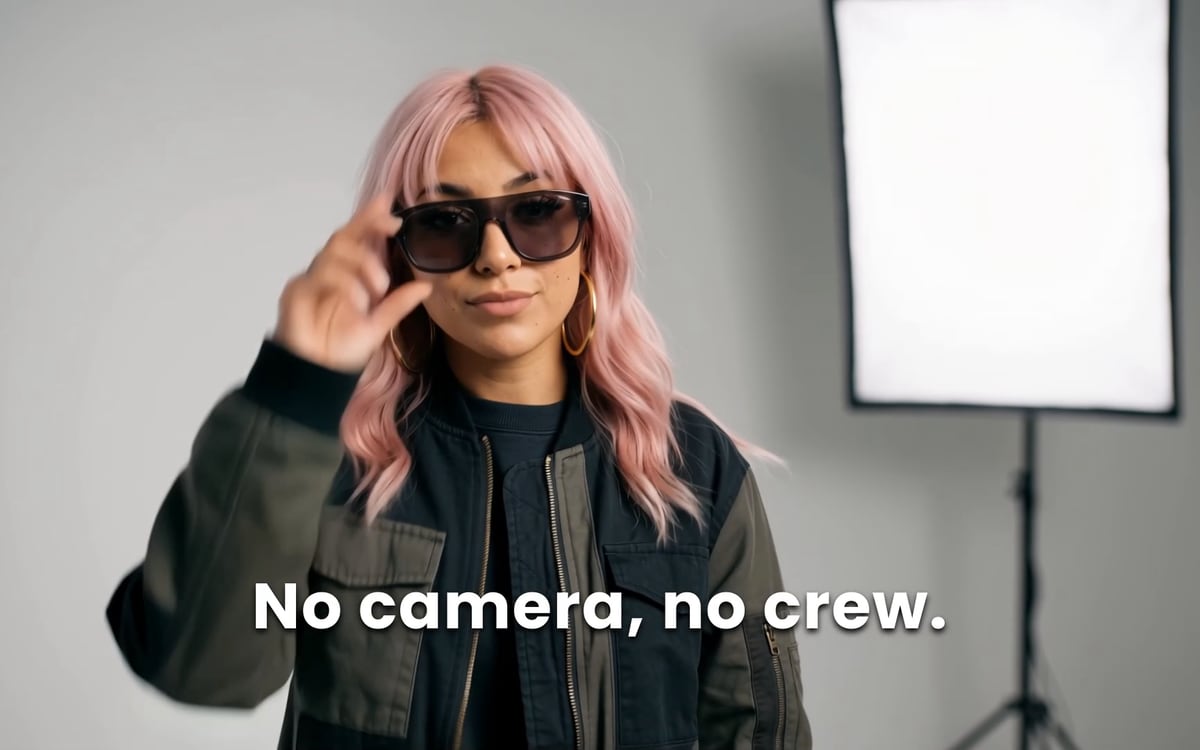 Add captions to a videoBurned-in captions for every word that is spoken, in a style that reads on a phone.
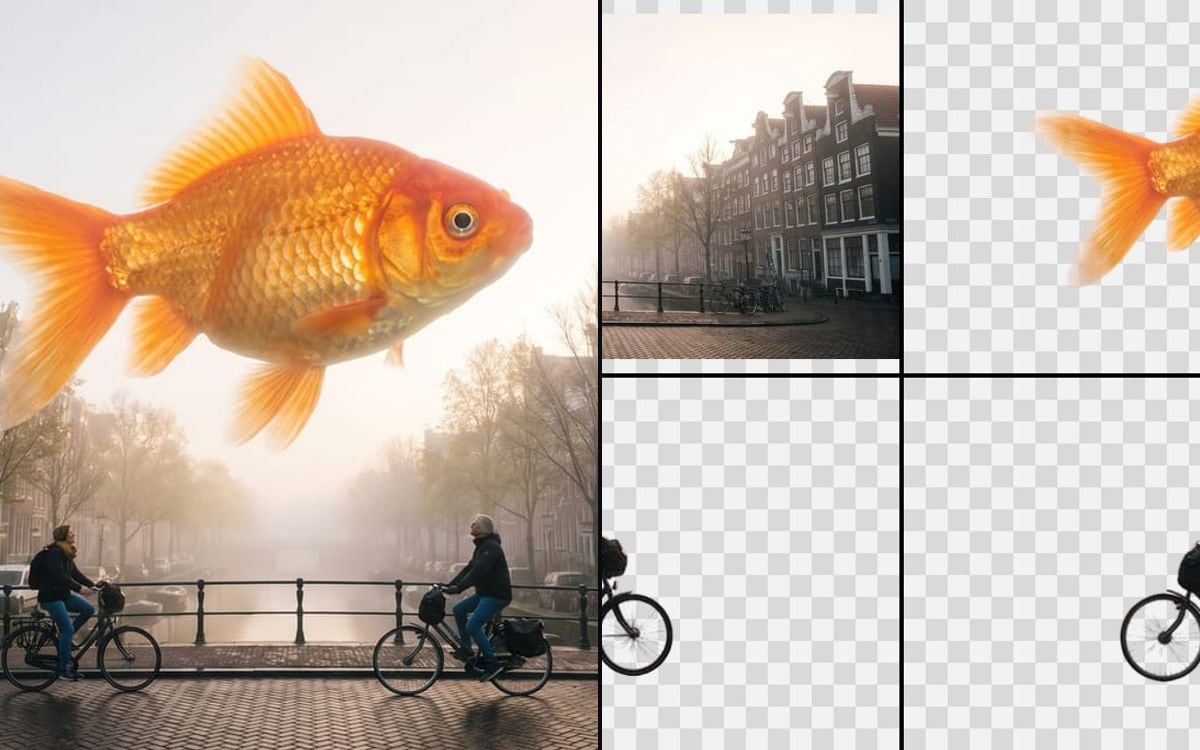 Split an image into layersGet the background and every object of a flat image as separate transparent layers.
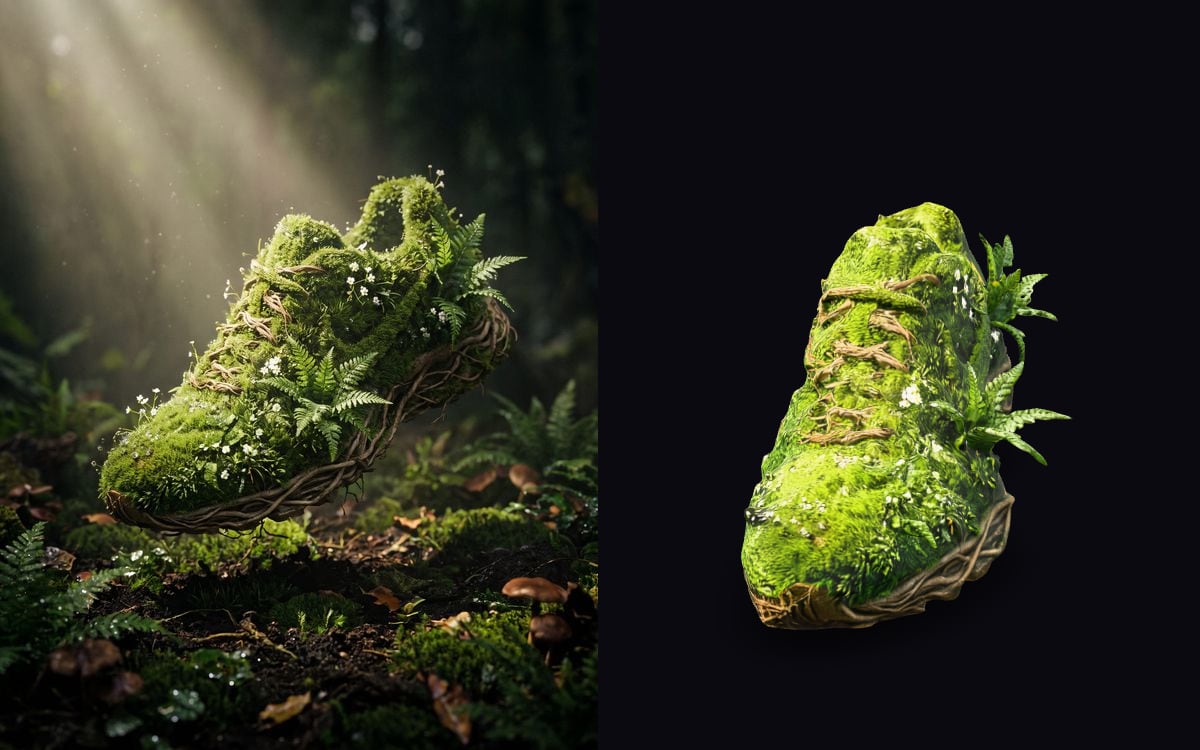 Turn an image into a 3D modelOne picture becomes a textured 3D model you can turn, use in a game or place in your room.
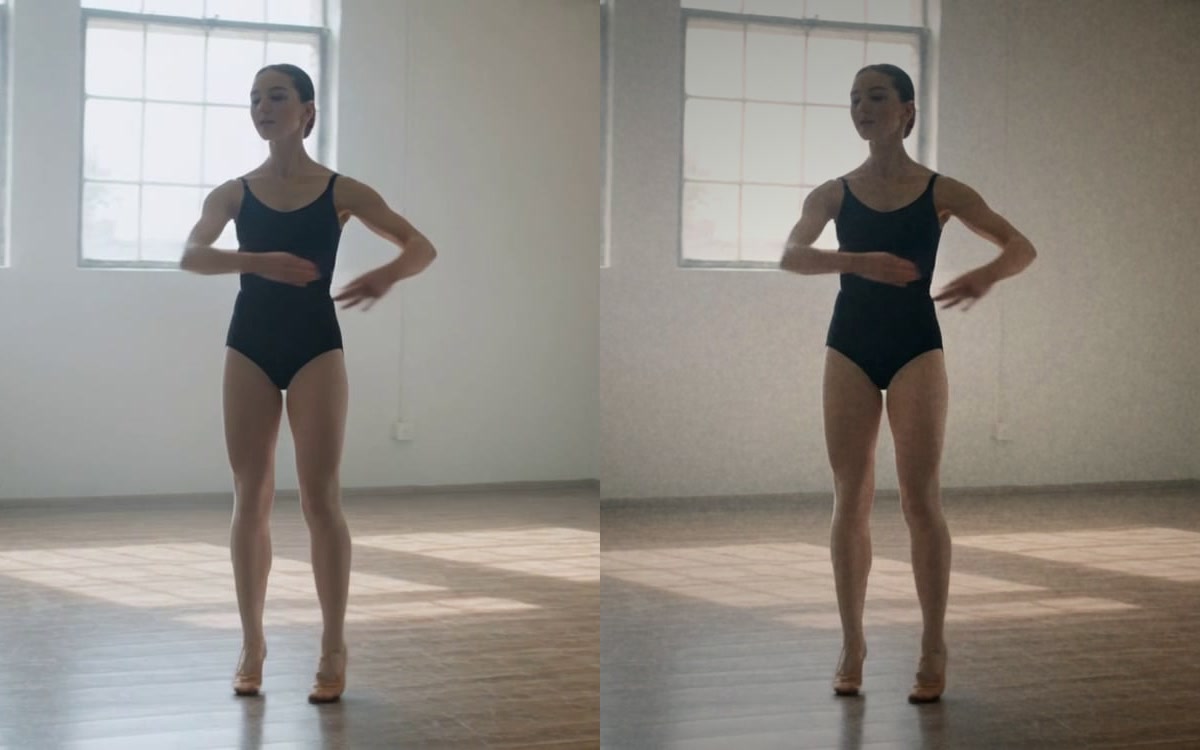 Finish an imageFilm grain, a vignette and a colour correction, so a generated image looks shot.
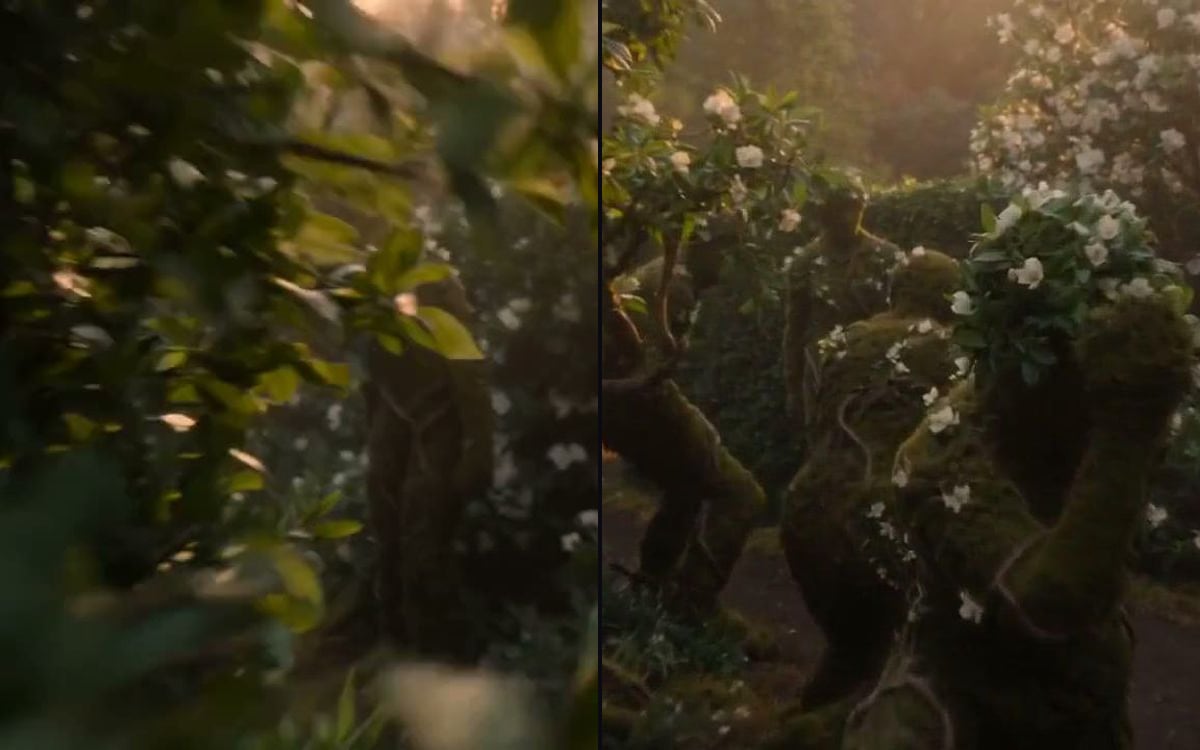 Get a frame from a videoKeep the first, middle or last frame of a clip as an image.
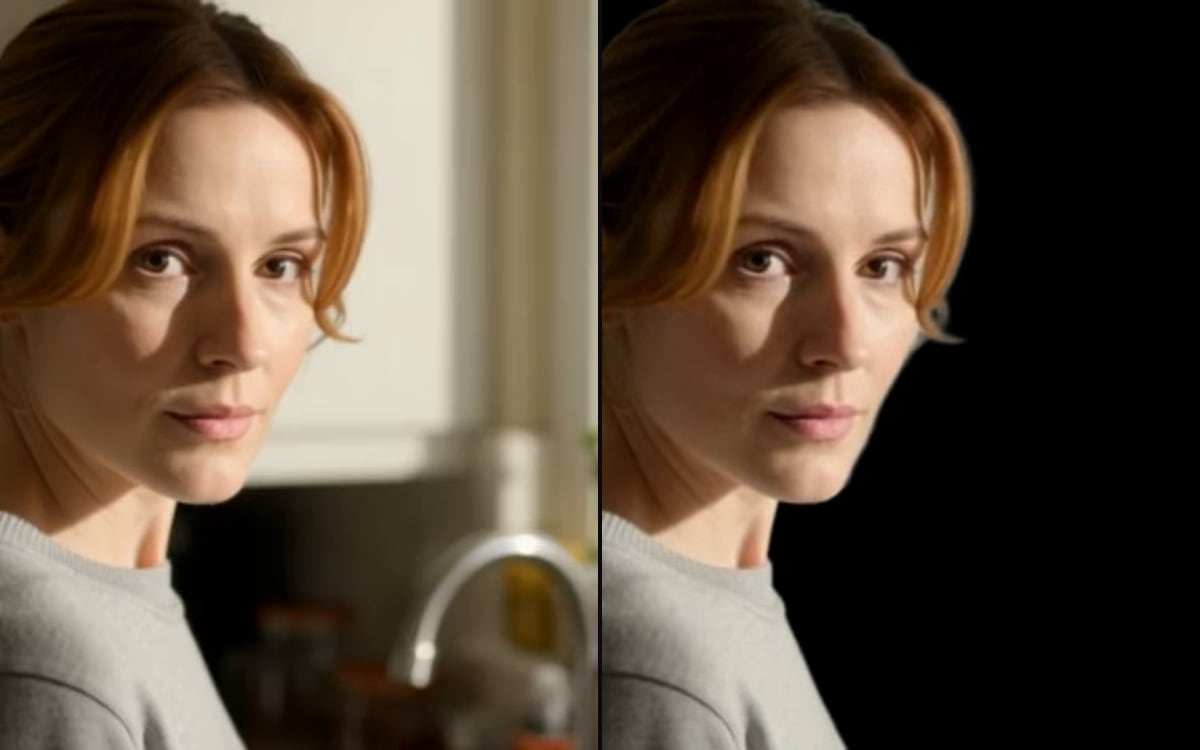 Remove a video backgroundCut the subject out of a clip and leave the background transparent.
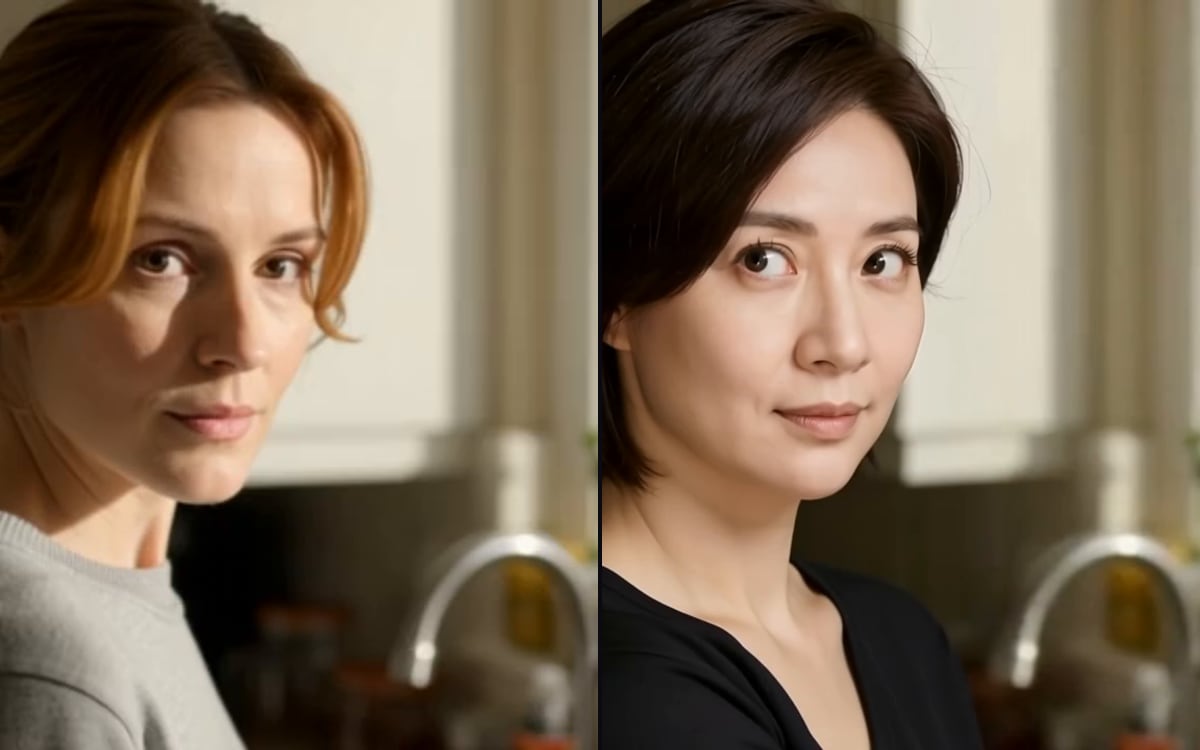 Face swap in a clipPut one face into an existing video. Only with permission from the person in the picture.
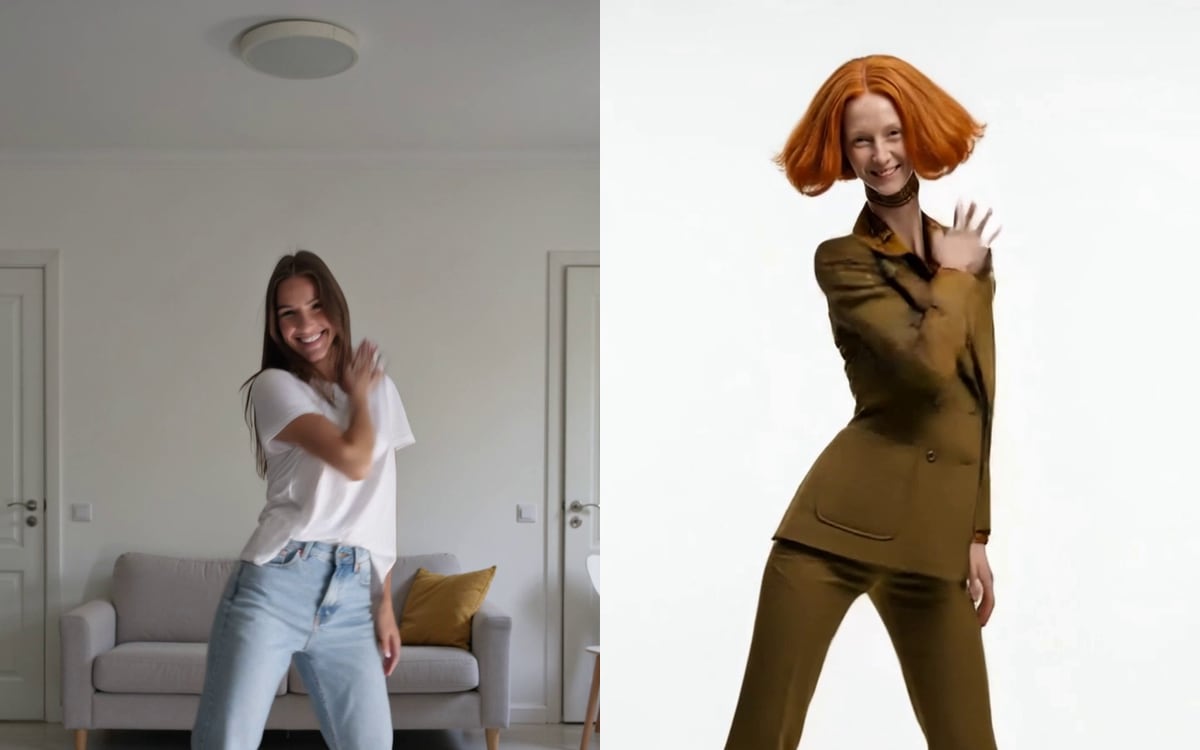 Make your character move like youFilm a move once, and your character does it: the same steps, the same timing.
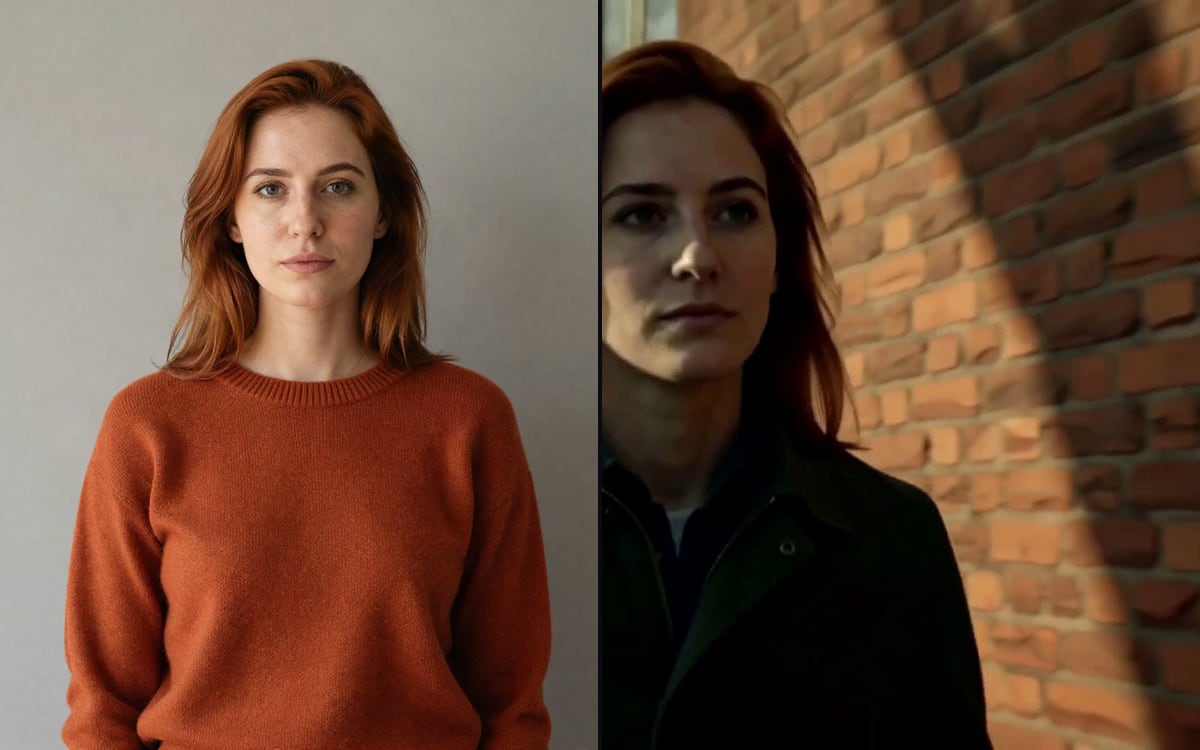 Recast a videoSwap the person on screen for someone in a photo. The motion, the cuts and the sound stay.
 Extend a videoMake a clip longer. Describe what happens next and the video carries on in the same style.
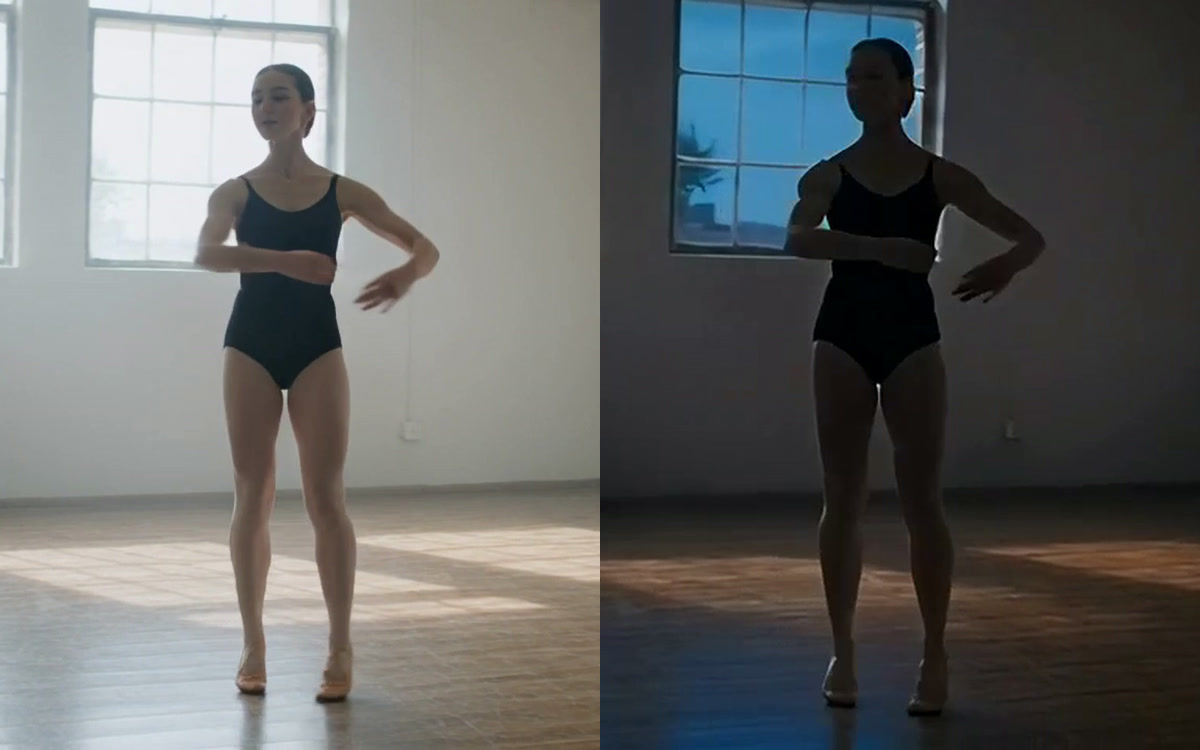 Change anything in a videoSwap a person, an outfit, a product or the whole look of a clip. The motion and the framing stay.
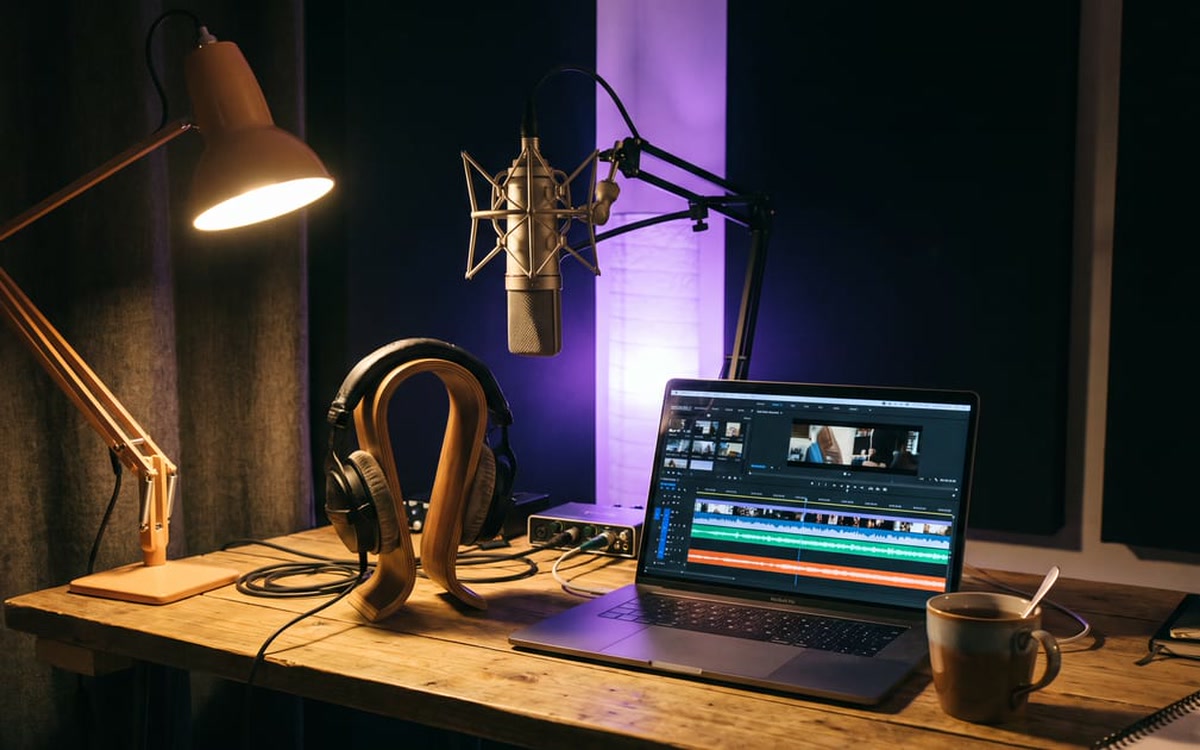 Change a voiceSay it once in your own voice and get it back in another. The timing and the emotion stay.
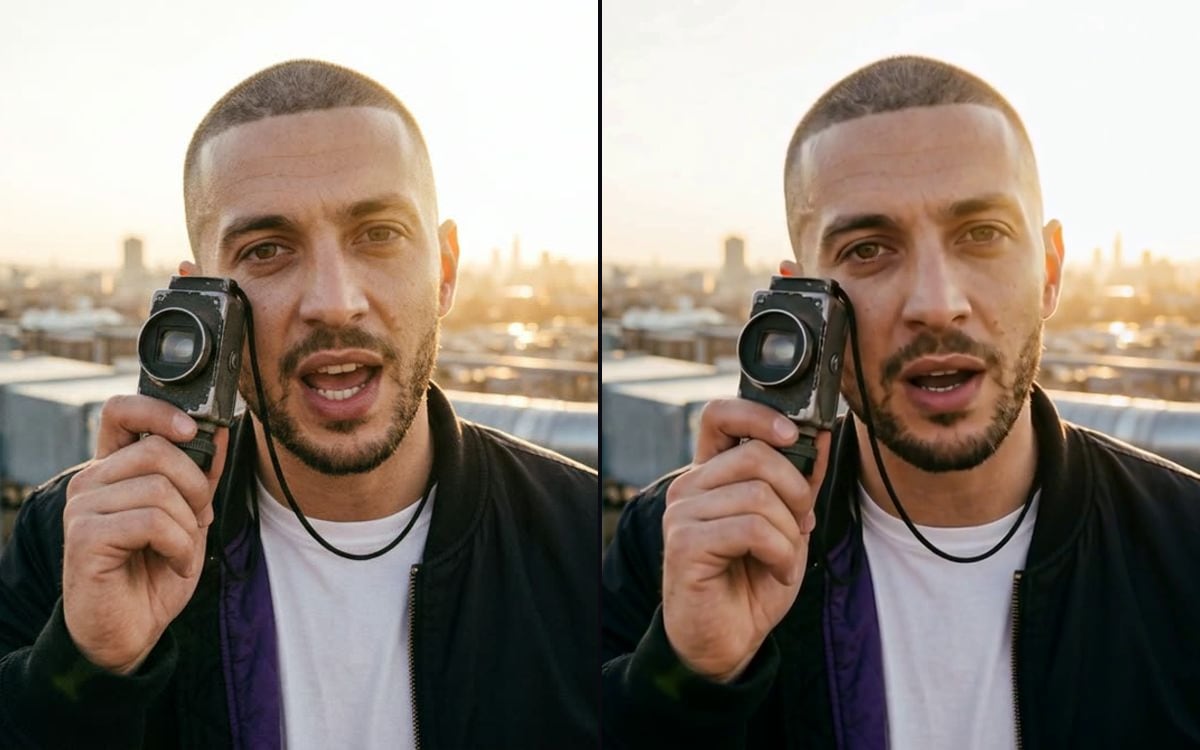 Make a photo talkGive a face in a photo your audio. The lips follow the words.