
Who it is for
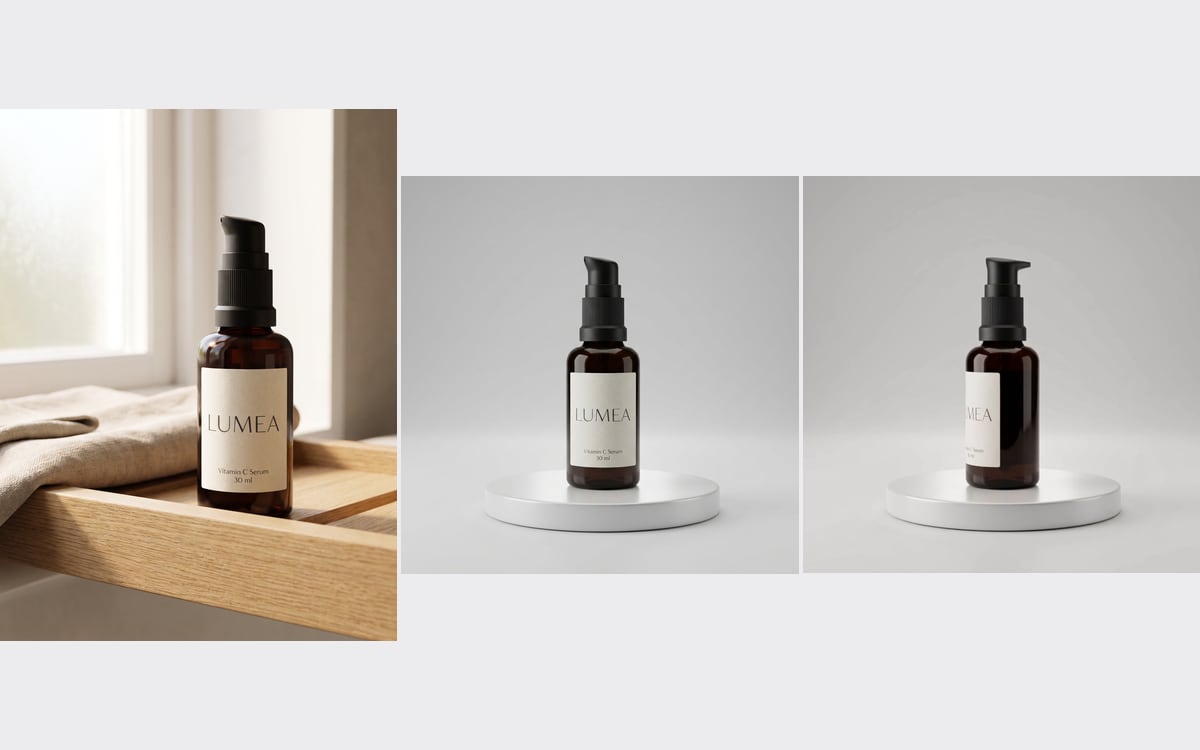
For webshops and product pages that want to show a product from more than one side.
How it works
- 1Bring your productOpen the template and drop your own file in. Everything else is already set up for you.
- 2Press run2 steps run in order, on Nano Banana 2.1, Kling 4.0. Each step shows its price before it runs.
- 3Keep the best oneEverything lands in your library. Change one step and run it again for the next product, client or scene.
What comes out
Made in this studio, with this template. Turn the sound on.
What you get, and how to use it
Use this flow to show a product from every side: first a clean studio shot on a turntable, then five seconds of it turning slowly. Drop your product photo in Your product, then press Run on Studio shot first and Turntable after it.
The AI models in it
Questions
What does the Product turntable template cost?
You pay per step you run, in credits that never expire. Every step shows its price on its button before you press it. If a step fails before the model has made anything, you get every credit back.
Can I change the models or the prompt?
Yes. A template becomes an ordinary flow the moment you open it. Every model, prompt and setting stays yours to change, and you can save it as your own.
Which AI models does it use?
Nano Banana 2.1, Kling 4.0.
More templates
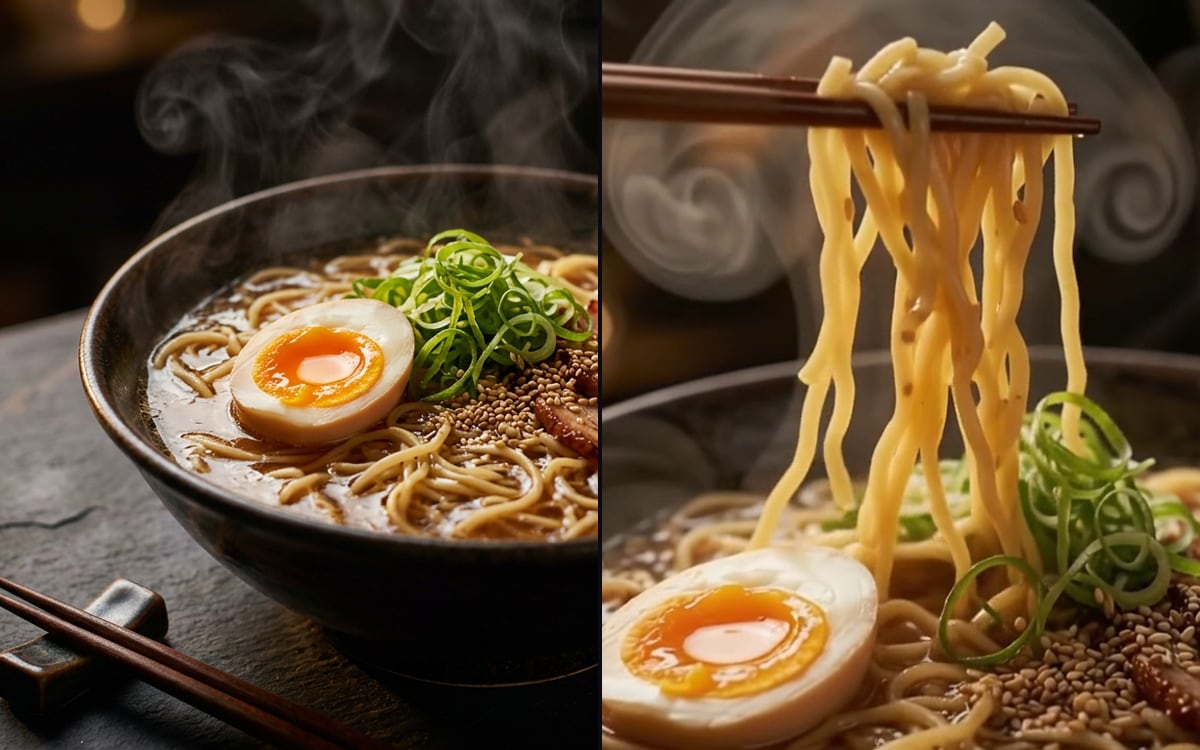 Food commercialDescribe a dish, get a hero shot and an eight-second slow-motion commercial with sound.
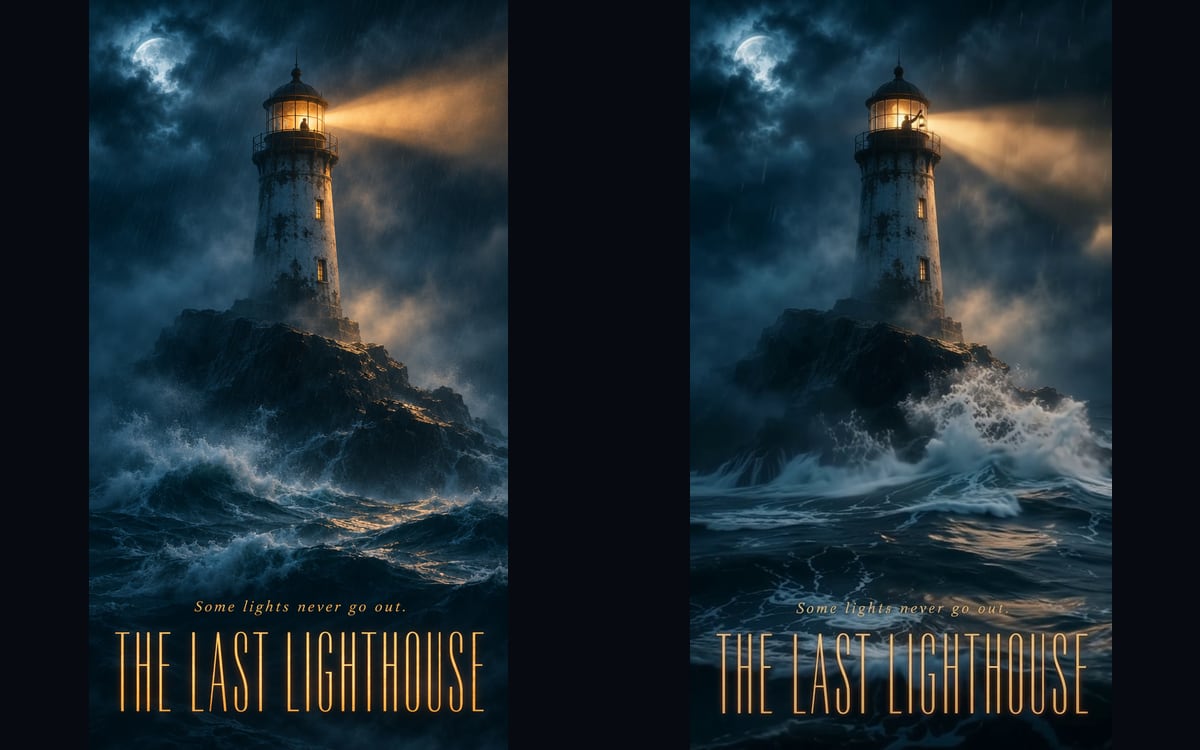 Motion posterA film title and a logline in, a vertical poster that moves, with sound, out.
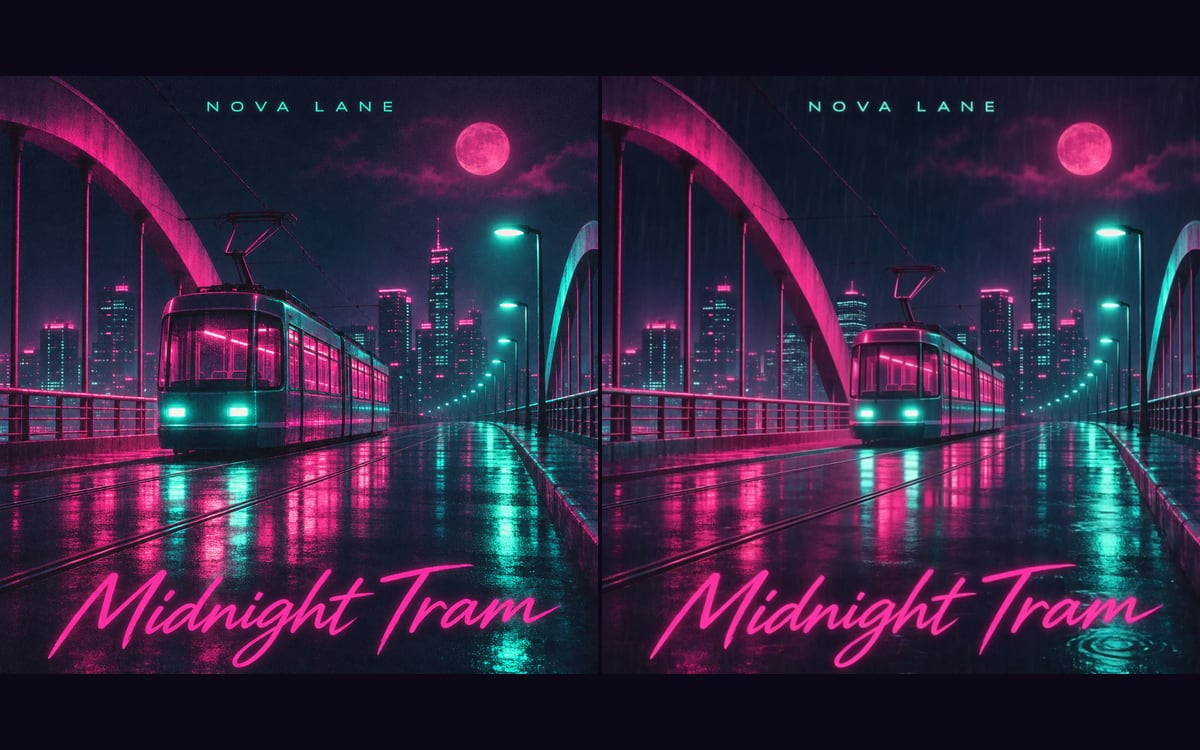 Album cover and visualizerArtist, title and style in: cover art, a looping visualizer and an instrumental track out.
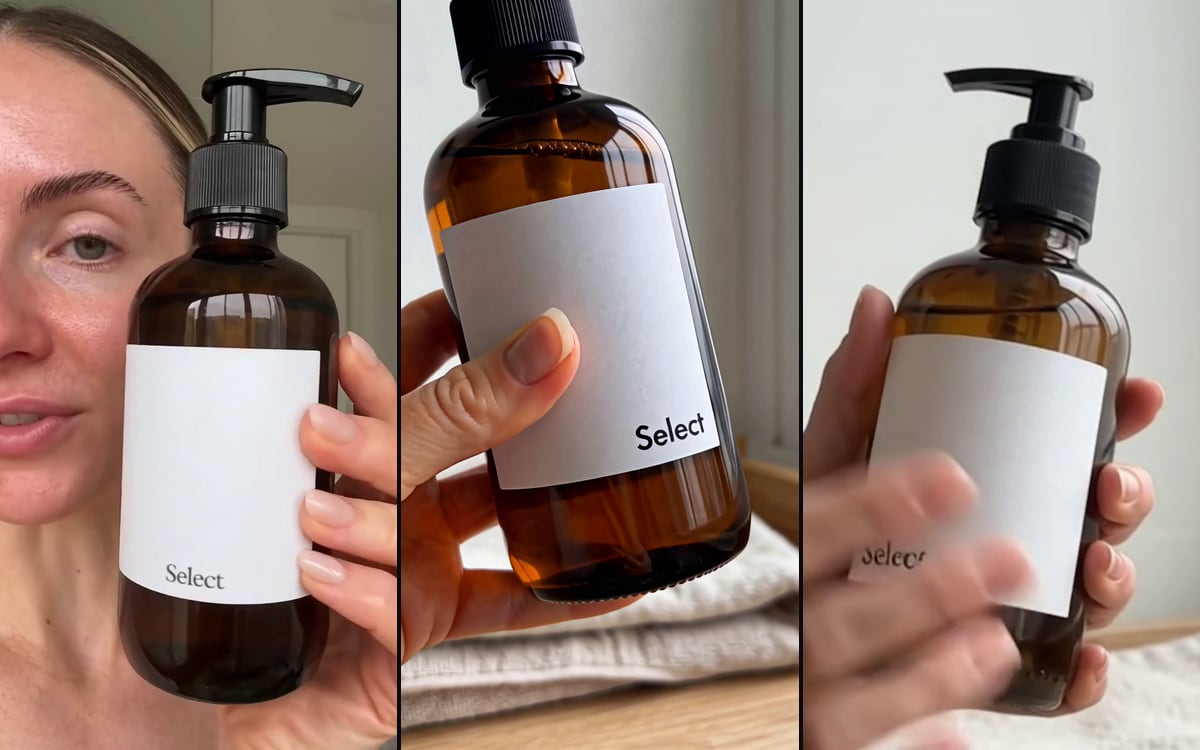 Product to UGCTurn a product photo into authentic UGC content, in three models at once.
Start from Product turntable
Pick one, swap in your own product or face and press run. You start with 1,000 free credits.
Get early access