
Words are bad at places
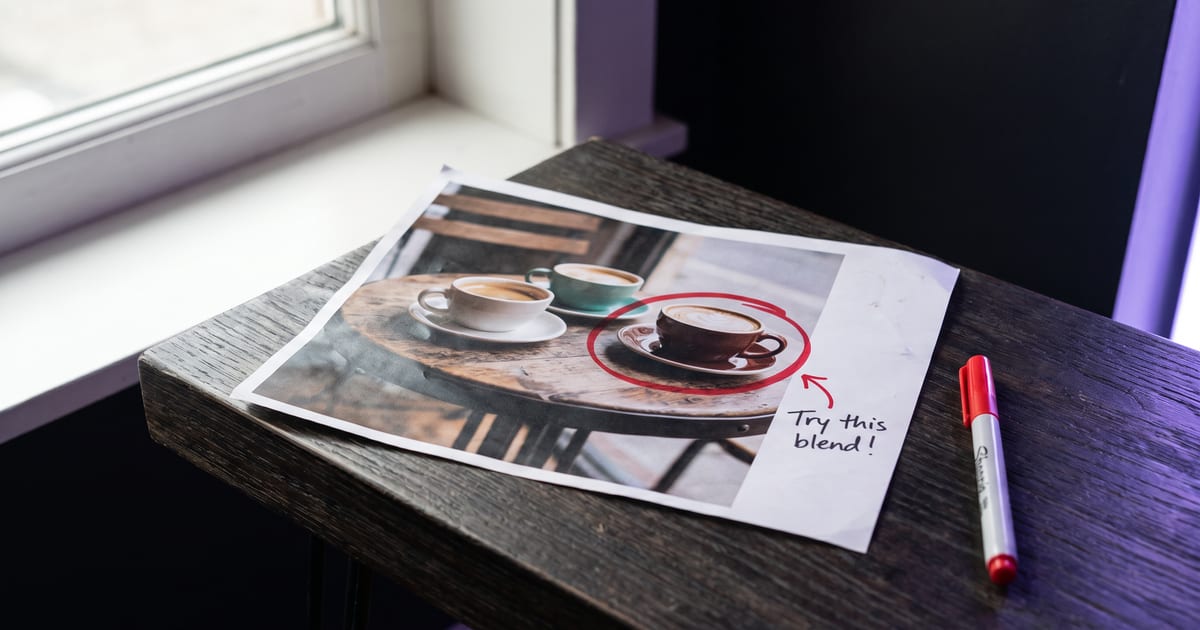
"The second cup from the left, behind the plant" works until there are two plants. A circle on the picture says it in one move. GPT Image 2.6 reads your drawing as an instruction: what is circled is what changes.
Three marks are enough
Use a circle for the thing that changes, an arrow when the change goes somewhere, and a short note for what it should become.
- Circle: around the object, not too tight.
- Arrow: from where to where, for moving or adding.
- Note: a few words, next to the circle, in plain language.
Then say it once in the prompt
Write one sentence: follow the markup, change what is circled as the note says, keep everything else the same. The drawing does the pointing, the prompt does the asking.
Check the rest of the picture
Compare the result with the original outside your circle: faces, text and edges should be untouched. If something else moved, circle less and write the note shorter.
Drawing works on models that read markup; the button only appears when the chosen model does.
Questions
Does the drawing end up in the picture?
No. It is sent next to the picture as a separate layer; the result has no circles in it.
Can I mark more than one change?
Yes. Give every change its own circle and note.
Read next
Put this guide to work
Open the studio and try what you just read. You start with 1,000 free credits.
Get early access