
Build an AI influencer people recognise
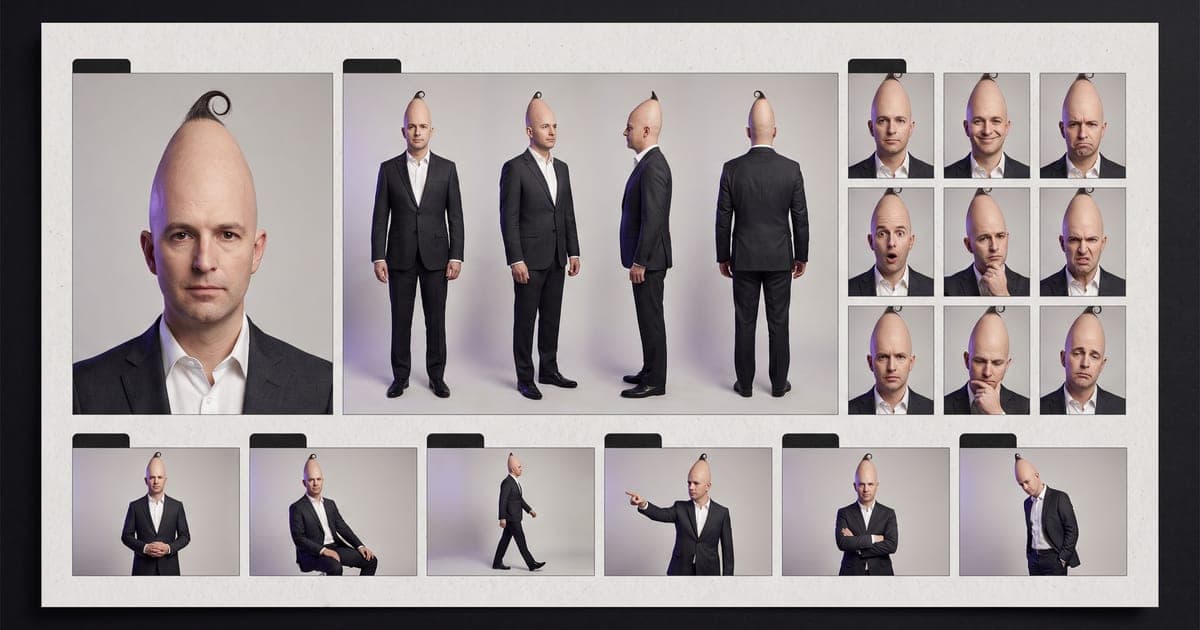
Make the influencer, make its sheet, and it is a character you can use in every image and video after.
3 min read · last checked
Three steps, always in this order
A new character in dGEN Influencer goes through three steps. First you make the influencer: a portrait and a full body of the same person. Then you make the continuity sheet from those two. As soon as the sheet is done, it is a character, saved in its own folder in your library.
You find it on the Studio screen, under the dGEN Influencer tab. The same three steps are in the template AI influencer, if you prefer to work on the canvas.
Step 1: make the influencer
There are three ways to start, and you can mix them.
- From the settings. Pick tiles in 19 groups, from character type and head shape to hairstyle and outfit. Randomize fills whatever you leave open.
- From a prompt alone. Write who it is under Extra details and leave the tiles empty. A frog in a three-piece suit works just as well as a person.
- From a reference photo. Upload a photo at the top, of yourself or of someone who agreed to it, and the character keeps that face.
Give it one signature detail and one gesture. The characters people share have one thing you spot in a single frame and one move they repeat. Both go into every image and every video after.
What you get in step 1
Press Generate and the studio makes a portrait first, then a full body made from that portrait. That order is on purpose: made separately, from the same text, they come out as two different people.
The price for both is on the button before you press it. If the full body comes back refused, press Try the full body again: it starts from the same portrait, so you do not pay for that twice.
Step 2: make the sheet
Once the portrait and the full body are there, the next button is Make the sheet. It turns both into one landscape page: a profile, four turnaround views, nine expressions, six poses and close-ups of the details. One of the poses is the signature gesture.
The sheet is what keeps the character the same across ten videos. Every model that takes reference images gets the sheet, the portrait and the full body together.
Step 3: it is a character
When the sheet is ready, the character saves itself. It gets its own folder under Library, Characters: the portrait, the full body, the sheet and the profile on one page. You can rename it there, and delete it without losing the images.
From that folder, Make a video and Make an image open the Studio with the character already attached. On the Studio screen itself, the plus menu has Character: pick one and its images go along as references.
Two ways into video
From the character you have two routes, and both keep the face.
- A new video. Describe an ordinary place and what happens, and the character plays it. A different place every time, the same gesture, and you have a series.
- Your character in a clip you have. Film the move yourself, or use a clip you have the rights to, and swap the character in. The timing and the movement stay, the person changes.
The studio adds nothing visible to the picture. Platforms ask you to mark AI content when you post, and you tick that label yourself.
Read next
Put this guide to work
The studio opens in stages. We open access in the order people signed up, and you start with 1,000 free credits.
Get early access