
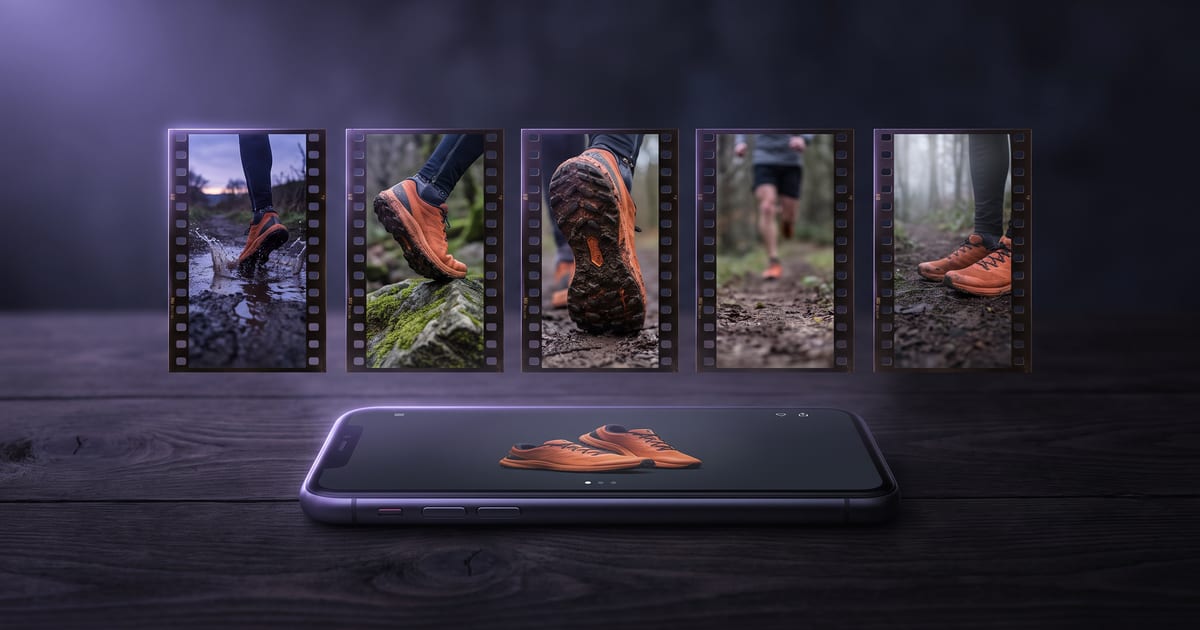
Paste the page, say what you want
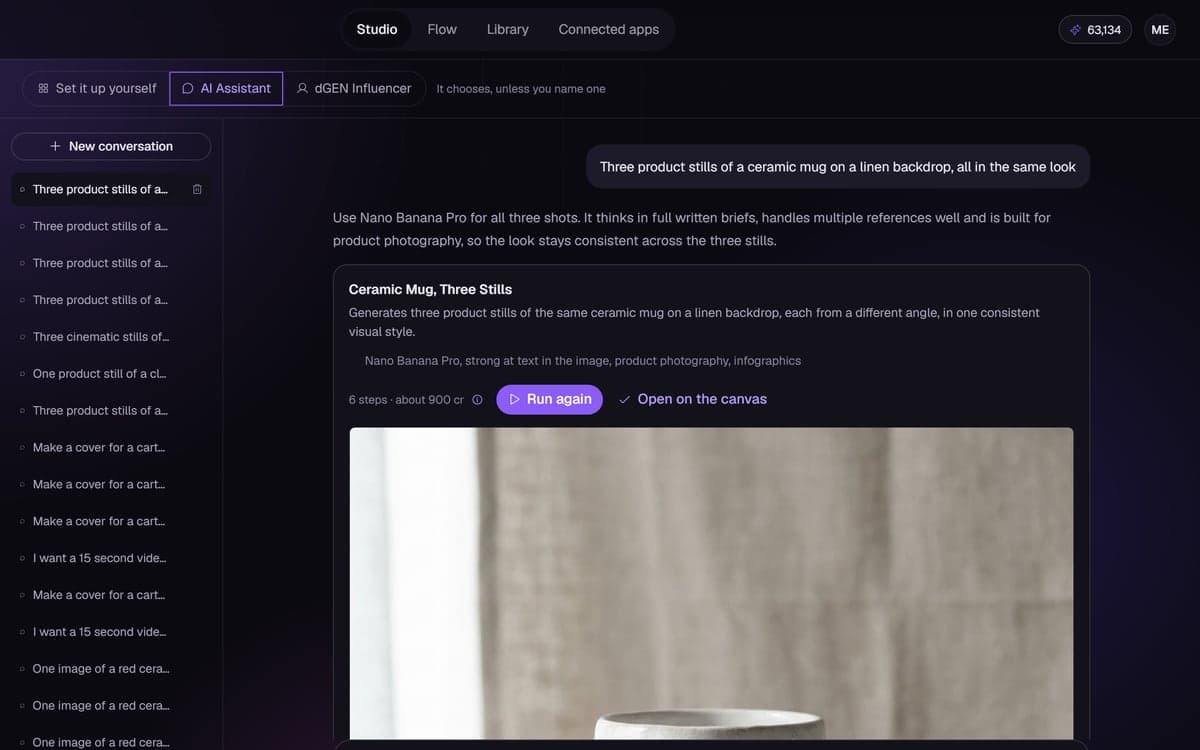
Open the assistant and paste a link to your product, your website or a blog post, with one line about what you need: "a 30 second promo for Instagram Reels, with a voice-over and music". The studio reads the page the way a visitor sees it, and the assistant works from what is on it: the product, what it does, the colours, the pictures.
It asks what the page does not say
Where will it run, how long, which tone: when that is not in your request, you get up to three short questions with buttons. Pick an answer and the proposal follows. Say it all in your first line and it starts straight away.
A film you can read before you pay
A promo opens on the canvas as a Scenes node: the look of the whole film, one location, the scenes, the words of the voice-over and a description of the music. Nothing is charged until you press Keyframes first or Run everything, and the price is on the button.
- Thirty seconds is six scenes of five seconds.
- The picture of your product from the page goes into every frame, so it stays the same product.
- The voice-over is read out over the whole film, the music runs exactly as long and sits quieter under the voice.
Change it, then run it
Rewrite a line of the voice-over, swap a scene, pick another shape. Keyframes first makes the location and the frames; Run the clips makes the clips, joins them and lays the sound under it. A step that is done never runs again, so a change only costs the part that changed.
Words inside the picture still come out garbled. Put your slogan and price in the voice-over or in your editor, not in a scene.
Give it a page with one clear product
The film can only be as good as the page it reads. A product page with a sharp photo, a short description and a price gives the assistant everything it needs. A home page with ten products and a slider gives it a choice to make, and it may pick the wrong one.
Link to the page of the one product you want in the film. If your best photo is not on that page, attach it to the message as well, so the assistant has a clean picture to build every frame on.
Write your request like a brief
One full line saves a round of questions. For example: "A 15 second vertical promo for Instagram Reels for this lamp, warm and calm, an evening at home, a female voice-over in English, soft piano under it." That answers where it runs, how long it is, the tone, the voice and the music in one go.
- Where it runs: Reels, TikTok, YouTube or your own product page.
- How long: 15 or 30 seconds is a good start for a first version.
- Tone: calm, playful, premium or direct. Pick one.
- Voice: who speaks, and in which language.
- Music: a mood and one or two instruments.
Read the proposal the way a viewer would
Before you run anything, read the Scenes node from top to bottom. Does the product appear in the first scene? Does the voice-over say one thing per scene? Is the last scene the one people should remember?
Fix the words first. Text costs nothing to change, and every scene you rewrite before the run is a scene you do not pay for twice.
Mistakes that are easy to fix
Most weak promos fail on the same few things, and each one is fixed before the run, in text.
- A voice-over too long for the film: read it aloud with a stopwatch and cut until it fits, with a breath between sentences.
- A product that changes between scenes: the reference picture was small or busy. Attach a cleaner photo and run the frames again.
- Every scene framed the same way: ask for a close-up, a wide shot and a detail, so the film has rhythm.
- A promise the page does not make: the assistant works from the page, so check every claim in the voice-over against it.
Use the parts as well as the film
Every frame and clip the run makes is saved in your library next to the finished film. The strongest frame makes a still for the same post, and a single scene makes a short loop for Stories. You paid for them already, so use them.
Questions
Which pages can it read?
Any public page on the open web. It reads with its own browser, without your logins, so pages behind a sign-in stay closed to it.
What does reading a page cost?
The turn with the assistant: what it really costs, at most 400 credits with a page. A page that cannot be read costs nothing.
Can I use it for images instead of a video?
Yes. Ask for a set of product images or a banner and you get a flow with the pictures from the page as references.
Which shape should I ask for?
The shape of the place it runs: 9:16 for Reels, Stories and TikTok, 16:9 for YouTube and a website, 4:5 for a feed. Say it in your first line, and every scene is composed for that frame from the start instead of cropped later.
Can I change the voice-over after the run?
Yes. Rewrite the line on the canvas and run again. A step that is done never runs again, so a new voice-over costs the sound, not a new set of clips. Change a scene and only that scene, plus the joined film, is made again.
Read next

Put this guide to work
Open the studio and try what you just read. You start with 1,000 free credits.
Get early access