
The second time is the argument
One image from one prompt does not need a canvas. The canvas starts paying when the same shape comes back: the same four angles of the next product, the same treatment for the next client, the same series next month.
On the canvas the prompt, the model, the references and your own style are blocks you connect. Save it, and running it again is changing one input.
What a node knows
A generator node shows the ports that model actually has, and greys out the ones it does not. Attach a file to a port the current model cannot read and the studio switches to a variant that can, or tells you that nothing does.
That is the same rule as on the make screen, from the same function. Two screens with two answers is how you end up paying for a run that quietly dropped half its input.
The server decides what runs
What the browser sends when you press Start is the flow and the node, nothing else. The server reads the saved graph, works out the inputs itself, and prices the run from the model in that graph.
That is a security decision rather than a design one, and it is why the amount on the button is the amount you pay.
The blocks you build with
Open Flow and press New flow. The blocks sit in the bar on the left, and you drag them onto the canvas. Each one does one job.
- Prompt, the text that goes into a generator, with presets for style, camera, lens and light.
- Prompt assistant, which rewrites a short idea into a full prompt, optionally from a reference image.
- File, a picture, clip or audio file of your own.
- Image generator and Video generator, where a model actually runs.
- Edit, for upscaling and changing an image or a clip you already have.
- LoRA, your own trained style, and Character, a saved character from dGEN Influencer.
A worked example: three angles of one product
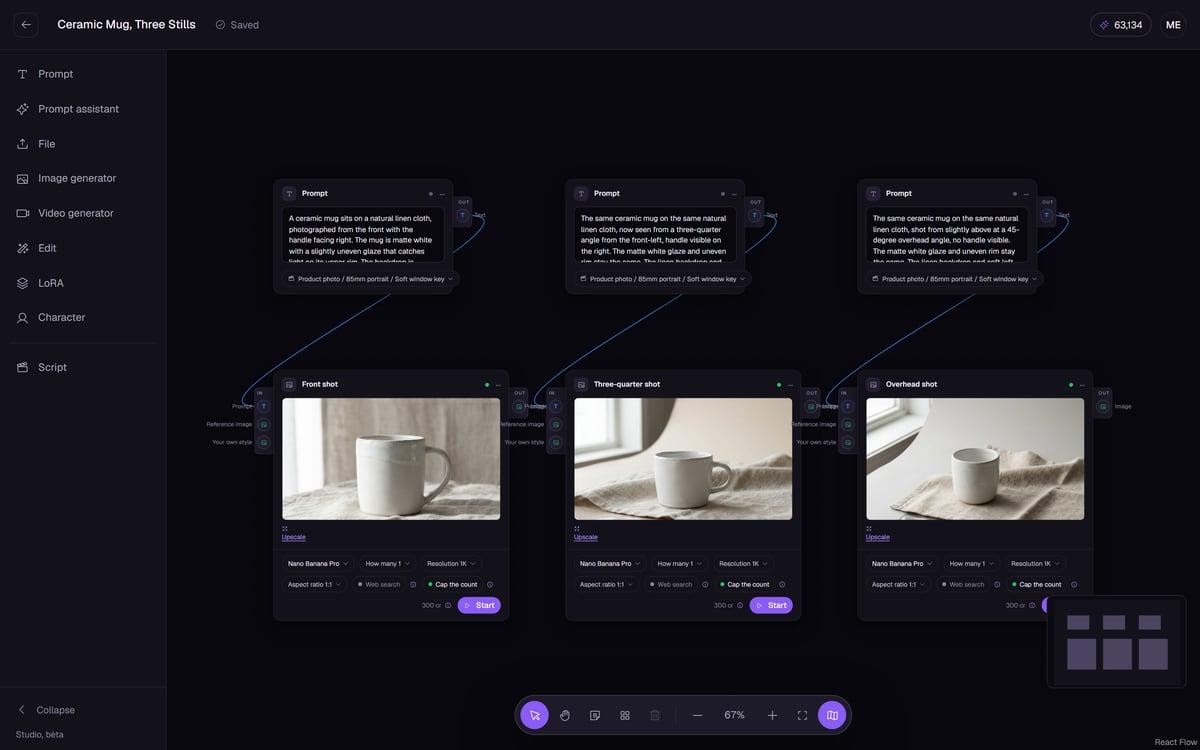
Say every new product needs a front shot, a three-quarter shot and an overhead shot, in the same look. Put down three Prompt nodes and three Image generators, and connect each prompt to its own generator.
Write the first prompt in full: "A ceramic mug sits on a natural linen cloth, photographed from the front with the handle facing right." Give the other two the same opening and change only the angle. Add the same presets to all three, for example Product photo, 85mm portrait and Soft window key, so the light and the lens match.
Pick one model on all three generators and press Start on each. Next week, a new product means changing the subject in three prompts. The angles, the look and the model are already decided.
How the lines work
Every port has a type: text, image, video, media or LoRA. A line only connects where the types fit, and you can see on the line what travels along it. A text output cannot be dropped into an image port by accident.
The output of one generator can feed the next. An image generator that makes a still can hand it to a video generator as its start frame, which is how a still becomes a clip without downloading and uploading anything.
The flow saves as you work, but each generator runs only when you press its Start. Nothing on the canvas spends credits until you ask it to.
Let the assistant draw the first version
You do not have to build from nothing. Describe the job to the AI Assistant in the Studio, for example "three product stills of a ceramic mug on a linen backdrop, all in the same look". It picks a model, or you pick one yourself, writes the prompts, and shows the plan with the number of steps and an estimate.
Press Open on the canvas and you get that plan as a flow you can edit and save. From then on it is yours to rerun.
Mistakes that make a flow hard to reuse
Four habits that turn a pipeline back into a one-off.
- Putting the product name in every prompt. Use one Prompt node for the subject and let the others describe only the angle or the scene, so a new product is one edit.
- Mixing models across steps that should match. Three angles on three different models give you three looks.
- No notes. Add a Note block that says what the flow is for and which input to change. You will not remember in two months.
- Running everything to test one step. Press Start only on the node you changed.
Questions
Do I need the canvas for one image?
No. One image from one prompt is quicker in the Studio, with Set it up yourself. The canvas pays off when the same shape of work comes back: the same angles for the next product, the same treatment for the next client.
Can I run a flow without opening the browser?
Yes. Connect an AI assistant over MCP and it can run your work for you. It builds and runs real flows, the same as on the canvas, and the same prices apply.
Do I have to save a flow myself?
No. The canvas saves as you work and shows Saved next to the name. Your flows are listed under My flows on the Flow page, so running one again next month starts from there.
What does a flow cost to run?
The sum of the generators you start. Each generator shows its own amount next to its Start button, worked out from the model and the settings on that node, so you see the cost of every step before you run it.
Read next
 Start halfwayTemplates that already do the job.
 Clips that follow onThe sequence this shape was built for.
 Images from your agentThe same pipeline, driven from outside the browser.FlowThe canvas itself.
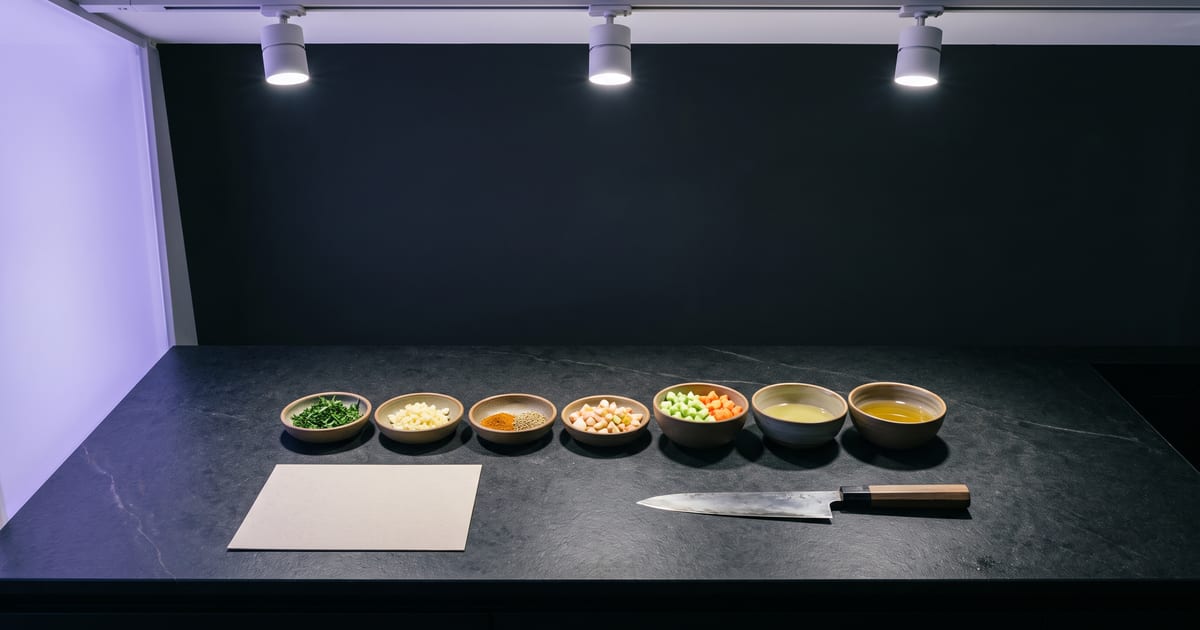 Flows, built onceOn the blog.
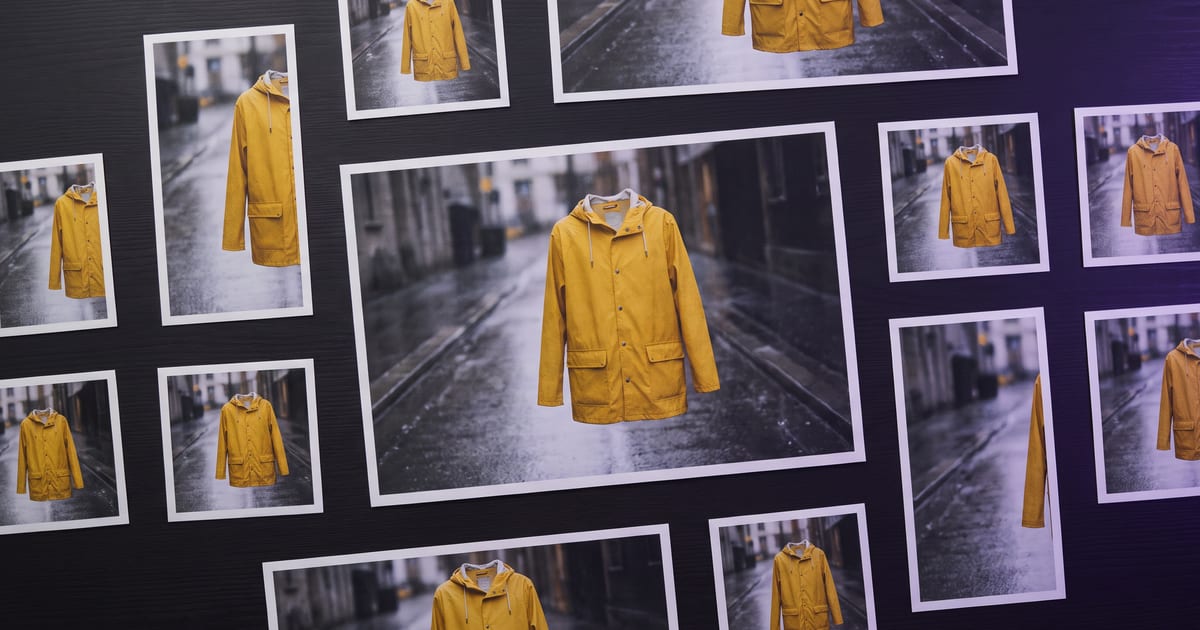 One image, a campaignA flow that turns one picture into a set.AI AssistantDescribe the job and get the first version of the flow.
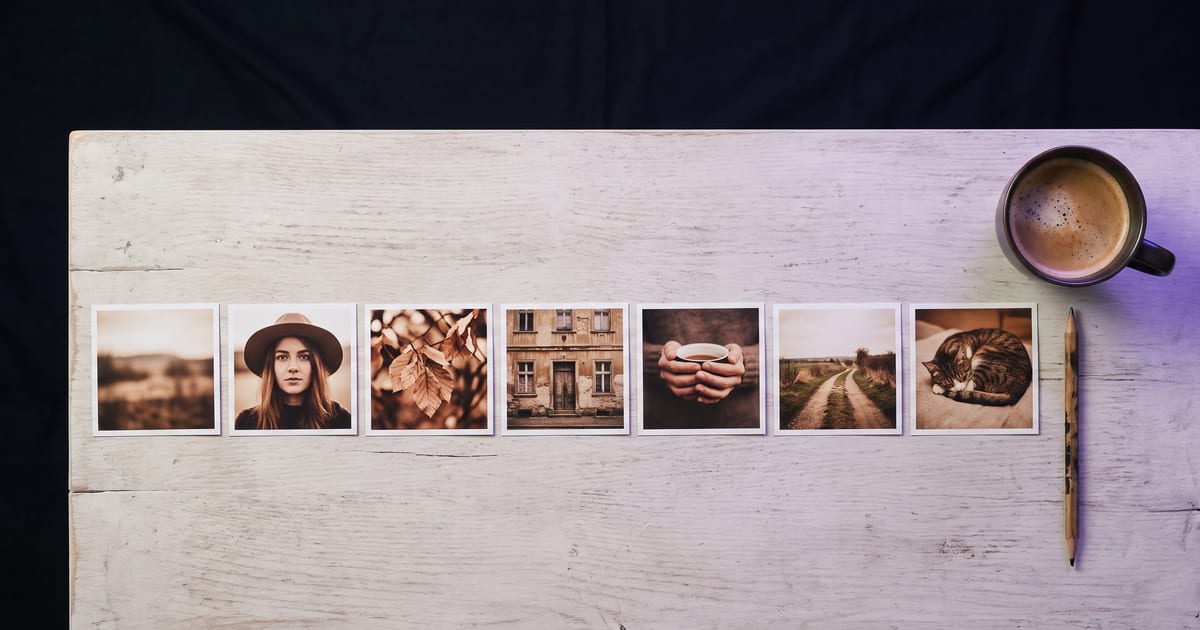 A week of postsA newer guide.
Put this guide to work
Open the studio and try what you just read. You start with 1,000 free credits.
Get early access