
Repeat work is flow work
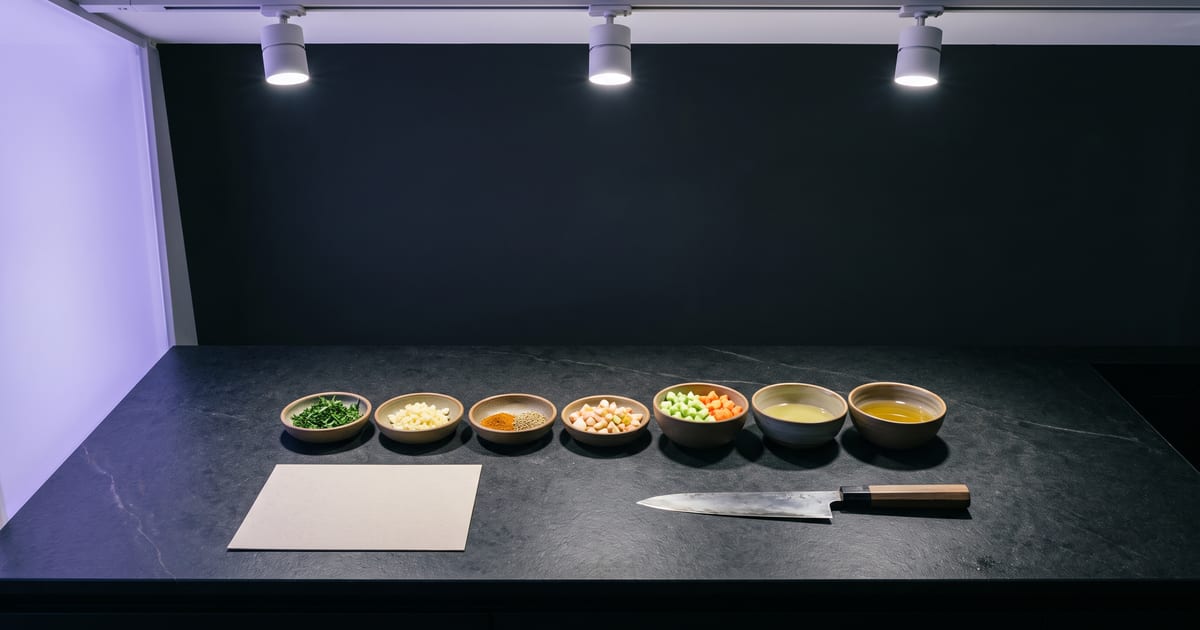
A product photo into three scenes. A portrait into a talking clip. A weekly post in the same style. If you do it more than twice, build it as a flow: the steps, the models and the settings, saved together.
What goes in a flow
Run it with new input, and only the input changes.
- The input: a photo, a text, a character.
- The steps: generate, edit, upscale, animate.
- The settings that make it yours: style, shape, presets.
Start small
Build the shortest flow that does the job, and run it a few times. Add steps when you see what you keep doing by hand. An assistant connected to the studio can run your saved flows too.
The blocks on the canvas
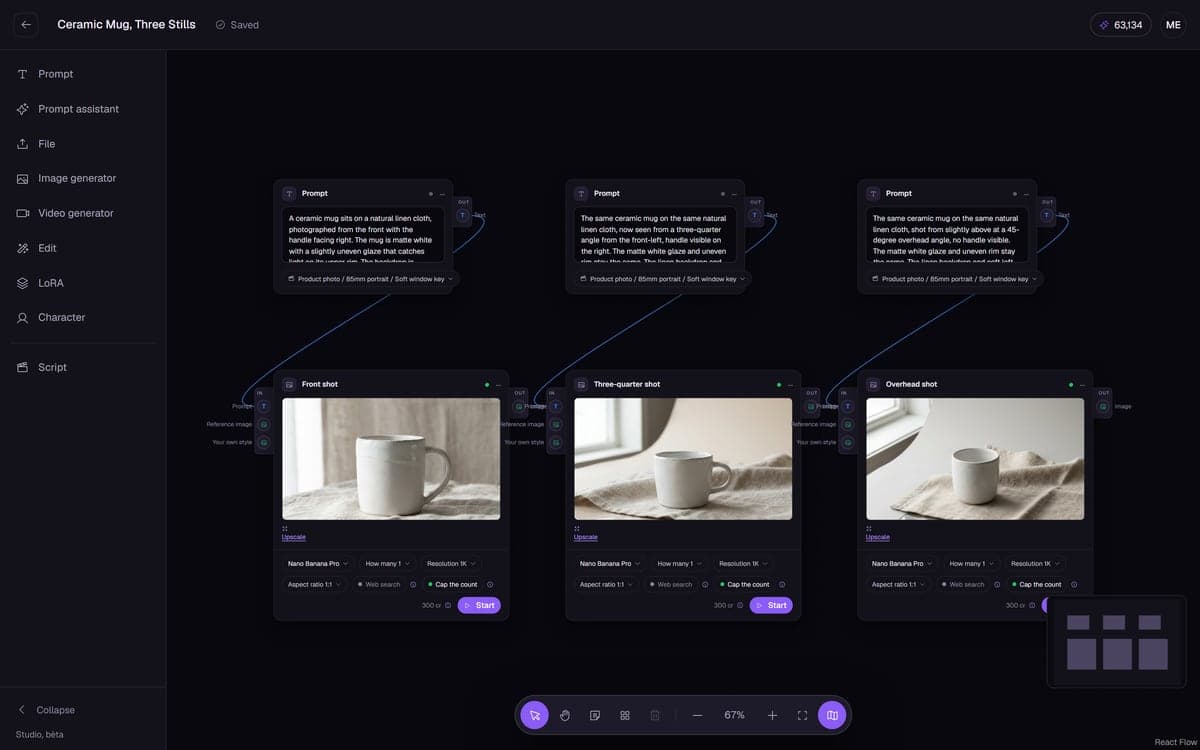
A flow is built from blocks you connect with lines. The ones you use most:
- Prompt: the text that goes into a model.
- File: your photo, clip or audio.
- Prompt assistant: writes or rewrites a prompt from a short brief, and can read an image.
- Image generator and video generator: the models that make the work.
- Edit: upscale or touch up a result.
- LoRA: your own trained style.
- Note: a sticky note that tells the next person, or you next month, what the flow is for.
Only what fits can connect
Every input and output has a type: text, image, video, audio or LoRA. A line can only join two ends of the same type, so you cannot plug a prompt into an image input by accident. The line itself shows what runs through it.
Missing inputs are caught early too. The studio checks that a generator has what it needs before it charges anything, so a forgotten prompt or file costs nothing.
Build a weekly product flow, step by step
Next week you open the flow, drop in the new photo and run it. The prompts, models and settings stay as they were. This is the same shape as the E-commerce image set template, which you can open and save as your own instead of building it from scratch.
- Add a File block for the product photo.
- Add three Prompt blocks: a packshot on white, a lifestyle scene, a close-up of the label.
- Add three image generators with an edit model, and connect the photo and one prompt to each.
- Run each generator once with this week's product and check the results.
- Save the flow with a clear name, such as Weekly product set.
Branches run side by side
One prompt can feed several generators at once. That is how you compare three models on the same idea, or make three formats of one image in one go. The results sit next to each other on the canvas, so you compare them without switching screens.
Each generator also has its own Run button. You do not have to run the whole flow to redo one step, and you only pay for the step you run.
Chains: one step feeds the next
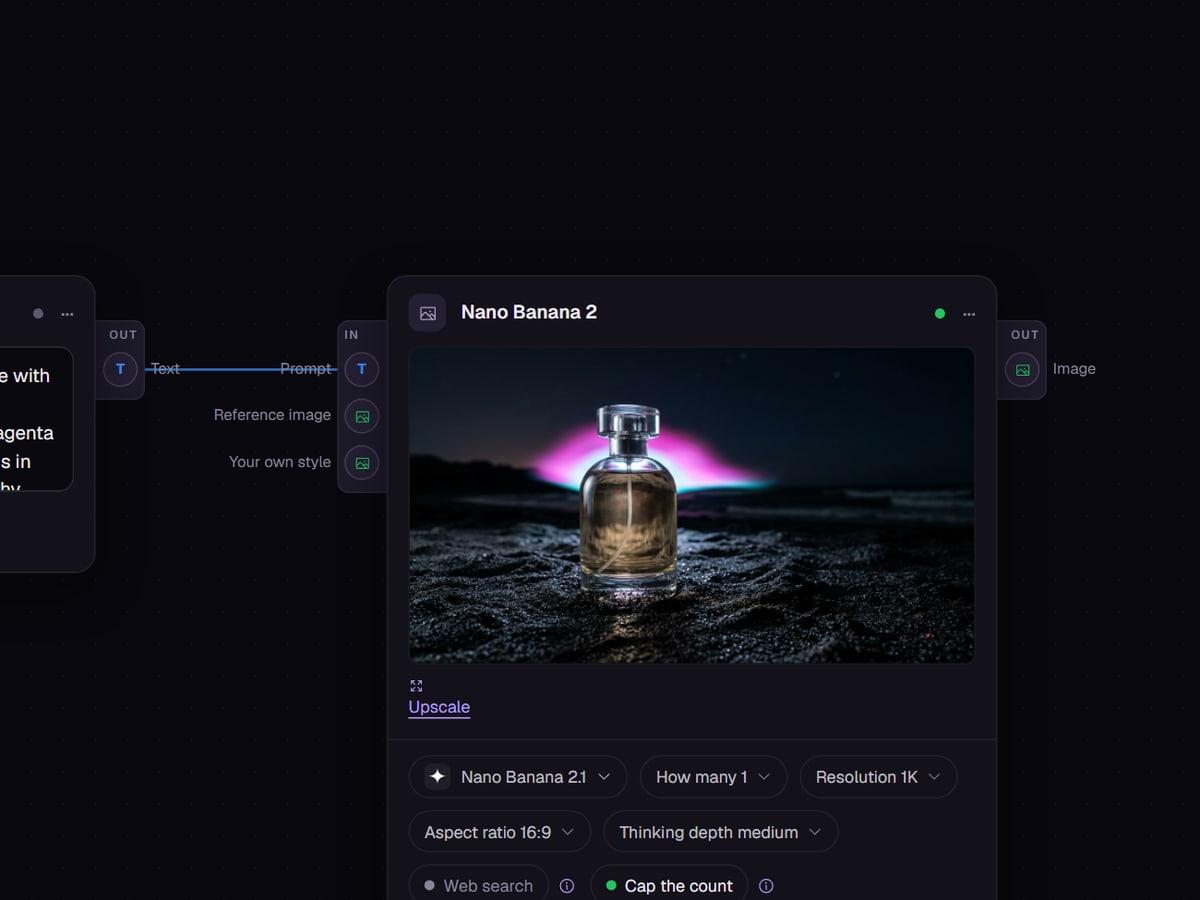
A generator can feed another. An approved still becomes the start frame of a clip; a clip goes into an upscaler. Run the cheap step first, look at it, and only then run the step that costs more. If the still is wrong, you fix it before the clip exists.
Mistakes that make a flow hard to reuse
A good flow reads from left to right: input, steps, result. Add a Note at the start that says what goes in and what comes out.
- Our sample still in an upload slot. Leave the File block empty in a saved flow, so you notice when the new input is missing.
- Prompts that name this week's product. Write them about "this product" and let the photo say which one.
- One flow that does everything. Two short flows are easier to fix than one long one.
When a flow is worth building
Not every job needs one. For a single image, the make screen is faster: type, pick a model, generate. A flow starts to pay off when the same steps come back, when the result of one step feeds the next, or when you want to compare several models on the same input.
A simple test: if you catch yourself copying the same prompt into the make screen for the third time, that prompt belongs in a flow.
Add a prompt assistant for variety
A flow that runs the same prompt every week makes the same picture every week. Put a Prompt assistant in front of the generator and give it a short brief, such as "write a lifestyle scene for this product in a different room each time". It reads the photo, writes a new prompt and passes it on.
Keep the house rules in its instructions, such as the light, the mood and what never appears, and the variety stays inside your style.
Questions
Can I start from a template?
Yes. A template opens as a flow; change it and save it as your own.
Does a flow show its price?
Yes, before it runs.
Can an AI assistant run my flow?
Yes. A connected assistant can start a saved flow with new input, for example a photo you just uploaded. It waits for each step, and the results land in your library.
Can I undo a block I deleted?
Yes. Removing something from the canvas does not ask for confirmation; instead it can be undone, so you can clean up quickly without losing work.
How many generators can run at once?
Up to six per account at the same time. That covers a flow with several branches running side by side, and keeps one runaway script from blocking everything.
Read next

Try it in the studio
Open the studio and try what you just read. You start with 1,000 free credits.
Get early access