
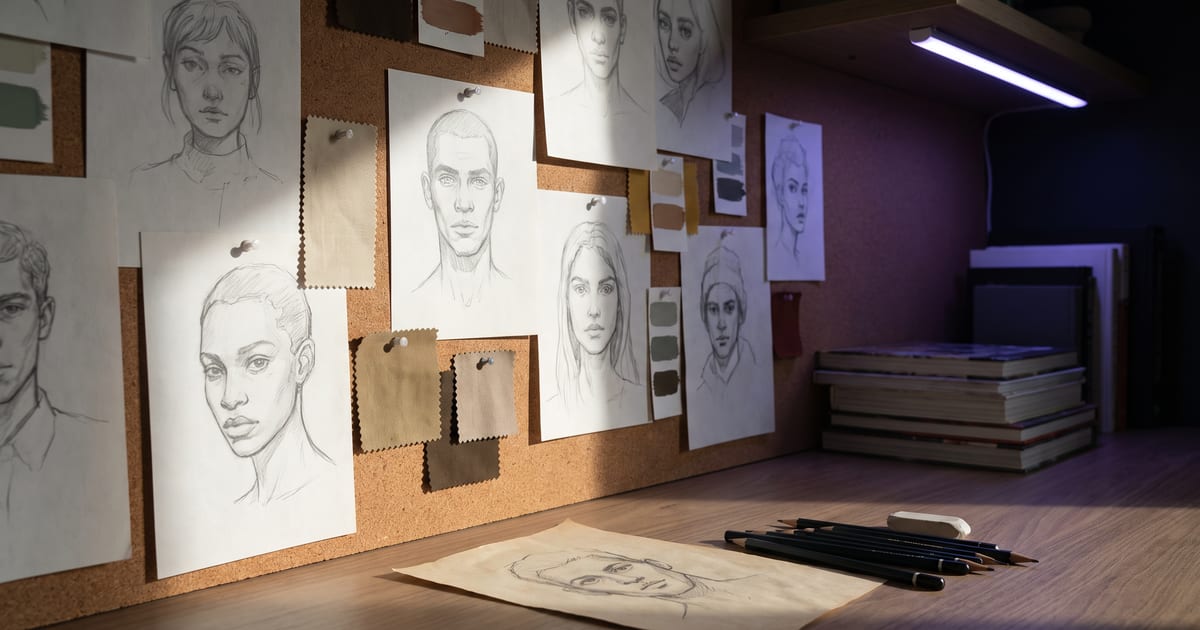
A blank page is the hardest start
Designing a character from nothing means making dozens of choices before you see anything. Explore shows example characters made in the studio, so you can start from one that is close to what you want.
Recreate, then make it yours
Recreate copies the choices behind a character into the builder: face, hair, clothing, setting. Change what you want, and make your own portrait, full body and sheet from there. The result is a new character, not a copy.
- Change at least one defining feature, such as the profession, the age or the style.
- Give the character its own name and its own voice.
- Save it, so it comes back the same in every image and video.
From there
A saved character goes into every image and video as a reference. The Motion tab turns it into clips; a voice lets it speak. The examples in Explore are invented people, made in the studio.
Questions
Is a recreated character mine?
You make your own portrait, body and sheet from the choices, and save it under your own name. The examples are invented people.
Can I start from my own photo instead?
Yes, as a reference, if it is your own face or one from someone who agreed.
Read next
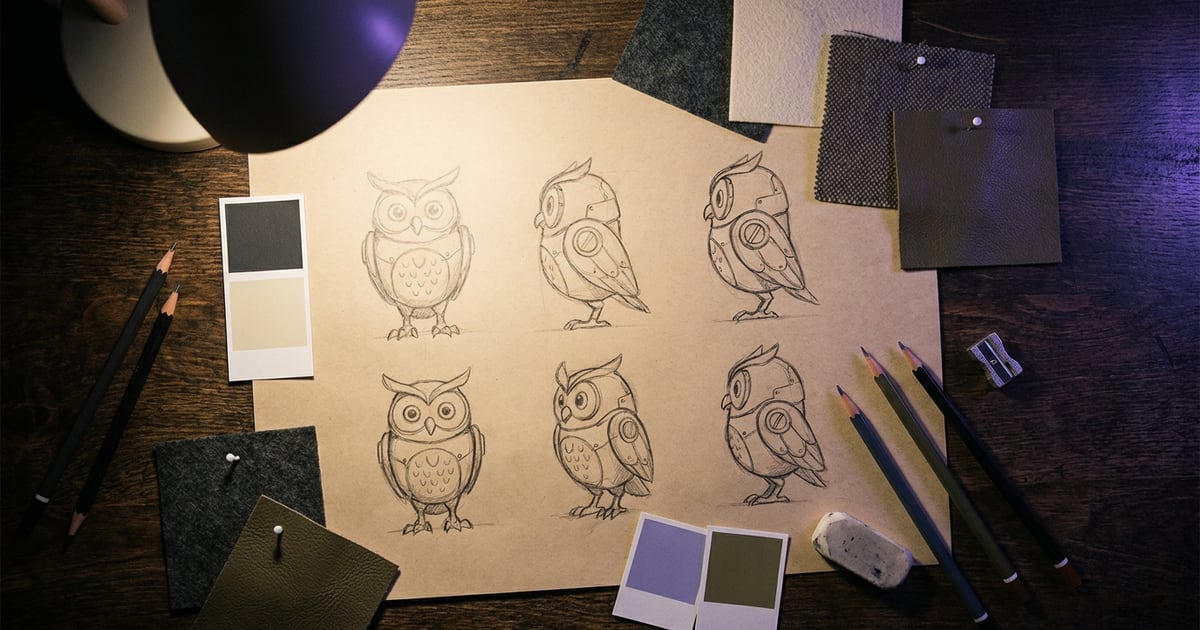
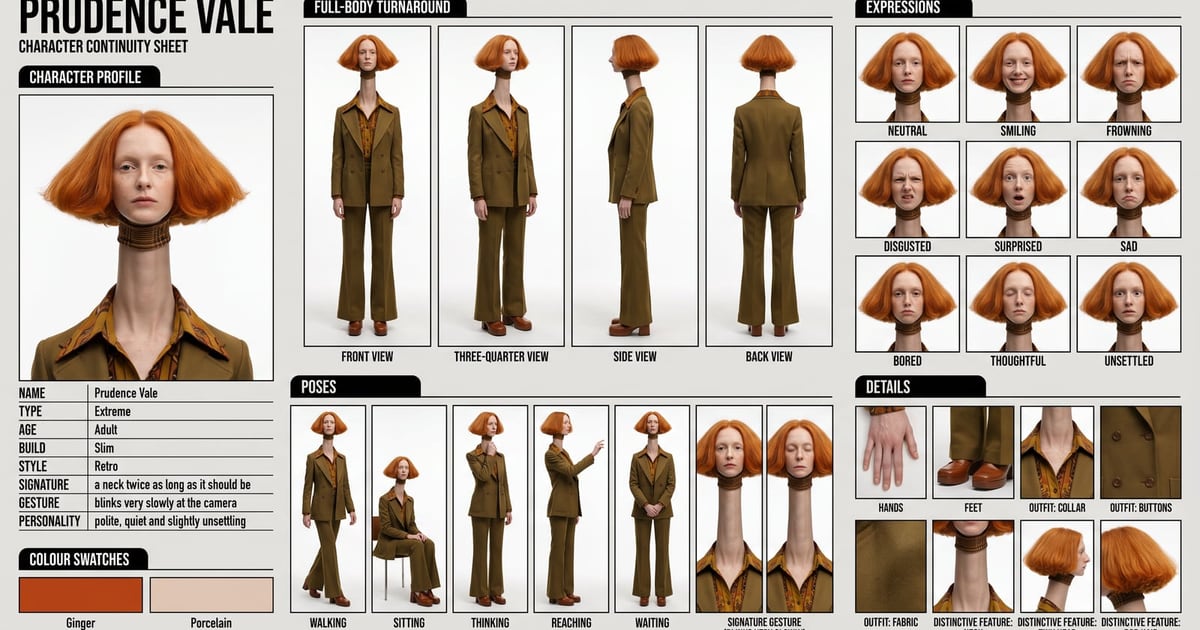
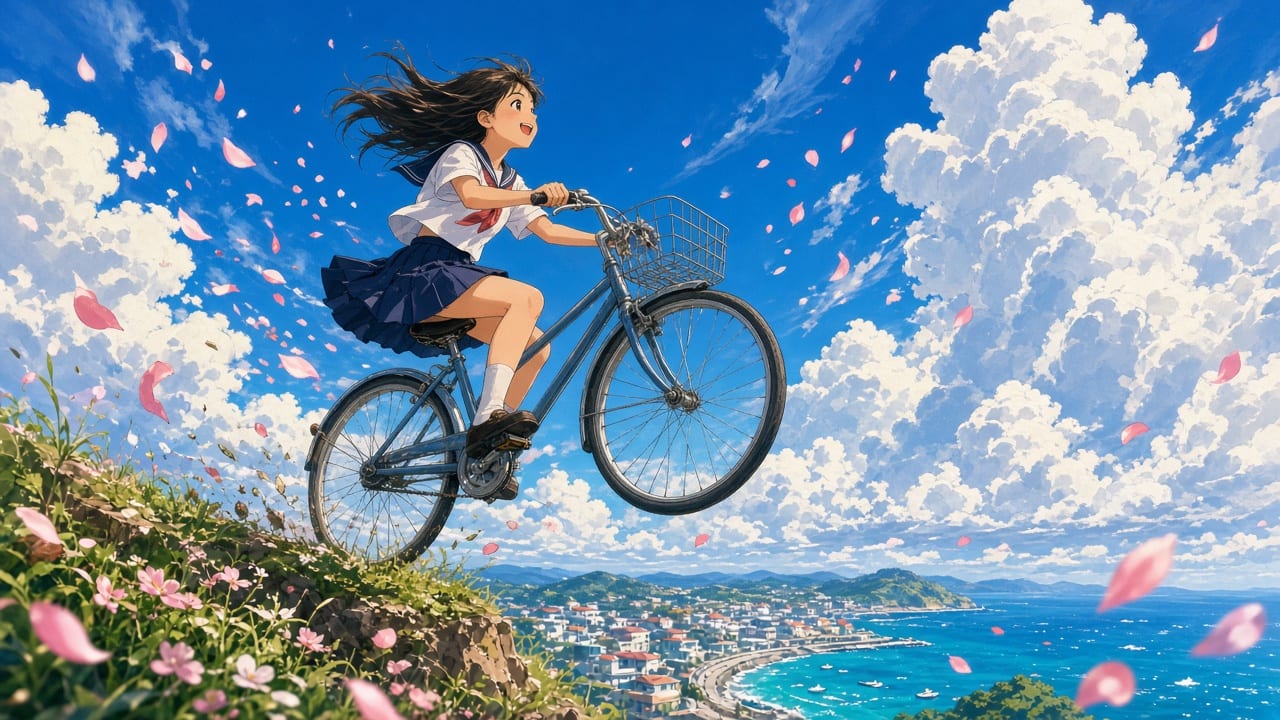
Try it in the studio
Open the studio and try what you just read. You start with 1,000 free credits.
Get early access