
What it makes
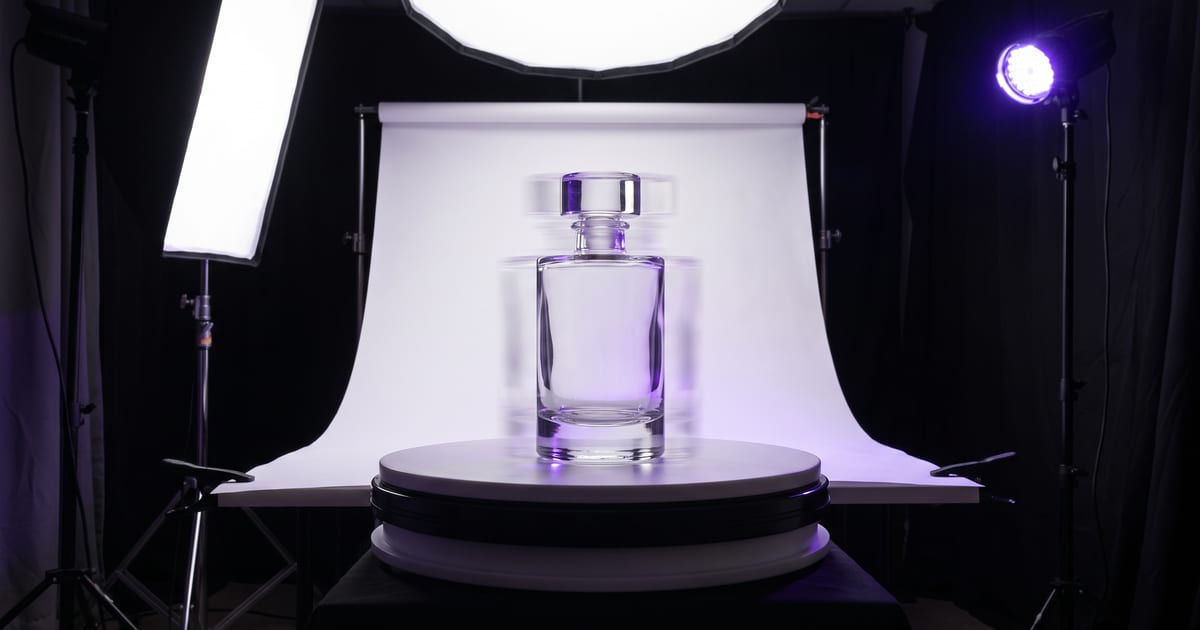
A 360 clip moves the camera around your subject, so you see it from every side. From one image, the model fills in the sides it did not see.
Good subjects
- Products with a clear shape: a bottle, a shoe, a lamp.
- Characters in a neutral pose.
- Objects on a plain surface with space around them.
Check the back
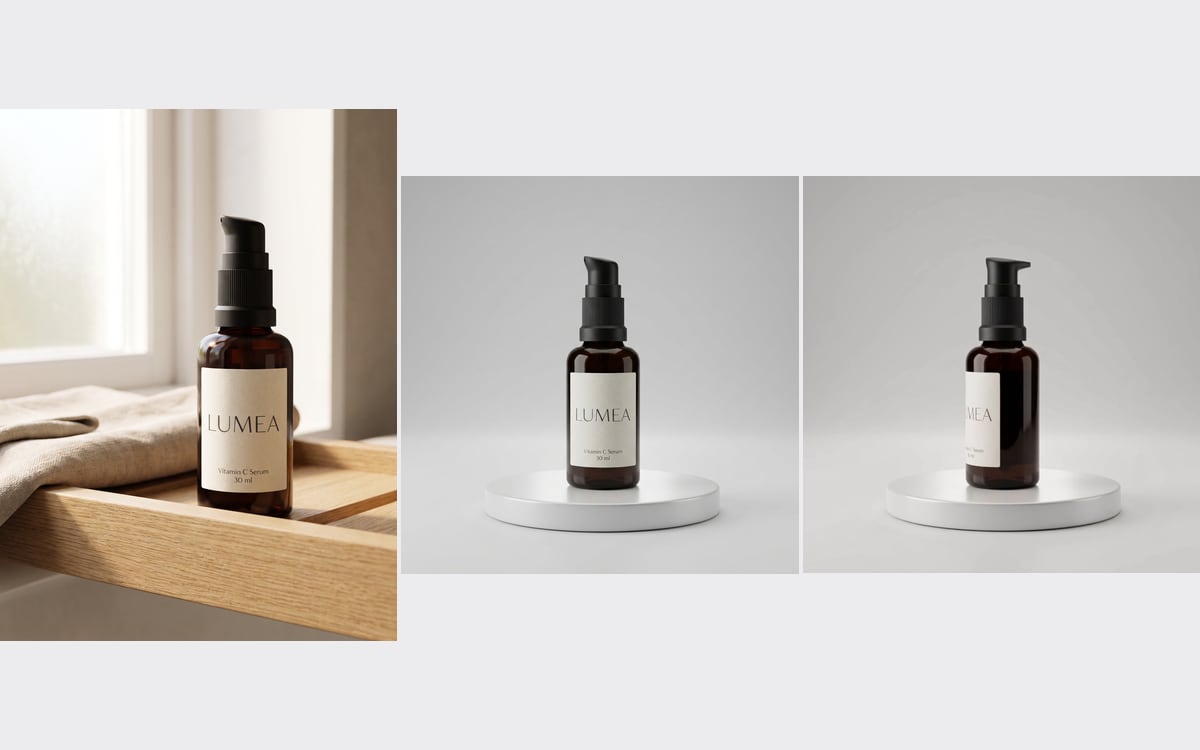
The model invents what it could not see. Look at the back of the product: is the label where it should be, is the shape right? For a product page, a turn that shows a wrong back is worse than a still.
Two kinds of 360 in the studio
People mean two different things by a 360 video, and the studio has a route for each. The first is a turn around the subject: the camera circles a product or a character, or the subject turns in front of a still camera. That is what this post is mostly about.
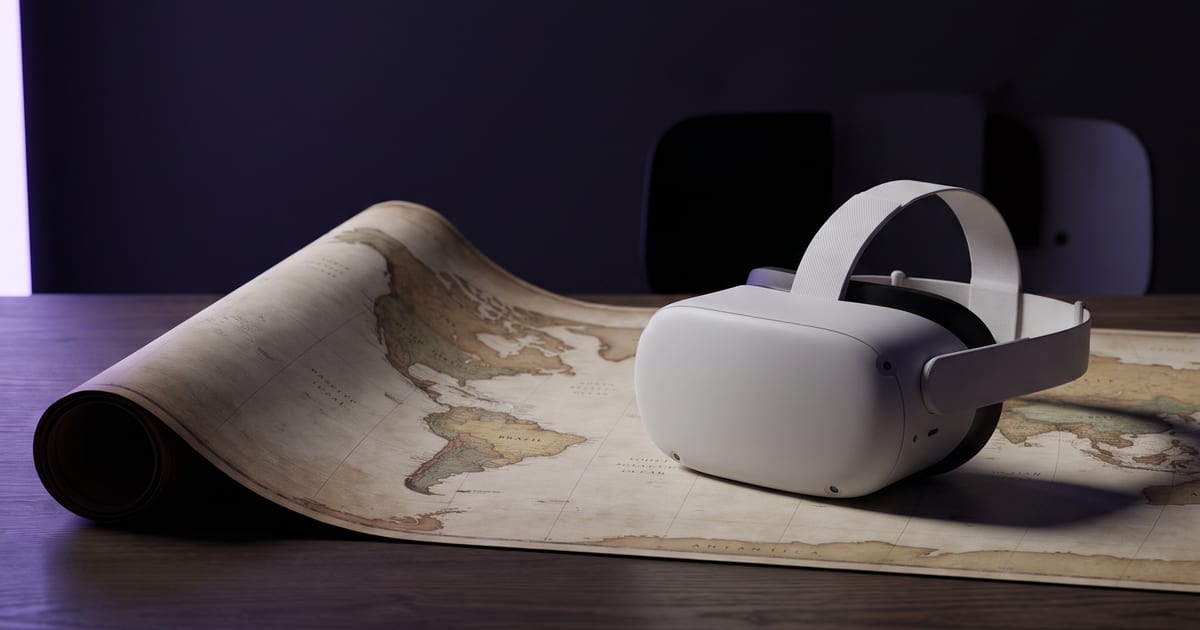
The second is a panorama you can look around in. The clip holds the whole sphere around the viewer, for a headset or a 360 player, and you drag to look in every direction. That is a separate template, with its own way of writing the prompt.
A product that turns: step by step
The Product turntable template is the most reliable route for a product page.
- Drop your product photo into the upload slot. Use a photo with the whole product in view and no cropped edges.
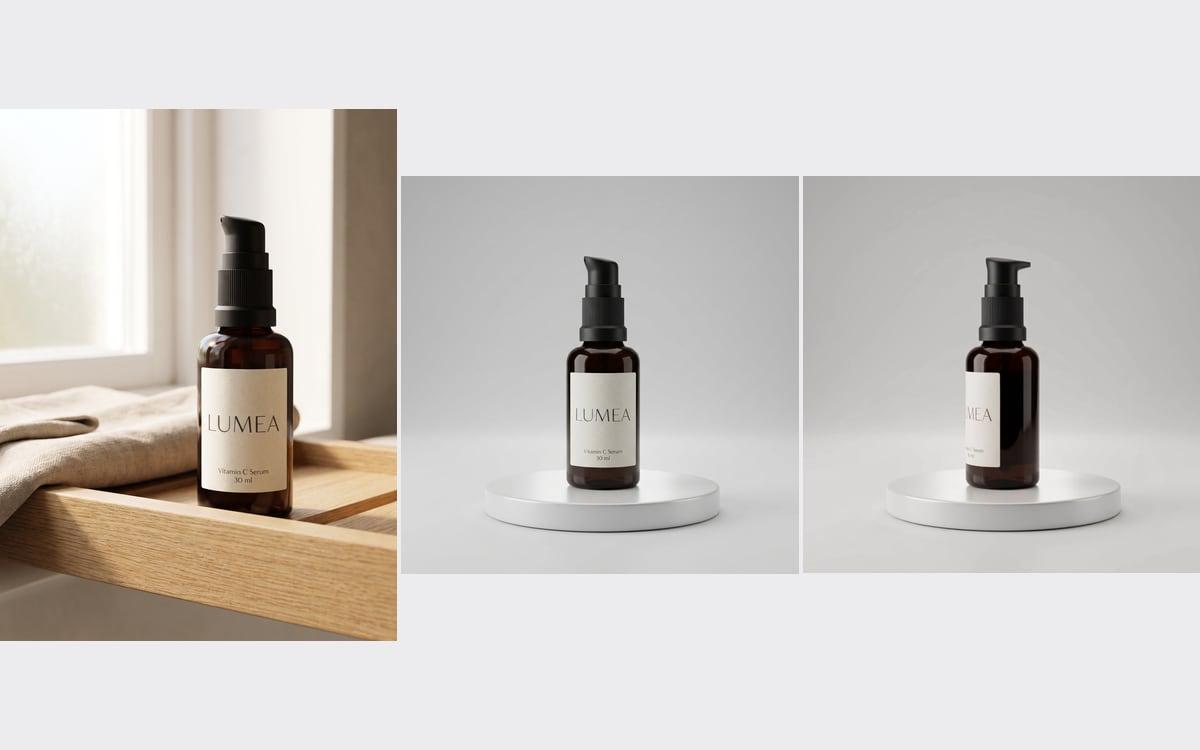
- Run the studio shot first. It places this exact product on a small white turntable in a light grey studio, with the label kept as it is.
- Approve that shot, then run the turntable clip: five seconds of the product turning a half turn, so its side and then its back come into view.
- Check the back at full size before you publish.
Why the product turns, not the camera
In the template the camera stays locked at the same height and the turntable does the moving. The light stays the same and the label stays sharp, because only one thing moves. A camera that flies around a product changes the light on every side at once, and that is where shapes start to warp.
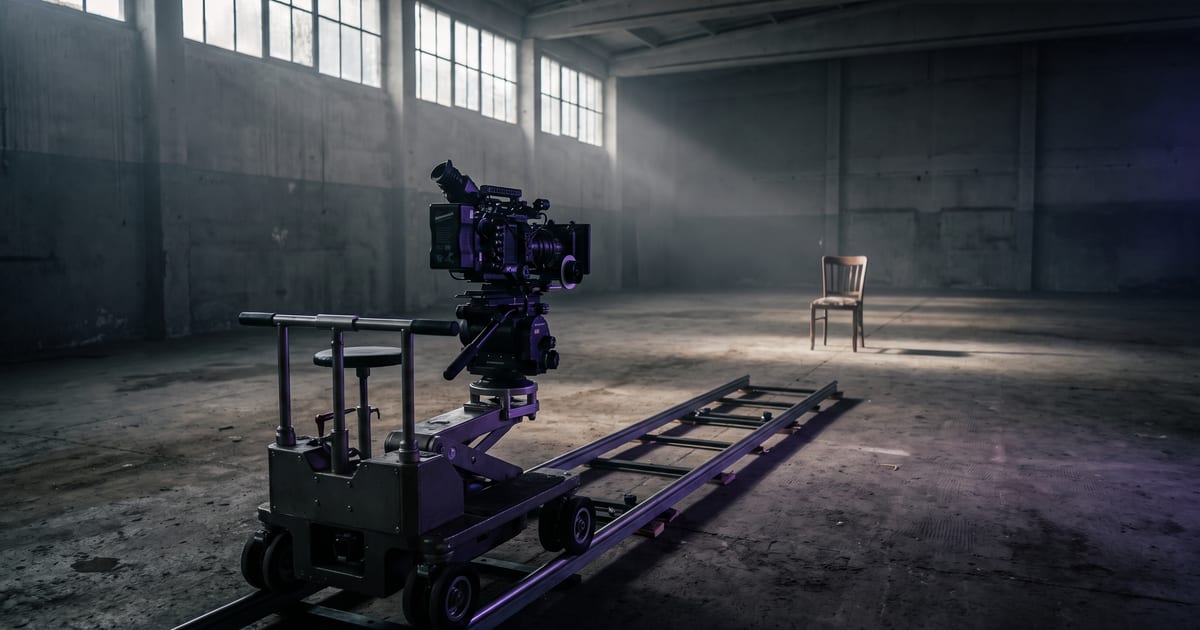
For a character or a sculpture, a camera that circles works well. Pick the Arc camera move, which tells the model to circle the subject at a steady distance, and keep the background simple so the model has less to invent.
An example prompt for an orbit
Start from an image of the subject on a plain surface and add a line such as: "The camera arcs slowly around the ceramic vase at a steady distance, from the front to the side, soft studio light, a plain grey background, the vase stays perfectly still." That asks for one movement, names what must not move and keeps the background quiet.
A quarter or a half turn holds up better than a full circle. The further the camera goes behind the subject, the more the model has to invent.
Stills from every side instead
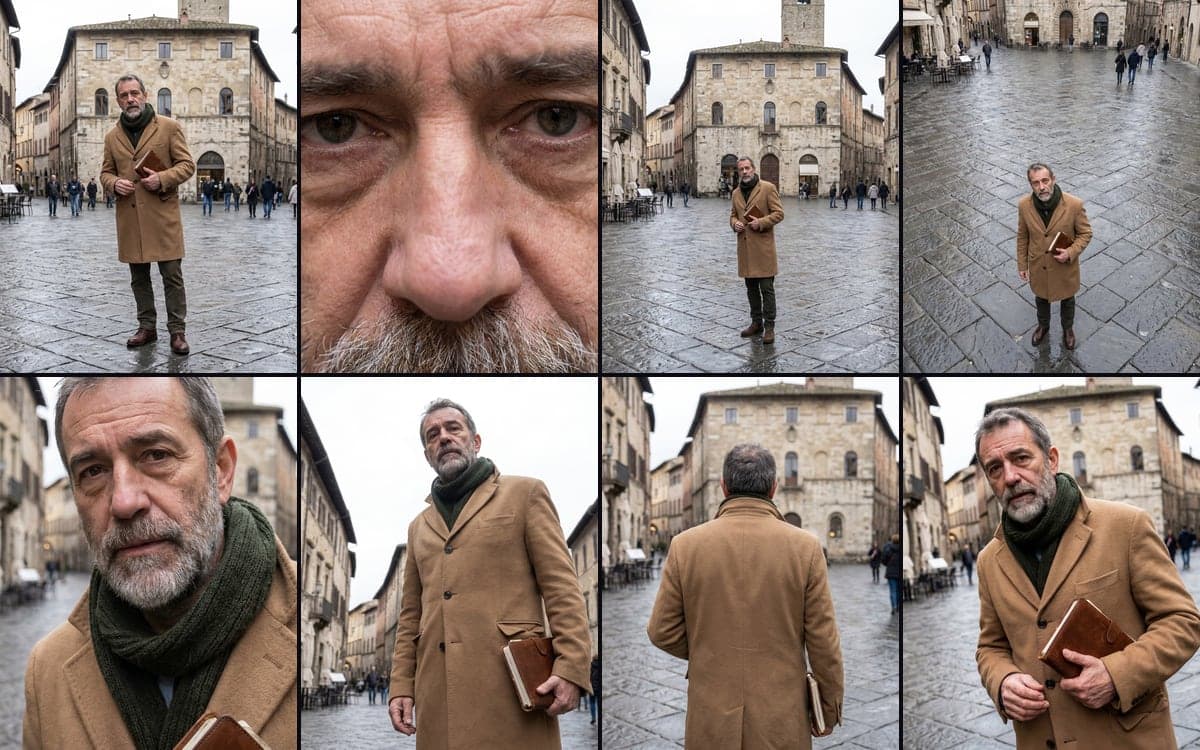
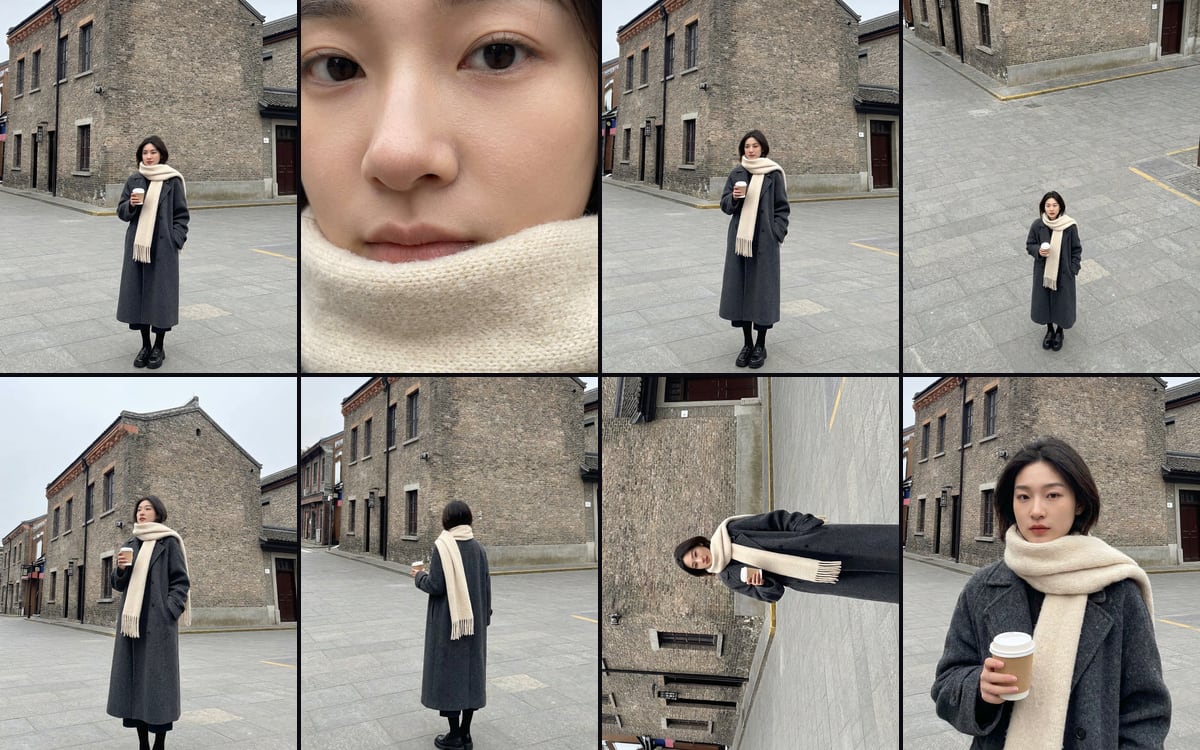
Sometimes a set of stills is the better answer than a clip. The 8 Camera Angles template takes one image and gives you the same subject from eight camera positions, each as its own image you can keep, run again or throw away. You can also use two of them as the start and end frame of a short clip.
The panorama you look around in
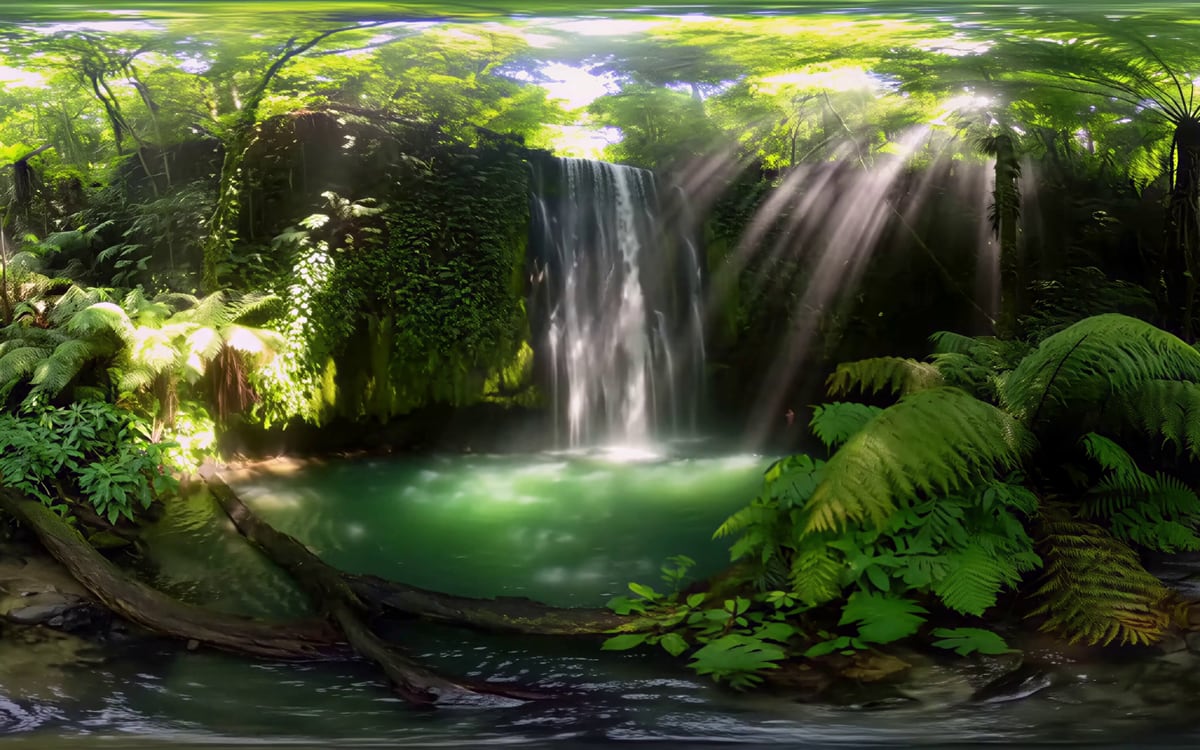
The 360 video template makes a clip of the whole sphere from a prompt. It runs on MiniMax H3 with a 360° style connected, which adds its own opening words to your prompt. You describe what is ahead, to the sides, behind and overhead, because the viewer can look anywhere.
Open the result in the studio and drag to look around. The download is a flat 21:9 file. Most players and headsets expect 2:1 with 360 information in the file, so convert and tag it before you upload it to a platform.
A sphere spreads the pixels thin. Run a short preview at a low resolution to check the scene, then make the final at a higher one.
Where a turn earns its place
On a product page, put the turn next to the photos, not instead of them. A buyer who wants the back sees it in the clip; a buyer who wants the label up close still has the still. In a social post, a turn makes a good first second, because movement stops the scroll.
For a character, a slow orbit is a strong opening for a Reel or a reveal of a new outfit. Keep it short: three to five seconds is enough to show the character from more than one side.
Questions
Can I use it for a product page?
Yes, as long as the invented sides are right. Check them before you publish.
Which aspect ratio?
Square or 16:9 for product pages, 9:16 for social.
Which template should I use for a product?
Product turntable. It makes a clean studio shot first and then turns the product on a turntable with the camera locked, which keeps the label and the shape steadier than a camera flying around it.
Is the 360 template the same as a turn?
No. The 360 video template makes a panorama the viewer looks around in, for a headset or a 360 player. A turn around a product is the Product turntable template or the Arc camera move.
What if the back of my product is important?
Then show it, rather than let the model invent it. Use a photo of the back as a second reference, or show the back as its own still next to the clip.
Read next

Try it in the studio
Open the studio and try what you just read. You start with 1,000 free credits.
Get early access