
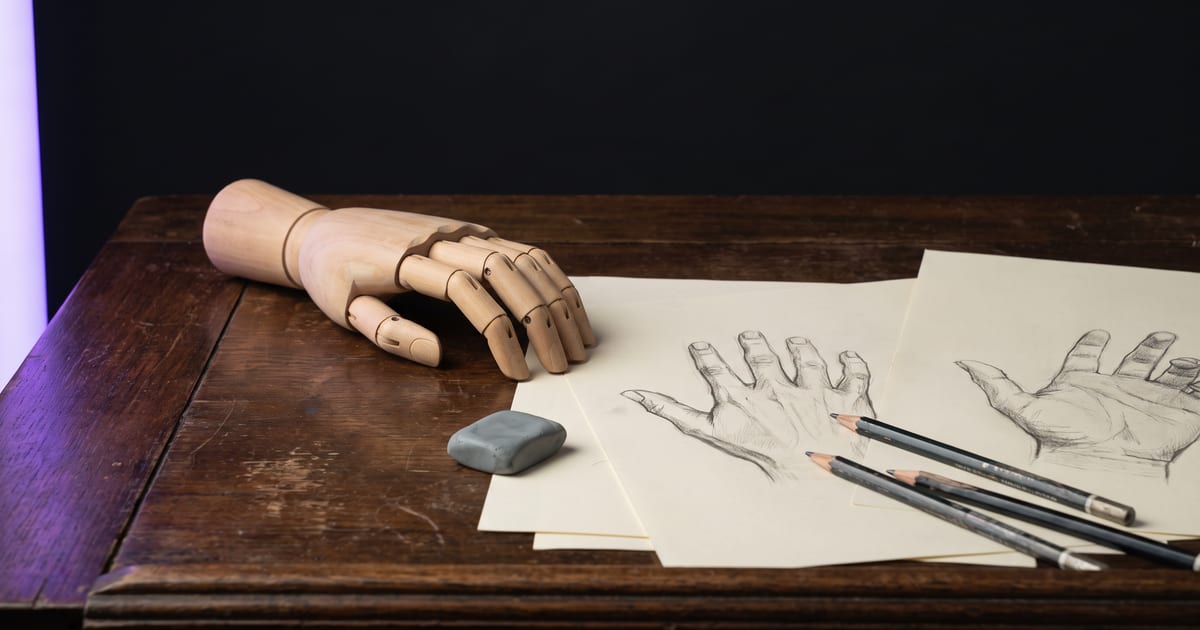
Edit, do not start over
If the rest of the image is right, fix only the hand or face. An edit model changes what you point at and keeps the rest.
Prevent it
- Fewer hands in the shot: hands in pockets, holding one object, or out of frame.
- Avoid two people touching or holding something together.
- Faces at a normal distance, not tiny in a crowd.
Check every time
Count fingers, look at both eyes, check where arms come from. Every hand must belong to a visible person. These are the mistakes people notice first.
Never publish an image with a wrong hand because it is almost right. Make it again.
Look at full size first
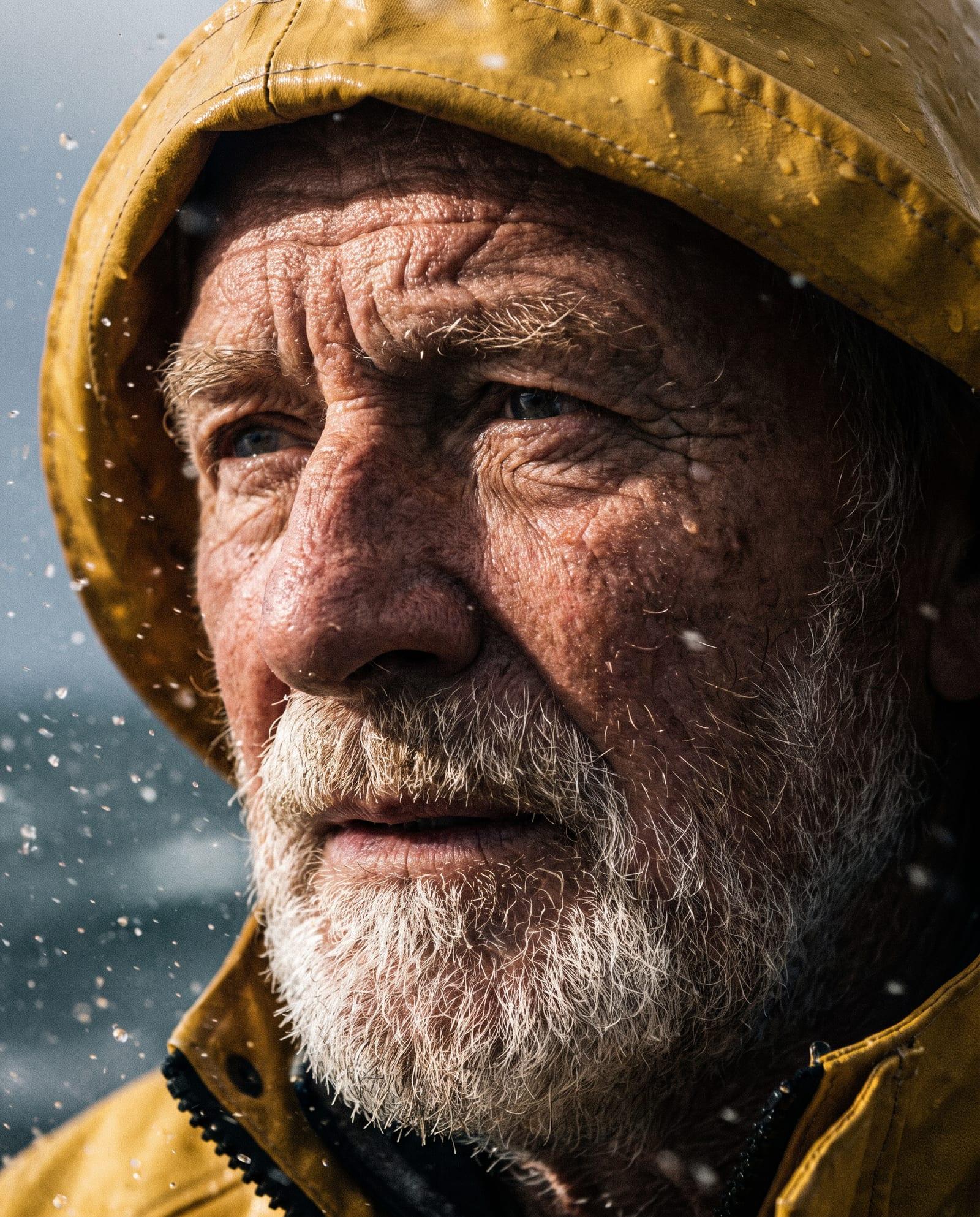
Mistakes in hands and faces hide in a small preview. Open the result in the viewer at full size and look at the hands, the eyes, the teeth and the ears one by one. In a group shot, check every person, including the ones at the edge.
Fix it with Edit
In the Studio, press Edit under the result. It keeps your description, so you add one sentence about the fix: "Fix her right hand: five fingers, relaxed, holding the cup by the handle. Keep everything else exactly the same." Name the hand by side and by what it does, so the model knows which one you mean.
For a face: "Keep the face, fix the left eye so both eyes look at the camera, same expression." Short and specific works better than "fix the face".
Or point at it
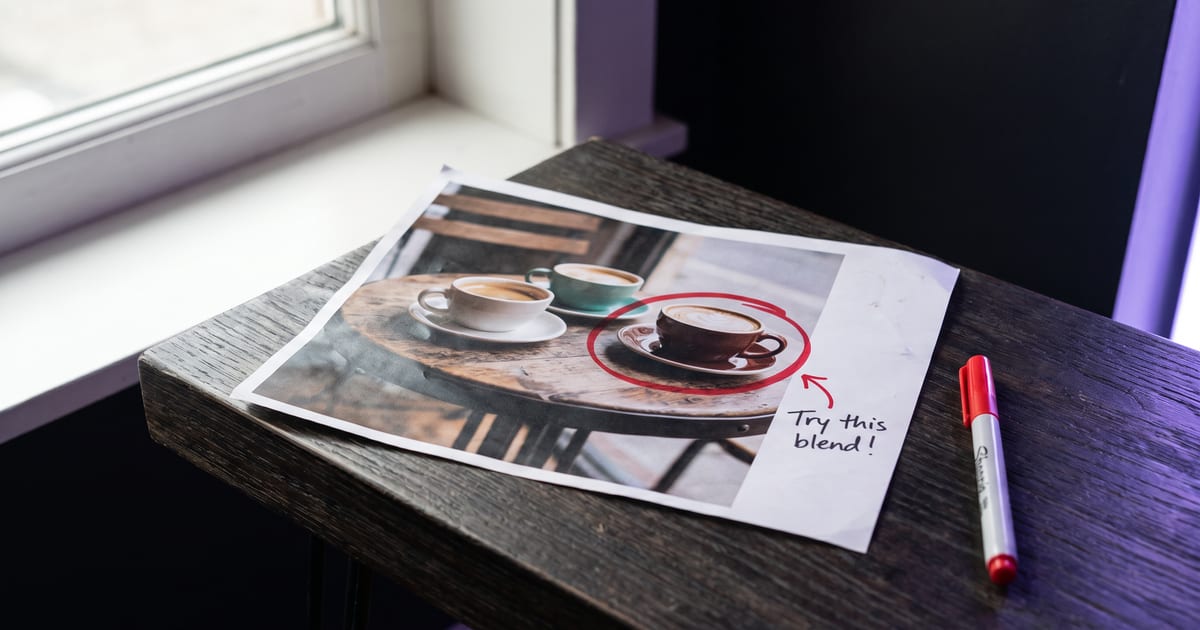
When words cannot say which hand, draw it. On the canvas, with GPT Image 2.6, the Draw on the image button lets you circle the hand and write a note next to it: "five fingers, holding the cup". The edit happens where you drew, and the rest of the picture stays as it was.
Give hands a job
A hand with nothing to do is the hand most likely to go wrong. Describe what each hand does: "her right hand holds the mug by the handle, her left hand rests flat on the table". A hand with a clear task and a clear object comes out better than one left to chance.
The same for a pose: hands in pockets, arms crossed, holding one object with both hands. Each is a pose the model has seen many times.
Mistakes when fixing
A fix can make things worse when the instruction is wider than the problem. These are the common ones.
- "Fix the hands" when only one is wrong: the model may redraw both, and the good one changes too.
- No "keep everything else the same": the face, the light or the background shifts along with the fix.
- Fixing a draft: polish the picture you will publish, not one you will replace.
- Asking for a new pose in an edit: that is a new picture. Make it again from the prompt instead.
Groups and crowds
Every extra person adds two hands and a face to get right. For a group, keep the people at a normal distance, not tiny in the background, and give them simple poses: standing, sitting, arms at their sides. Two people holding the same object or shaking hands are the hardest case; show them side by side instead.
Faces across a series
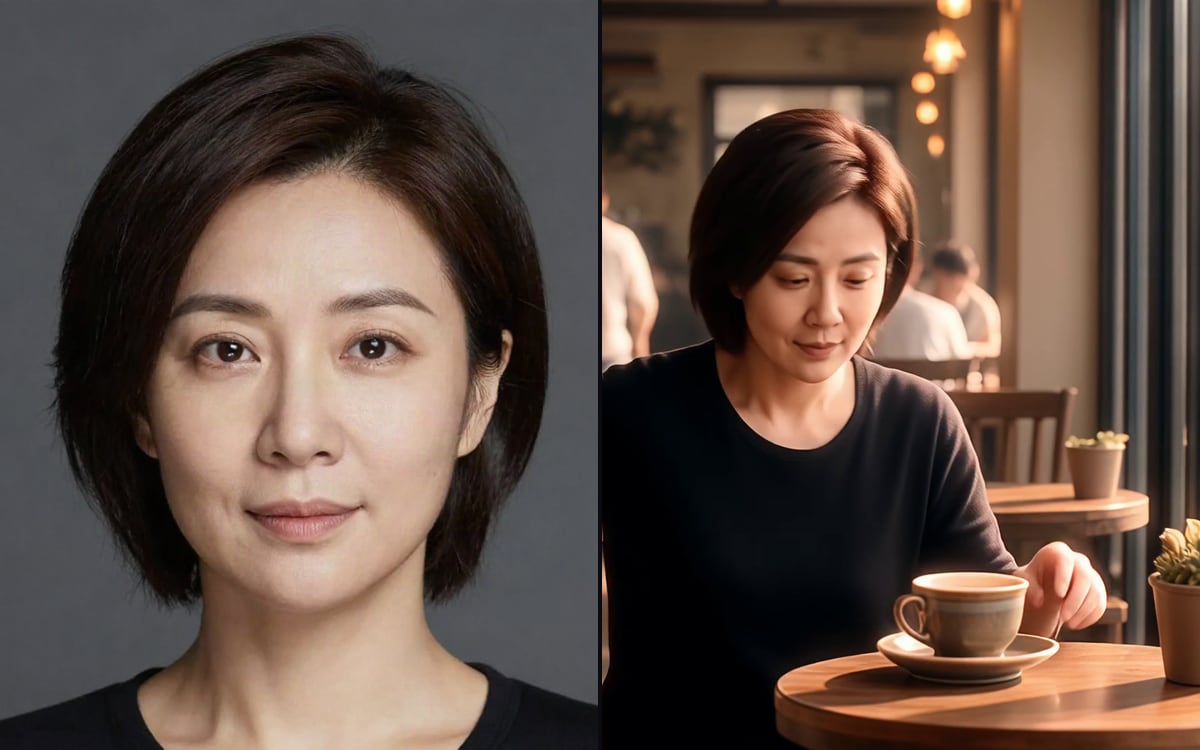
A face that changes from image to image is a bigger problem than one odd finger. Lock it with a reference. The Keep the same character tool carries one person across a whole sequence, and a character made in dGEN Influencer goes along as a reference in every model that takes one. A character sheet shows the same face from every angle, so a turned head stays the same person.
In a video
Hands and faces change during movement. Check the middle of a clip as well as the first and last frame. Keep hand movement small, and start from a still where the hands are already right: a clip rarely repairs what was wrong in its first frame.
After the fix
An edit can leave the fixed area a little softer than the rest. Compare at full size, and press Upscale if the whole picture needs to be sharper. Topaz is built for upscaling finished work for print and big screens.
Questions
Are some models better at hands?
Newer models make fewer mistakes, but none are perfect. Always check.
Can an assistant check for me?
It can look for obvious mistakes. You still look before you publish.
Can I avoid hands altogether?
Often, yes. Frame from the chest up, put the hands in pockets, or let them hold one object below the frame. For a product shot, ask for the product on a surface instead of in a hand. Only show hands when they add something to the picture.
How many tries should a fix take?
One or two. If an edit has not fixed a hand after two runs, change the plan instead: hide the hand behind an object, put it in a pocket, or crop it out. A third and fourth try at the same instruction rarely end differently.
Should I fix it in an editor instead?
For a small mark or a stray pixel, yes, an editor is quicker. For a wrong finger, an eye that looks the other way or a missing arm, an edit run in the studio is quicker, because the model redraws the part with the light and texture of the rest.
Read next

Put this guide to work
Open the studio and try what you just read. You start with 1,000 free credits.
Get early access